This pest control sales pipeline Excel workbook organizes opportunities by customer, site, pest concern, proposed service, route, owner, stage, quoted amount, status, and key dates.
Its formulas convert stage probabilities into expected values, track days to target, flag incomplete or inconsistent records, and summarize the pipeline for forecasting.
How this workbook can help
- Turns quoted amounts into probability-weighted expected values for stage-based forecasting.
- Surfaces target-date and follow-up issues that could affect an active opportunity.
- Keeps stage probabilities, lists, input limits, and the forecast horizon editable on one assumptions sheet.
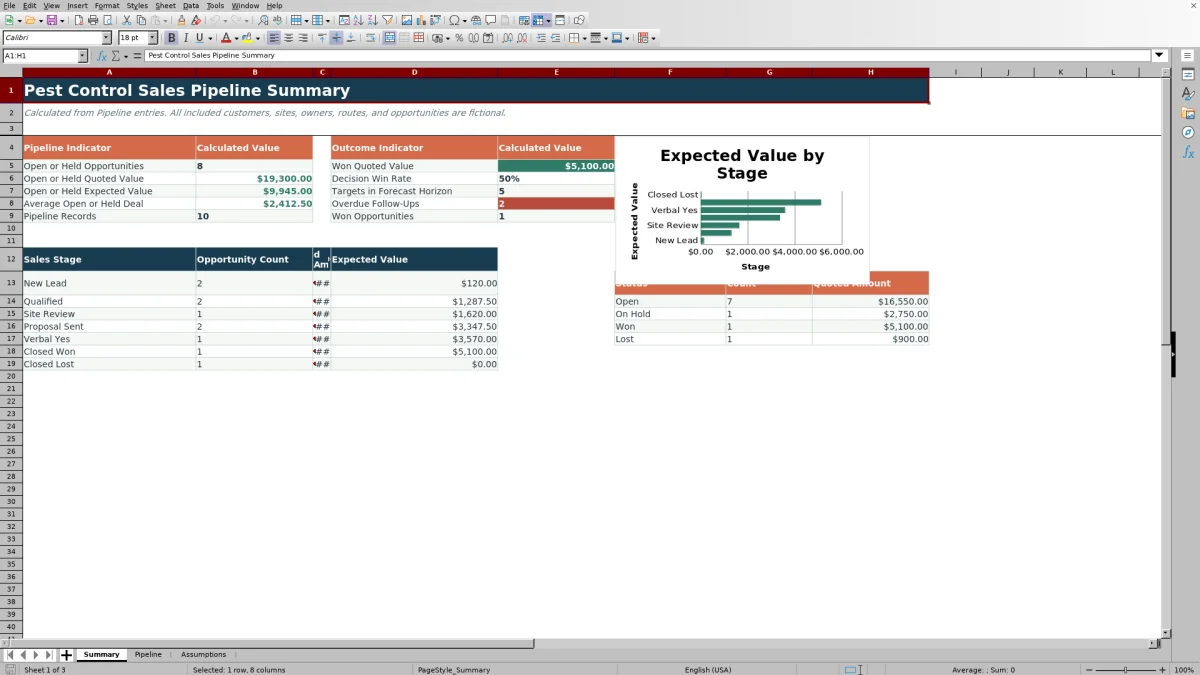
- Provides pipeline metrics, outcome metrics, stage totals, status totals, and a stage-based chart without rebuilding calculations.
What is in the file
How to get started
1. Configure the assumptions
Update the yellow cells on the Assumptions sheet with the sales stages, probabilities, pest concerns, services, routes, owners, statuses, quoted-amount limits, date limits, and forecast horizon your team uses.
2. Replace the fictional opportunities
Enter opportunity details in the yellow cells on the Pipeline sheet. Select controlled values from the available lists and add the quoted amount, target close date, next follow-up date, and current status.
3. Check the calculated fields
Review the probability, expected value, days to target, and record-alert columns. Correct missing dates or stage and status combinations that do not match.
4. Read the forecast
Use the Summary sheet to review active opportunity count, quoted and expected values, targets within the forecast horizon, overdue follow-ups, decision win rate, stage totals, status totals, and the stage chart.
What the sales forecast calculates
The workbook builds a weighted pipeline from each quoted amount and the probability assigned to its sales stage. Open and On Hold records feed active pipeline totals, while Won and Lost records support outcome reporting.
- Stage reporting shows opportunity count, quoted amount, and expected value.
- Status reporting shows count and quoted amount.
- Active pipeline reporting shows count, quoted value, expected value, and average deal value.
- Outcome reporting shows won quoted value, won opportunity count, and decision win rate.
Worked scenario for a fictional opportunity
Input: Enter a fictional opportunity with a $4,800 quoted amount, select Proposal Sent as the sales stage, set the status to Open, and add target close and next follow-up dates. The supplied Proposal Sent probability is 65%.
Result: The Expected Value formula returns $3,120. The opportunity is included in the Open status totals, the active pipeline indicators, and the Proposal Sent stage totals. Days to Target changes with the current date.
Interpretation: The $3,120 value is a probability-weighted forecast amount, not a confirmed sale. It lets the stage summary reflect both the size of the quote and its assigned likelihood.
Next decision: Complete the scheduled follow-up. If the opportunity advances, select its new stage so the probability and expected value recalculate; if it closes, align the closed stage with Won or Lost status.
Target close dates and follow-ups
The workbook uses date-based alerts to identify active records that need attention. It can indicate that a target date or follow-up date is missing, that a target date has passed, or that a populated follow-up date is overdue.
The Summary sheet separately counts Open and On Hold opportunities with target dates between today and the configurable forecast horizon. It also counts overdue follow-ups for those active statuses.
Common errors and solutions
- Blank probability or expected value: select a Sales Stage that exactly matches an entry on the Assumptions sheet and enter a quoted amount.
- Stage and status mismatch: pair Closed Won with Won and Closed Lost with Lost. Do not use a closed stage with Open or On Hold status.
- Missing target or follow-up date: enter a permitted date in the corresponding yellow cell.
- Passed target or overdue follow-up: update the opportunity after the next sales action and enter the current relevant date.
- Rejected amount or date: check the minimum amount, maximum amount, earliest date, and latest date on the Assumptions sheet.
Editable assumptions and controlled entries
The Assumptions sheet stores the seven sales stages and their probabilities, plus the available pest concerns, proposed services, routes, opportunity owners, and statuses. Pipeline lists draw from these cells.
Probability entries are limited to values from 0 through 1. The sheet also holds minimum and maximum quoted amounts, date boundaries used by Pipeline validation, and the whole-number forecast horizon used by the Summary formulas.
Workbook and blank spreadsheet comparison
Use the prepared workbook when its verified fields and calculations fit the pest-control task. Start with a blank spreadsheet when you need a different model and can build and test every field and formula yourself.
| Method | Setup | Calculations and review | Practical fit |
|---|---|---|---|
| This Excel workbook | Use the prepared structure in the validated file | Review the documented calculations and results | Local editable pest-control workflow supported by the workbook |
| Blank spreadsheet | Create the structure yourself | Build and test every formula and check | A custom model built from scratch |
Practical workbook limits
- The prepared formulas and Summary ranges cover Pipeline rows 4 through 103, for a total of 100 opportunities.
- The Pipeline range is not an Excel table, so entries beyond row 103 are not automatically included in the supplied formulas, validations, summaries, or chart.
- Every opportunity in the same sales stage receives the same probability from the Assumptions sheet.
- Days-to-target and follow-up indicators depend on the TODAY function and therefore change with the current date.
- The included customers, sites, owners, routes, and opportunities are fictional examples that should be replaced before operational use.
Frequently asked questions
How is expected value calculated?
Expected Value equals the quoted amount multiplied by the probability assigned to the selected sales stage. If the stage or quoted amount is blank, the expected value remains blank.
Can the sales-stage probabilities be changed?
Yes. Edit the probability cells beside the seven sales stages on the Assumptions sheet. Each probability must be between 0 and 1, and Pipeline calculations will use the updated values.
How many opportunities can the supplied workbook track?
The prepared Pipeline sheet contains 100 opportunity rows, covering rows 4 through 103. The formulas, validation rules, Summary calculations, and chart use those fixed ranges.
Which statuses count as active pipeline?
The active pipeline indicators include opportunities with Open or On Hold status. Won and Lost opportunities are excluded from active totals and used in outcome calculations.
How does the workbook calculate decision win rate?
Decision win rate equals the number of Won opportunities divided by the combined number of Won and Lost opportunities. The result remains blank when there are no decided opportunities.
Editorial responsibility

Maya EllisService workflow editor

Noah BennettWorkbook structure and operations