This pest control customer onboarding checklist is an Excel workbook for coordinating customer details, signed terms, property data, contact verification, access, billing setup, and first service scheduling.
The workbook provides space for 100 onboarding records, formula-generated missing-item and readiness results, a management summary, and editable assumptions and lists. All included customer and assignment examples are fictional sample data.
How this workbook can help
- Keep customer, property, contact, checklist, billing, and scheduling details in one structured record.
- See which accounts are Ready, In Progress, or marked Needs Review without manually classifying each row.
- Identify incomplete checklist items, missing assignments, aging records, and first services within the upcoming window.
- Summarize estimated setup hours and setup amounts for the populated onboarding records.
What is in the file
How to get started
1. Configure the assumptions
Review the upcoming service window, follow-up age, numeric limits, date limits, checklist statuses, services, pest concerns, technicians, routes, and responsibilities on the Assumptions sheet.
2. Enter the customer and service details
On the Onboarding sheet, replace the fictional sample data with the customer, service site, primary contact, phone or email, pest concern, selected service, and onboarding start date.
3. Complete the checklist and scheduling fields
Update the five checklist statuses, then enter the first service date, technician, route, estimated hours, estimated setup amount, and next-step responsibility.
4. Review the calculated results
Use the Missing Items and Onboarding Status columns to address incomplete records. Check the Summary sheet for readiness counts, upcoming services, aging records, setup totals, and missing scheduling assignments.
What the onboarding checklist covers
The Excel workbook organizes the sales-to-service handoff around five checklist checkpoints: signed terms, property data, contact check, access, and billing setup. Each record also includes the customer and service site, primary contact information, pest concern, service, onboarding start date, first service date, technician, route, estimated hours, estimated setup amount, and next-step responsibility.
A phone number or email satisfies the contact-method requirement. The workbook then combines the entered information with the five checklist statuses to calculate missing items and overall onboarding status.
How onboarding readiness is calculated
A populated record displays Ready when the required customer, site, contact, pest concern, service, and start-date fields are present; at least a phone number or email is entered; all five checklist statuses are Complete; and the first service date, technician, route, estimated hours, estimated setup amount, and responsibility are filled.
A record becomes Needs Review when any checklist field is set to Needs Review or its first service date is earlier than the current date. Other populated records remain In Progress, while completely unused rows remain blank.
Worked onboarding scenario
Input to decision: A fictional account, Pine Lantern Market LLC, has complete customer, site, contact, service, billing, assignment, estimate, and first-service information. Signed terms, property data, contact check, and billing setup are Complete, but Access Status is In Progress.
The result is an In Progress onboarding status, and the Missing Items column identifies access as unresolved. This means the record does not yet meet the workbook's Ready conditions. The next decision is to complete the access setup and update its status; if every other required field remains filled and the first service date is not past, the record changes to Ready.
Common errors and solutions
Resolve the flagged field rather than overwriting a formula result. If a record remains In Progress, check the Missing Items column and confirm that every checklist field uses Complete where appropriate. Not Started and In Progress values are intentionally treated as incomplete.
- If a record shows Needs Review, check for a checklist status of Needs Review or a first service date earlier than today.
- If a dropdown does not show a newly added option, confirm that the option is inside the fixed source range used by that validation rule or extend the corresponding validation source.
- If a blank row is absent from Summary totals, enter onboarding data in columns A through S; unused rows intentionally produce no status and are not counted.
- If a record has no first service date, enter the date when available and use the Summary count of missing dates to track the exception.
Using the summary for follow-up
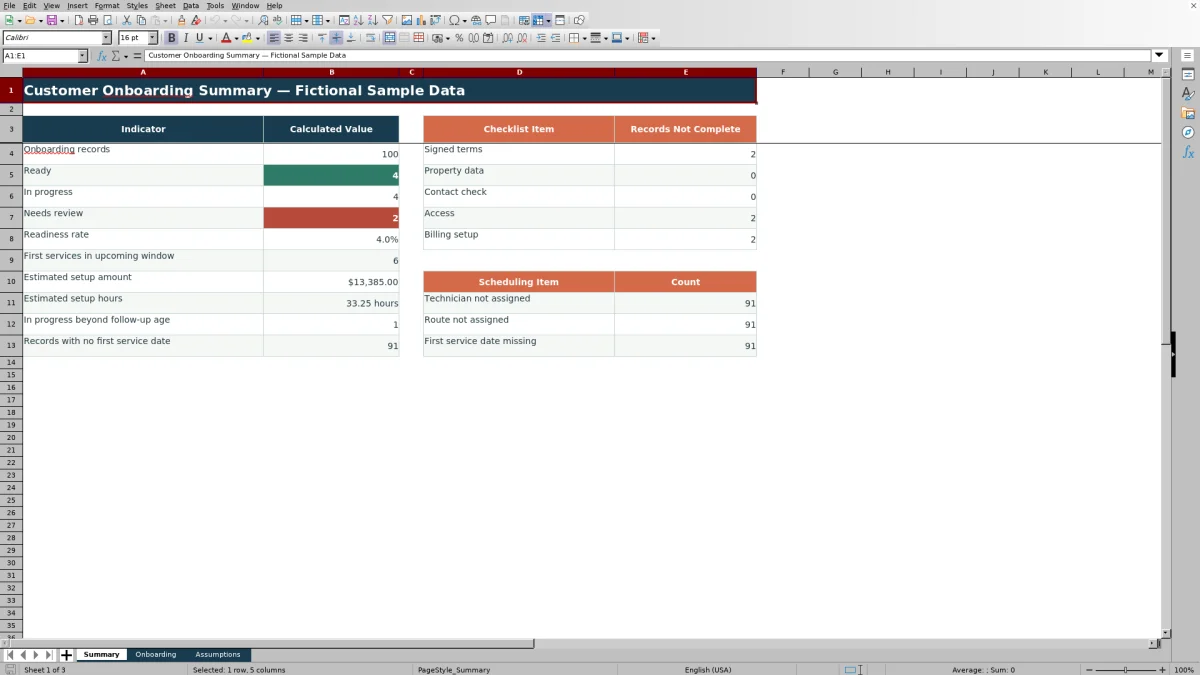
The Summary sheet helps teams prioritize the queue by reporting total records, Ready, In Progress, Needs Review, readiness rate, upcoming first services, estimated setup hours, and estimated setup amount. It also counts records missing each checklist completion, technician assignment, route assignment, or first service date.
The upcoming-service count uses the editable calendar-day window on the Assumptions sheet. The aging indicator counts In Progress records whose onboarding start date is older than the configured follow-up age.
Workbook and blank spreadsheet comparison
Use the prepared workbook when its verified fields and calculations fit the pest-control task. Start with a blank spreadsheet when you need a different model and can build and test every field and formula yourself.
| Method | Setup | Calculations and review | Practical fit |
|---|---|---|---|
| This Excel workbook | Use the prepared structure in the validated file | Review the documented calculations and results | Local editable pest-control workflow supported by the workbook |
| Blank spreadsheet | Create the structure yourself | Build and test every formula and check | A custom model built from scratch |
Workbook limits to consider
The configured coverage is 100 onboarding records, with formulas and validation ending at row 102. Adding records beyond that range requires corresponding formula, validation, filter, and summary-reference updates.
The selectable lists use fixed ranges on the Assumptions sheet, so entries added outside those ranges will not automatically appear in the related dropdowns. Results that use TODAY(), including past-date status, upcoming services, and aging indicators, can change when Excel recalculates the file. The workbook contains no charts, Excel tables, or defined names.
Frequently asked questions
How many customer onboarding records does the Excel workbook support?
The configured Onboarding sheet supports 100 records in rows 3 through 102. Formula and validation coverage would need to be extended for additional rows.
What causes an onboarding record to show Needs Review?
A populated record shows Needs Review when at least one of the five checklist fields is set to Needs Review or when the first service date is earlier than the current date.
What must be completed for a record to show Ready?
The required customer, site, contact, service, start-date, checklist, first-service, technician, route, estimate, and responsibility fields must be filled. At least a phone number or email is required, and all five checklist statuses must be Complete.
Can the dropdown options be changed?
Yes. The Assumptions sheet contains the status, service, pest concern, technician, route, and responsibility options. Because the validation rules use fixed source ranges, those ranges must also be extended if new options are added outside the configured cells.
What does the Summary sheet report?
It reports onboarding volume and status, readiness rate, upcoming first services, estimated setup hours and amounts, aging In Progress records, incomplete checklist counts, and missing technician, route, or first service date assignments.
Editorial responsibility

Maya EllisService workflow editor

Noah BennettWorkbook structure and operations