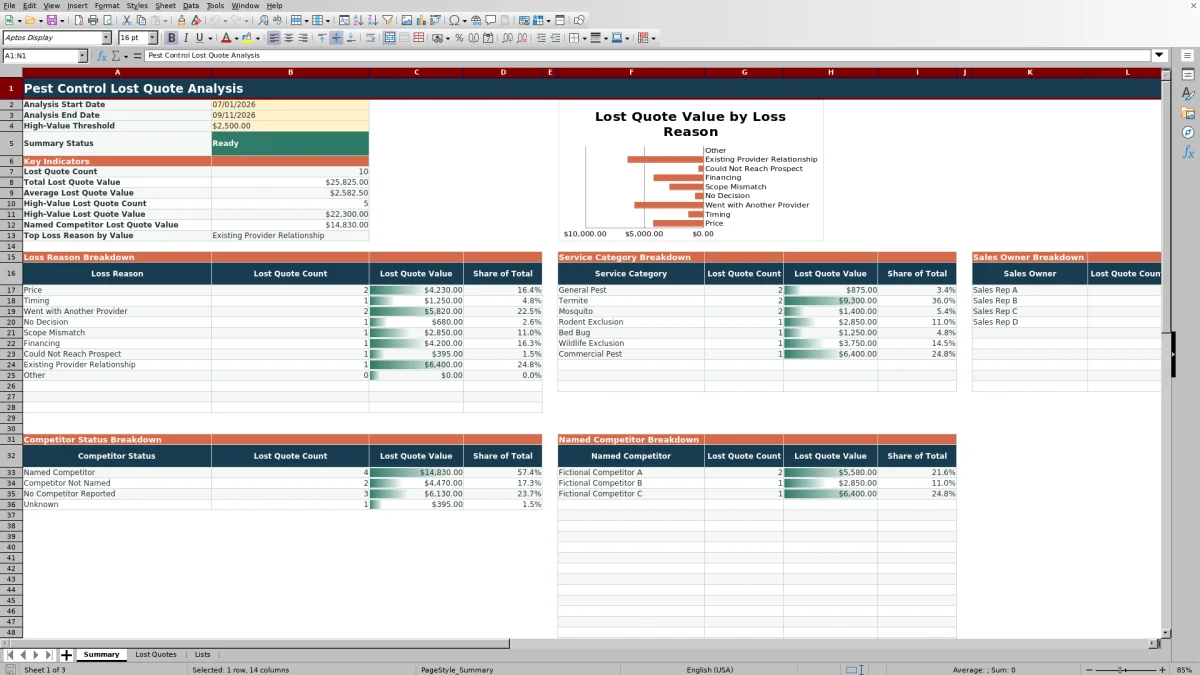
This pest control lost quote analysis Excel workbook organizes lost estimates by service category, quoted value, competitor, primary loss reason, and sales owner.
Enter up to 200 lost quotes, set the analysis period and high-value threshold, and use the Summary sheet to review valid records through key indicators, category breakdowns, and a loss-reason chart.
How this workbook can help
- Identify the services and loss reasons associated with the most lost quote value.
- Separate high-value opportunities using an adjustable threshold.
- Compare lost quote count, value, and share of total across sales owners and competitor classifications.
- Exclude records with identified data problems from summary calculations until they are corrected.
What is in the file
How to get started
1. Prepare the classification lists
Review the fictional options on the Lists sheet and replace them with the service categories, loss reasons, sales owners, competitor statuses, and competitor names used by the business. Keep entries within the prepared ranges that support the dropdowns and summary formulas.
2. Enter lost quotes
Add one lost estimate per row on the Lost Quotes sheet. Complete the quote ID, dates, sales owner, service category, quoted value, competitor fields, and primary loss reason.
3. Correct data-check messages
Review the Data Check column and correct populated rows that do not return OK. Summary calculations include only OK records whose Date Lost falls within the selected period.
4. Set assumptions and review results
Enter the analysis start date, analysis end date, and high-value threshold on the Summary sheet. Review the indicators and breakdowns by loss reason, service category, sales owner, competitor status, and named competitor.
What the lost quote workbook tracks
The Lost Quotes sheet records the quote ID, quote date, Date Lost, sales owner, service category, quoted value, competitor status, competitor name, and primary loss reason. These fields support consistent classification of lost pest control estimates without requiring customer or service-site details.
Decision Days, Value Band, and Data Check are calculated for each of the 200 prepared rows. Filters and frozen headers help users work through the input sheet while retaining the field names.
How the Summary calculations work
The Summary sheet applies the selected start and end dates to the Date Lost field. It uses OK records only, so a populated row with a data-check message does not contribute to the reported totals.
The key indicators report lost quote count, total and average lost value, high-value count and value, named competitor value, and the top loss reason by value. Additional sections calculate count, value, and share of total for the prepared classifications.
Worked scenario for a fictional lost estimate
Assume a fictional termite quote has a quote date of August 3, a Date Lost of August 14, a quoted value of $3,200, a named competitor, Price as the primary loss reason, and an analysis-period end date after August 14. The Summary threshold is a $2,500 threshold.
The input produces 11 Decision Days and a High Value classification. If the row returns OK, its $3,200 is included in the selected period's lost value and contributes to the relevant termite, price, sales-owner, competitor-status, and named-competitor totals.
The result indicates that this fictional estimate is both high value and associated with a named competitor. The next decision is to review the applicable summary categories and source rows to determine whether similar losses warrant a focused sales follow-up analysis.
Errors and solutions
The Data Check column identifies issues that must be corrected before a record is included in the summary. Common visible messages include Missing Quote ID, Duplicate Quote ID, Missing Date, Invalid Date, and Date Lost Before Quote Date.
- Assign a unique ID to each populated lost quote row.
- Enter valid Excel dates for Quote Date and Date Lost.
- Make sure Date Lost is not earlier than Quote Date.
- Correct the Summary assumptions if the status requests complete or corrected dates or threshold values.
After correcting an input, confirm that the row returns OK and that the Summary status returns Ready when valid lost quotes exist in the selected period.
Workbook and blank spreadsheet comparison
Use the prepared workbook when its verified fields and calculations fit the pest-control task. Start with a blank spreadsheet when you need a different model and can build and test every field and formula yourself.
| Method | Setup | Calculations and review | Practical fit |
|---|---|---|---|
| This Excel workbook | Use the prepared structure in the validated file | Review the documented calculations and results | Local editable pest-control workflow supported by the workbook |
| Blank spreadsheet | Create the structure yourself | Build and test every formula and check | A custom model built from scratch |
Workbook limits
The Lost Quotes sheet contains 200 prepared rows, and the summary formulas reference those fixed rows. The workbook does not use an Excel table, so adding records below row 201 does not automatically expand the calculations.
Dropdowns and summary categories also rely on prepared ranges on the Lists sheet. Entries placed outside those ranges do not automatically become available to the existing validation lists or summary breakdowns. The workbook analyzes lost estimates only; it does not measure won quotes or calculate a win rate.
Using the results for sales review
Start with total lost quote value and the high-value indicators, then compare the category shares to identify where lost value is concentrated. The named competitor total can show how much value is associated with records classified as Named Competitor.
Use the breakdowns as directional summaries rather than cross-tab reports. When a category stands out, filter the Lost Quotes sheet to inspect the underlying valid records and decide which sales process question should be investigated next.
Frequently asked questions
Which date controls whether a lost quote appears in the Summary?
The Summary uses Date Lost. A record must have a Date Lost within the selected start and end dates and a Data Check result of OK.
Can the high-value threshold be changed?
Yes. Enter a positive amount in the High-Value Threshold cell on the Summary sheet. The Value Band formulas classify quoted values at or above that amount as High Value.
How many lost quotes can the prepared workbook analyze?
The Lost Quotes sheet provides 200 prepared data rows, covering rows 2 through 201. The existing formulas and summary calculations use that fixed range.
What competitor information can be analyzed?
The workbook records competitor status and an optional competitor name. The Summary includes a competitor-status breakdown, a named-competitor breakdown, and the total lost quote value associated with Named Competitor records.
Why is a populated record missing from the Summary?
Check whether its Date Lost falls within the selected period and whether the Data Check column returns OK. Also review the Summary status for missing or invalid analysis assumptions.
Editorial responsibility

Maya EllisService workflow editor

Noah BennettWorkbook structure and operations