The Pest Control Service Agreement Register is an Excel workbook for organizing current agreements by account, service site, scope, frequency, start date, renewal date, billing basis, and status.
Its Agreements sheet supports 100 records, while calculated columns, a Summary sheet, and editable assumptions help track annual visits, annualized amounts, renewal timing, and status counts.
How this workbook can help
- Keep agreement, account, service, billing, renewal, and status details in one structured register.
- Identify active agreements approaching or passing their renewal dates based on an editable as-of date and alert window.
- Estimate annual service visits and annualized agreement amounts from frequency and billing assumptions.
- Promote consistent entries with dropdown lists, date limits, numeric limits, filters, and calculated fields.
What is in the file
How to get started
1. Configure the assumptions
Set the as-of date and renewal alert days, then confirm the frequency, billing basis, agreement status, quantity unit, multiplier, and entry-limit values.
2. Enter agreement records
Use rows 5 through 104 on the Agreements sheet to record each agreement ID, customer account, service site, scope, frequency, dates, service details, billing information, responsibility, and status.
3. Check the calculated results
Use the Annual Visits, Annualized Amount, Days to Renewal, and Renewal Check columns to identify incomplete entries, date issues, and upcoming account follow-up.
4. Use the summary and filters
Filter the agreement register for targeted account work, and use the Summary sheet to monitor totals, active agreements, renewal timing, annualized amounts, annual visits, holds, and missing renewal dates.
Agreement Information in One Register
The workbook provides a single register for agreement IDs, customer accounts, service sites, pest concerns, service scopes, frequencies, technicians, products, routes, dates, quantities, service hours, amounts, billing bases, customer responsibilities, and statuses.
Rows 5 through 104 provide 100 agreement-entry rows. Filters cover all 22 columns, and the frozen panes keep identifying columns and headers visible while navigating the register.
Renewal and Portfolio Indicators
The editable as-of date and renewal alert days control renewal timing calculations. For populated records, the workbook can calculate days to renewal and display a renewal check when dates require attention or an active agreement enters the alert window.
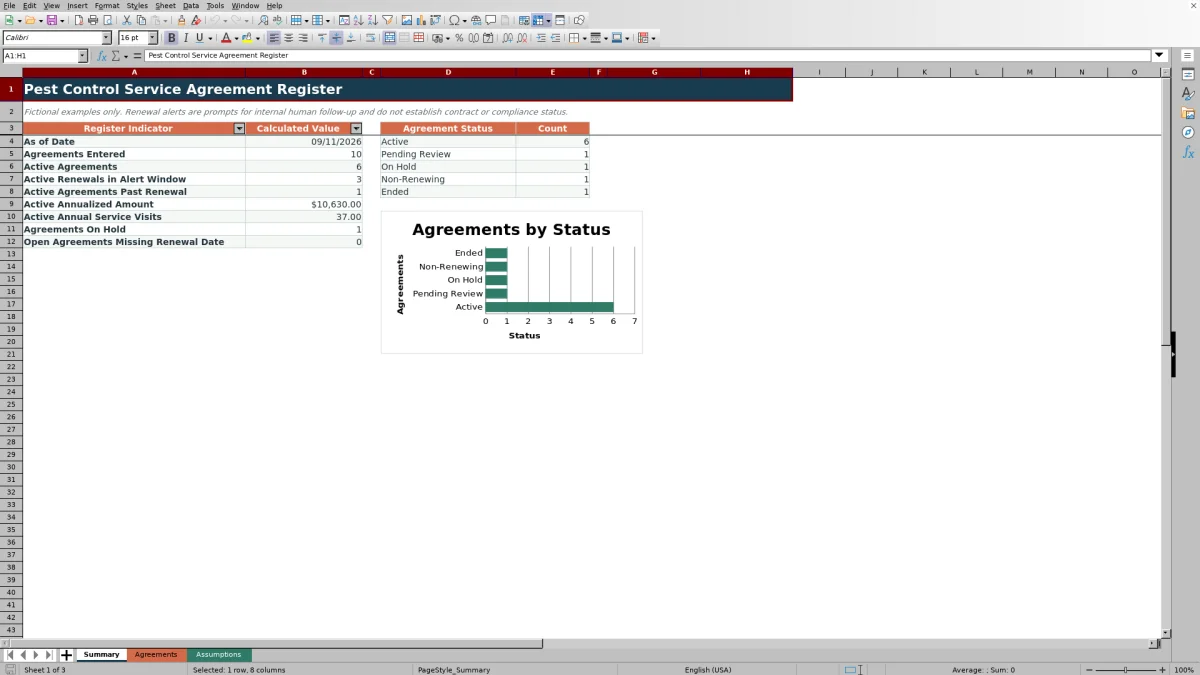
The Summary sheet counts entered, active, on-hold, and status-specific agreements. It also totals active annualized amounts and annual service visits, identifies active agreements past renewal, and counts open agreements without renewal dates.
Worked Scenario for a Fictional Agreement
Input: A fictional active agreement starts January 15, 2026, renews September 30, 2026, uses a monthly frequency, and bills $185 per visit. The as-of date is September 11, 2026, and the renewal alert window is 60 days.
Result: The formulas return 12 annual visits, a $2,220 annualized amount, and 19 days to renewal. The renewal check indicates that the agreement is due within the alert window.
Interpretation: The amount is an annualized estimate based on 12 visits at $185 each, while the date result places the active agreement inside the configured renewal period.
Next decision: Prioritize the fictional account for near-term renewal follow-up and update the register when its status or renewal date changes.
Common Errors and Solutions
- Blank Agreement ID: The row calculations require an agreement ID. Add the identifier so the applicable annual visit, amount, and renewal formulas can return results.
- Missing renewal date: Days to Renewal and Renewal Check remain blank. Enter the date when available; until then, a populated non-ended agreement is included in the Summary count for open agreements missing a renewal date.
- Start and renewal dates are reversed: The Renewal Check column flags the date order. Correct the inaccurate date so renewal timing can be calculated properly.
- The annualized amount is unexpected: Confirm the frequency, agreement amount, and billing basis. Per Visit uses annual visits, while Monthly and Annual use their editable annual multipliers.
Workbook and blank spreadsheet comparison
Use the prepared workbook when its verified fields and calculations fit the pest-control task. Start with a blank spreadsheet when you need a different model and can build and test every field and formula yourself.
| Method | Setup | Calculations and review | Practical fit |
|---|---|---|---|
| This Excel workbook | Use the prepared structure in the validated file | Review the documented calculations and results | Local editable pest-control workflow supported by the workbook |
| Blank spreadsheet | Create the structure yourself | Build and test every formula and check | A custom model built from scratch |
Workbook Limits
The prepared register is limited to 100 agreement-entry rows. Records entered below row 104 are outside the validated ranges, calculated columns, filters, and Summary formulas unless the workbook is deliberately extended.
Annual visits and annualized amounts are estimates driven by entered values and editable assumptions. Renewal checks are internal follow-up prompts and do not establish contract or compliance status. The included sample records are fictional.
Consistent Entry and Ongoing Updates
Dropdown validations control frequency, quantity unit, billing basis, and status entries. Additional validations limit agreement dates, quantity per visit, service hours per visit, and agreement amounts according to the Assumptions sheet.
Update the as-of date as needed, maintain current agreement statuses and renewal dates, and use the register filters with the Summary indicators to focus account follow-up on the relevant records.
Frequently asked questions
How many agreements can the Excel register hold?
The prepared entry area holds 100 agreements in rows 5 through 104. The formulas, validations, filters, conditional formatting, and Summary calculations are configured for that range.
How does the workbook calculate annualized agreement amounts?
For Per Visit billing, the workbook multiplies the agreement amount by the calculated annual visits. For Monthly and Annual billing, it applies the corresponding editable annual multiplier from the Assumptions sheet.
Which agreement statuses are included?
The supplied status list includes Active, Pending Review, On Hold, Non-Renewing, and Ended. These values populate the status dropdown and the status counts on the Summary sheet.
What happens when a renewal date is missing?
The Days to Renewal and Renewal Check fields remain blank. If the agreement has an ID and its status is not Ended, the Summary sheet includes it in the count of open agreements missing a renewal date.
Are the customer and agreement examples real?
No. The included customer accounts, sites, contacts, products, routes, and agreement records are explicitly fictional examples.
Editorial responsibility

Maya EllisService workflow editor

Noah BennettWorkbook structure and operations