This pest control vendor invoice tracker is an Excel workbook for organizing supplier bills, approval statuses, due dates, payment details, outstanding balances, and cost coding.
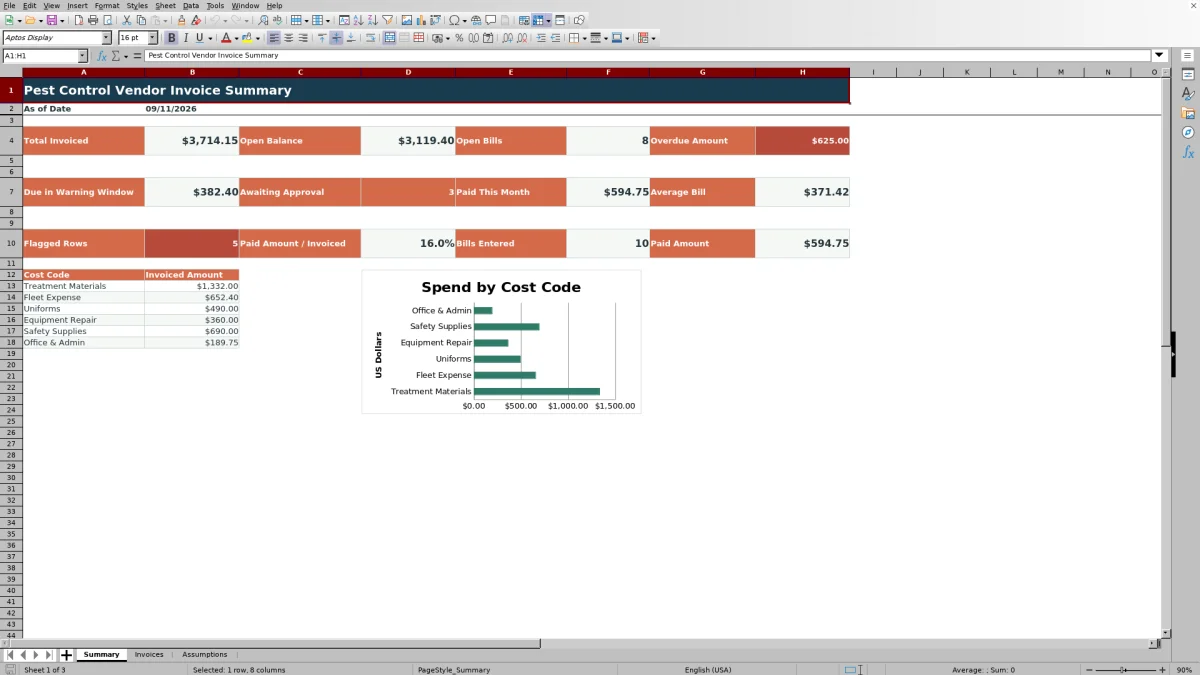
The XLSX includes a 100-row invoice register, editable assumptions, formula-driven calculations, entry validation, review alerts, summary metrics, and a chart of invoiced amounts by cost code.
How this workbook can help
- Keep supplier bill details, approval status, payment status, and responsibility in one register.
- Monitor open balances, overdue amounts, upcoming due dates, and payments recorded during the current month.
- Organize invoice spending by cost code and cost center or site.
- Identify missing fields, possible duplicate invoices, amount issues, and payments that exceed invoiced amounts.
What is in the file
How to get started
1. Configure the assumptions
Set the as-of date, due-soon window, balance tolerance, entry limits, vendor payment terms, cost codes, responsibilities, statuses, and units on the Assumptions sheet.
2. Enter each supplier bill
Use the Invoices sheet to record the ID, vendor, invoice number, invoice date, stated bill due date, service details, amount, cost code, site, and responsible role.
3. Track approval and due dates
Assign the approval and payment statuses, then check the calculated expected due date, balance due, days to due, and Review Alert. The expected date is a planning comparison based on the selected vendor's default terms.
4. Record payments and monitor totals
Enter the payment date and paid amount when applicable. Use the Summary sheet to monitor invoiced amounts, open balances, overdue bills, upcoming due amounts, pending approvals, payments, and cost-code totals.
A Central Register for Pest Control Supplier Bills
The Invoices sheet provides a single invoice register for up to 100 bills. Each row can hold a record ID, vendor invoice number, invoice and due dates, product or service description, quantity, unit, amount, responsibility, approval status, payment status, and cost assignment.
Filters across the 20 columns help isolate records by vendor, site, cost code, status, due date, or another populated field without separating the operational details into multiple files.
Due-Date and Balance Tracking
The workbook distinguishes the stated bill due date from the expected due date. Staff enter the date shown on the invoice, while the expected date is calculated from the invoice date and the selected fictional vendor's editable default terms.
Balance Due subtracts the paid amount from the invoice amount without returning a negative balance. Days to Due is calculated for open balances, and the Summary sheet uses the editable as-of date and warning window to report overdue amounts and bills approaching their stated due dates.
Cost Coding and Summary Metrics
The Summary sheet adds cost-code visibility to the invoice register. It displays total invoiced, open balance, open bill count, overdue amount, amount due within the warning window, invoices pending approval, paid amount for the current month, average bill, flagged rows, bills entered, and total paid amount.
Six editable cost-code entries from the Assumptions sheet feed corresponding invoiced totals and a chart, while the Cost Center / Site field preserves location-level context on each invoice row.
Worked Pest Control Invoice Scenario
Input: Using the included fictional example, enter an August 20, 2026 invoice for $620 from Fictional Fable Shield Supply Co., with a stated due date of September 19, no payment recorded, and 30-day default terms. Keep the included as-of date of September 11 and the seven-day warning window.
Result: The expected due date is September 19, the balance due is $620, and Days to Due is 8.
Interpretation: The invoice remains open but is one day outside the seven-day due-soon window on September 11, so its balance is not yet included in that warning total.
Next decision: Because the example is approved but unpaid, decide whether to change its payment status to Scheduled before September 19. When payment occurs, enter the payment date and paid amount so the balance and summary totals update.
Common Errors and Solutions
The Review Alert column can identify missing required fields, a nonpositive invoice amount, a possible duplicate vendor and invoice-number combination, or a paid amount above the invoice amount after the balance tolerance is considered.
- If fields are missing, complete the required bill, coding, responsibility, approval, and payment-status entries.
- If a possible duplicate appears, compare the vendor and vendor invoice number with the other entered rows and correct the duplicated entry when needed.
- If an amount warning appears, check the invoice amount and paid amount against the source bill and recorded transaction.
- If Expected Due Date is blank, confirm that the vendor and invoice date are populated and that the vendor appears in the assumptions list.
Workbook and blank spreadsheet comparison
Use the prepared workbook when its verified fields and calculations fit the pest-control task. Start with a blank spreadsheet when you need a different model and can build and test every field and formula yourself.
| Method | Setup | Calculations and review | Practical fit |
|---|---|---|---|
| This Excel workbook | Use the prepared structure in the validated file | Review the documented calculations and results | Local editable pest-control workflow supported by the workbook |
| Blank spreadsheet | Create the structure yourself | Build and test every formula and check | A custom model built from scratch |
Workbook Limits and Boundaries
The main operational boundary is the fixed formula and validation range of rows 6 through 105, which supports 100 invoice records. The summary cost-code analysis uses six entries from the Assumptions sheet, and the vendor defaults occupy six provided rows.
The workbook records entered payment information but does not process payments or verify outside records. Expected Due Date is a planning calculation based on editable vendor defaults and does not replace the due date stated on the supplier's bill.
Frequently asked questions
How many pest control vendor invoices can the workbook track?
The Invoices sheet provides 100 prepared entry rows, from row 6 through row 105. Formulas and validation are already applied across those rows.
What is the difference between Bill Due Date and Expected Due Date?
Bill Due Date is the date entered from the supplier's invoice. Expected Due Date is calculated from the invoice date and the selected vendor's default payment terms on the Assumptions sheet, so it serves as a planning comparison.
Can the tracker handle a partially paid invoice?
Yes. Enter the amount already paid in Paid Amount and select Partially paid as the payment status when applicable. Balance Due calculates the remaining amount from the invoice amount and paid amount.
Can the dropdown lists be customized?
Yes. The provided vendor defaults, cost codes, responsibilities, approval statuses, payment statuses, and units can be edited in their existing list ranges on the Assumptions sheet.
Does the Excel workbook process vendor payments?
No. It records payment status, payment date, and paid amount for tracking purposes, but it does not initiate or process payments or verify information against outside records.
Editorial responsibility

Maya EllisService workflow editor

Noah BennettWorkbook structure and operations