This pest control door-to-door territory planner is an Excel workbook for assigning canvass dates, territories, routes, representatives, planned doors, hours, and statuses.
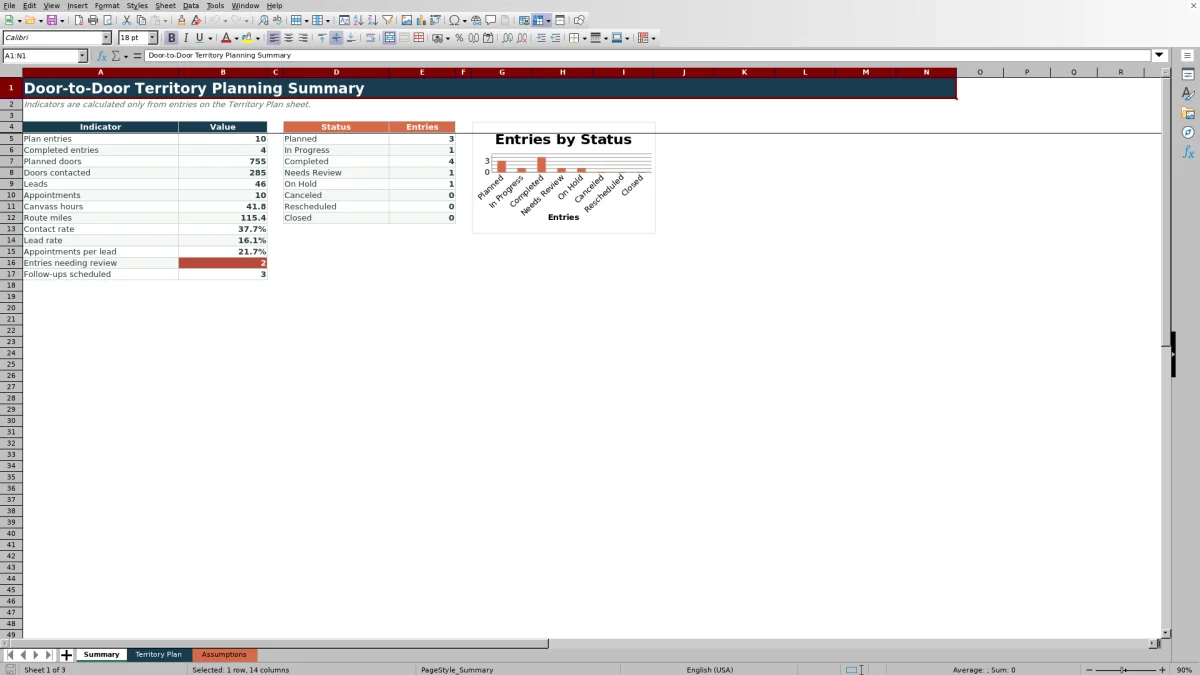
Use the spreadsheet to record doors contacted, miles, leads, appointments, outcomes, and follow-up dates while calculated rates, plan checks, summary indicators, and a status chart organize the results.
How this workbook can help
- Keep territory assignments, schedules, representatives, and activity results in one structured plan.
- Track progress from planned doors through contacts, leads, appointments, outcomes, and follow-ups.
- Calculate contact and lead rates without manually building formulas for each entry.
- Maintain consistent territory, route, representative, outcome, status, date, and numeric entries through editable assumptions and validation rules.
What is in the file
How to get started
1. Update the planning choices
Open the Assumptions sheet and replace the fictional territories, routes, representatives, outcomes, statuses, and planning limits with the values used by the business.
2. Assign the canvassing work
On the Territory Plan sheet, enter the canvass date, territory, route, representative, planned doors, expected hours, and status in the editable cells.
3. Record field activity
Add miles, doors contacted, leads, appointments, the outcome, and any follow-up date after each canvassing period.
4. Check results and update the plan
Resolve messages in the Plan Check column, filter the table by assignment or status, and use the Summary sheet to examine totals, rates, follow-ups, and status counts.
Structure each canvassing assignment
Each row creates an assignment record containing the canvass date, territory, route, representative, planned doors, expected hours, miles, activity results, outcome, follow-up date, and status. Filters on the Territory Plan table help isolate entries by any of these fields.
Calculate activity rates and summary indicators
The row-level contact rate divides doors contacted by planned doors, while the lead rate divides leads by doors contacted. Blank or unavailable inputs return a blank result instead of a calculation error.
The Summary sheet aggregates plan entries, completed entries, doors, hours, miles, leads, appointments, scheduled follow-ups, and status counts. The Plan Check column identifies entries with missing required fields or inconsistent counts.
Worked fictional canvassing scenario
Input: Avery Example is assigned Fictional Cedar Sector and Fictional Route A for August 30, 2026, with 80 planned doors and 4.5 hours.
Result: Entering 48 doors contacted, 9 leads, and 3 appointments produces a 60.0% contact rate and an 18.8% lead rate for that row. The entry also contributes those figures to the Summary sheet.
Interpretation: The representative contacted three of every five planned doors, and a little under one in five contacted doors generated a lead.
Next decision: Keep the September 6 follow-up date attached to the completed entry, then compare this route's rates with other recorded routes before assigning a future canvass period.
Common entry errors and solutions
The workbook checks several common data-entry conflicts within each plan row.
- If the date, territory, route, representative, planned doors, hours, or status is missing, complete the required plan fields.
- If doors contacted exceed planned doors, correct either count to match the recorded activity.
- If leads are entered without contacts, add the doors contacted value. If leads exceed contacts, correct the applicable count.
- If appointments are entered without leads, add the lead count or correct the appointment entry.
- If a date or numeric value falls outside an editable assumption limit, revise the value or update the applicable limit on the Assumptions sheet.
Workbook and blank spreadsheet comparison
Use the prepared workbook when its verified fields and calculations fit the pest-control task. Start with a blank spreadsheet when you need a different model and can build and test every field and formula yourself.
| Method | Setup | Calculations and review | Practical fit |
|---|---|---|---|
| This Excel workbook | Use the prepared structure in the validated file | Review the documented calculations and results | Local editable pest-control workflow supported by the workbook |
| Blank spreadsheet | Create the structure yourself | Build and test every formula and check | A custom model built from scratch |
Workbook limits
The existing formulas, validations, table, and summary ranges cover 100 planning rows, from row 5 through row 104. Adding capacity requires extending the applicable table, formulas, validation rules, and summary references.
Each territory, route, representative, outcome, and status validation source currently spans eight choice cells on the Assumptions sheet. Territory and route are selected from separate lists rather than from a dependent territory-to-route relationship.
Editable assumptions and controls
The Assumptions sheet contains the source choices used by the plan's dropdowns. It also stores upper limits for planned doors, hours, miles, contacts, leads, and appointments, along with minimum and maximum dates.
Changing these source cells updates the available choices or permitted entry range within the existing validated Territory Plan rows.
Frequently asked questions
Which fields are required for a complete plan entry?
The Plan Check formula expects a canvass date, territory, route, representative, planned doors, hours, and status. Result fields can be completed as activity becomes available.
How are contact rate and lead rate calculated?
Contact rate is doors contacted divided by planned doors. Lead rate is leads divided by doors contacted. The formulas return a blank cell when the required inputs are blank or the calculation produces an error.
Can the territory, route, representative, outcome, and status choices be changed?
Yes. Replace the fictional entries in the corresponding choice lists on the Assumptions sheet. The Territory Plan dropdowns reference those cells.
Can the planner hold more than 100 entries?
The provided planning area contains 100 rows. Additional capacity requires extending the table, row formulas, validations, formatting, and Summary sheet references beyond row 104.
What statuses are included in the workbook?
The supplied status list contains Planned, In Progress, Completed, Needs Review, On Hold, Canceled, Rescheduled, and Closed. These choices can be replaced on the Assumptions sheet.
Editorial responsibility

Maya EllisService workflow editor

Noah BennettWorkbook structure and operations