The Pest Control Lead Tracker Excel Spreadsheet is an XLSX workbook for organizing prospects, service sites, lead sources, property types, pest concerns, requested services, owners, sales stages, dates, next actions, and estimated amounts.
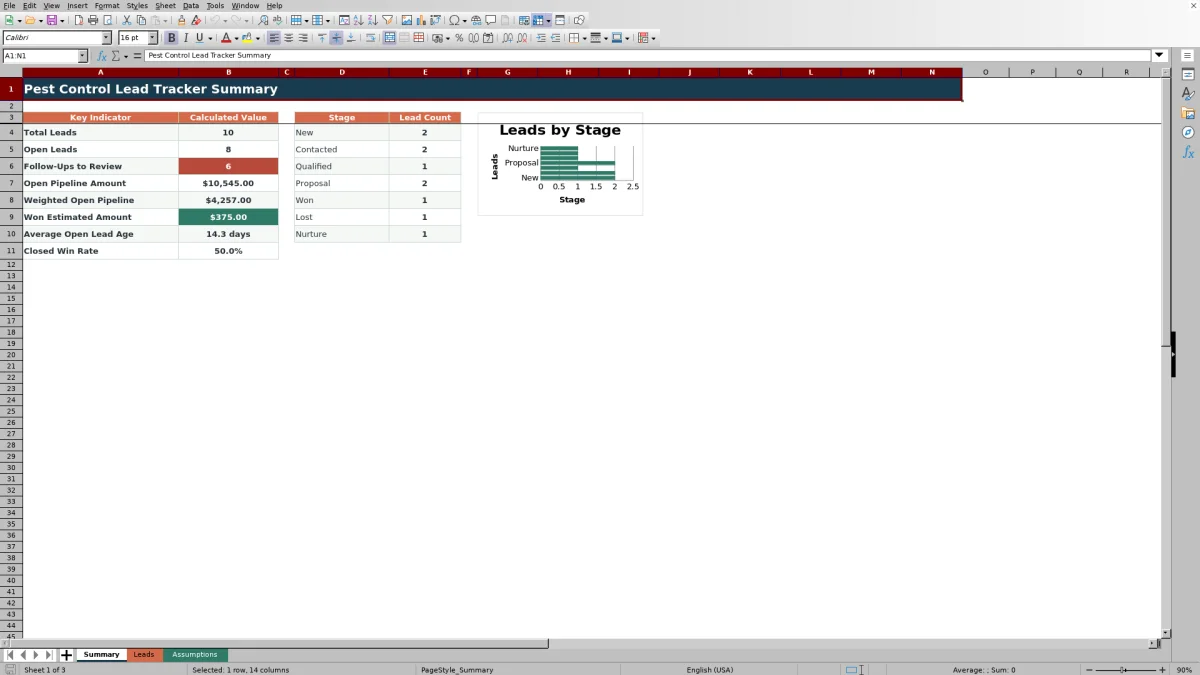
The workbook combines a 100-row lead register with formula-based follow-up alerts, weighted pipeline calculations, configurable assumptions, summary indicators, and a chart showing lead counts by stage.
How this workbook can help
- Keep prospect, property, service, ownership, and follow-up details in one organized record.
- Identify overdue, upcoming, missing, or invalid next-action dates through formula-based alerts.
- Estimate open pipeline value using configurable probabilities for each sales stage.
- Standardize recurring entries with dropdown lists for sources, property types, pest concerns, services, owners, and stages.
What is in the file
How to get started
1. Configure the assumptions
Open the Assumptions sheet to set the due-soon window, allowed date range, maximum estimated amount, stage probabilities, and dropdown-list options.
2. Enter each lead
Use the yellow cells on the Leads sheet to record the lead ID, prospect, service site, source, property type, pest concern, requested service, owner, stage, dates, next action, and estimated amount.
3. Check calculated results
Read the Probability, Weighted Value, Lead Age, and Follow-Up Alert columns. These formula cells respond to the stage, amount, created date, and next-action date entered for each lead.
4. Review the summary
Use the Summary sheet to examine lead totals, follow-ups to review, open pipeline, weighted open pipeline, won estimated amounts, average open lead age, closed win rate, and lead counts by stage.
Lead Fields and Daily Workflow
The Leads sheet provides one row per prospect across rows 5 through 104. Input columns cover the lead ID, prospect name, service site, source, property type, pest concern, requested service, owner, stage, created date, last contact date, next-action date, next action, and estimated amount.
- Dropdowns standardize recurring categories without requiring repeated typing.
- Date validation applies configured boundaries to created, contact, and next-action dates.
- Estimated amounts must fall between zero and the configured maximum.
- The frozen header area and filter across columns A through R support sorting and focused list views.
Pipeline Calculations and Summary
The selected stage determines the probability through a lookup against the Assumptions sheet. Weighted Value multiplies Estimated Amount by that probability, while Lead Age uses the created date and the current date.
The Summary sheet counts total and open leads, identifies follow-ups to review, and totals open, weighted, and won estimated amounts. It also calculates average open lead age and the win rate among leads marked Won or Lost. A chart displays lead counts for the configured stages.
Worked Scenario: From Entry to Next Decision
Input: On October 15, 2026, a fictional lead is entered with a created date of October 5, a Qualified stage, an estimated amount of $1,800, and a next-action date of October 14.
Result: The configured Qualified probability is 40%, so Weighted Value becomes $720. Lead Age becomes 10 days, and the Follow-Up Alert displays Overdue. Relative to the prior summary, open pipeline increases by $1,800, weighted open pipeline increases by $720, and the Qualified stage count increases by one.
Interpretation: The record represents an open qualified opportunity with an estimated pipeline contribution and a next-action date that has passed. The weighted amount is a planning value rather than a confirmed outcome.
Next decision: Update the last-contact date after contact occurs, enter the next planned action and date, and change the stage only when the lead's sales status changes.
Errors and Solutions
Common corrections focus on the inputs used by the formulas and summary ranges.
- Error: The Lead ID is blank. Solution: Enter an ID because the summary counts and calculated columns use column A to identify populated records.
- Error: A pasted stage does not match the configured list. Solution: Select or enter a listed stage so the probability lookup can return a value.
- Error: The Follow-Up Alert says Set next action. Solution: Enter a valid next-action date when an action has been planned.
- Error: The alert says Check date. Solution: Replace text or an invalid value with an Excel date inside the configured range.
- Error: An estimated amount is rejected. Solution: Correct the amount or update the maximum estimated amount on the Assumptions sheet before entering it.
Workbook and blank spreadsheet comparison
Use the prepared workbook when its verified fields and calculations fit the pest-control task. Start with a blank spreadsheet when you need a different model and can build and test every field and formula yourself.
| Method | Setup | Calculations and review | Practical fit |
|---|---|---|---|
| This Excel workbook | Use the prepared structure in the validated file | Review the documented calculations and results | Local editable pest-control workflow supported by the workbook |
| Blank spreadsheet | Create the structure yourself | Build and test every formula and check | A custom model built from scratch |
Limits and Scope
The prepared lead area covers 100 records in rows 5 through 104. Summary formulas, validation ranges, and calculated columns refer to those rows, so expanding beyond them requires extending the relevant formulas and ranges.
- Stage probabilities are configurable planning weights and do not predict whether a lead will close.
- Estimated and weighted amounts are pipeline measures rather than recorded revenue.
- Lead ages and follow-up alerts can change as the TODAY function recalculates.
- Calculated results depend on complete and valid lead IDs, stages, dates, and estimated amounts.
Frequently asked questions
What information can the pest control lead tracker store?
It stores a lead ID, prospect name, service site, lead source, property type, pest concern, requested service, owner, stage, created date, last-contact date, next-action date, next action, and estimated amount. Four additional columns provide calculated results.
How does the Excel workbook determine the follow-up alert?
Won and Lost leads are labeled Closed. Open leads receive Set next action when no next-action date exists, Overdue when the date has passed, Due soon when it falls inside the configured window, Scheduled when it falls later, or Check date when the value cannot be interpreted correctly.
How is weighted pipeline value calculated?
The workbook looks up the probability assigned to the selected stage and multiplies it by the lead's estimated amount. The Summary sheet totals weighted values for leads that are not marked Won or Lost.
Can the dropdown options and probabilities be changed?
Yes. The Assumptions sheet contains the stage probabilities and the lists for lead sources, property types, pest concerns, requested services, and lead owners. The Leads sheet dropdowns refer to those configured ranges.
How many leads are prepared in the spreadsheet?
The Leads sheet includes 100 prepared data rows, from row 5 through row 104. Its formulas, validation rules, filter, and Summary calculations are configured for that range.
Editorial responsibility

Maya EllisService workflow editor

Noah BennettWorkbook structure and operations