This pest control inspection checklist is an Excel workbook for recording general initial inspection details across customer sites. It organizes evidence observed, affected areas, contributing conditions, and recommended service scope alongside customer, site, technician, route, and pest concern information.
Use the editable inputs to capture estimated hours, estimated amount, responsibility, status, and follow-up date. Calculated days open, record alerts, summary indicators, and a status chart help keep sales and service-planning records organized.
How this workbook can help
- Creates consistent initial inspection records for customers and service sites.
- Surfaces missing details and follow-ups that are due through calculated alerts.
- Consolidates record counts, status totals, time estimates, and estimated amounts.
- Allows teams to customize operating choices and planning limits on one assumptions sheet.
What is in the file
How to get started
1. Configure choices and limits
Open the Assumptions sheet to edit the status, responsibility, pest concern, service scope, route, and technician choices. Set the allowed date range, maximum estimated hours, maximum estimated amount, and follow-up timing.
2. Enter inspection details
On the Inspection Checklist sheet, add a unique inspection ID and complete the customer, service site, inspection date, technician, route, pest concern, affected area, evidence, and contributing conditions. Editable cells are shaded pale yellow.
3. Record the proposed scope
Select a recommended service scope, enter estimated hours and amount, assign responsibility, choose a status, and add a follow-up date when applicable.
4. Check alerts and totals
Read the Days Open and Review Alert columns, then use the Summary sheet to monitor record totals, status counts, follow-ups due, missing details, estimates, and closure rate.
What the inspection checklist records
The main sheet provides 100 inspection rows, covering cells A6 through R105. Each row can hold an inspection ID, customer, service site, inspection date, technician, route, pest concern, affected area, evidence observed, contributing conditions, recommended service scope, estimates, responsibility, status, and follow-up date.
The layout keeps descriptive inspection notes beside sales-planning fields, reducing the need to assemble the proposed scope and estimates from separate records.
Controlled inputs and calculated fields
Nine validation rules support dropdown lists and acceptable values for dates, hours, and amounts. The selectable choices are supplied from the Assumptions sheet, where teams can edit statuses, responsibilities, pest concerns, service scopes, routes, and technicians.
Days Open calculates elapsed time from the inspection date for records that are not closed or declined. Review Alert identifies records with missing details, follow-ups that are due, or records ready for the next sales workflow step.
Worked scenario for a follow-up record
Input: Fictional Maple Street Cafe is entered with a unique inspection ID, a past inspection date, complete customer and inspection details, the status Follow-up Needed, and a follow-up date old enough to meet the timing set on the Assumptions sheet.
Result: Days Open displays the elapsed number of days, Review Alert displays Follow-up due, and the Summary sheet increases the follow-up count by one.
Interpretation: The record remains active and its planned follow-up has reached the configured threshold.
Next decision: Contact the fictional customer, confirm the proposed service scope, and update either the follow-up date or status based on the sales conversation.
Common errors and solutions
- If Review Alert shows Check missing details, complete the inspection ID, columns B through K, and the responsibility and status fields in columns N and O.
- If an entry is not available in a dropdown, select a listed value or update the corresponding choices on the Assumptions sheet.
- If a date or estimate fails validation, compare it with the earliest date, latest date horizon, maximum hours, or maximum amount configured on the Assumptions sheet.
- If Follow-up due appears unexpectedly, check the current status, follow-up date, and follow-up timing assumption.
Workbook limits
The configured checklist capacity is 100 records in rows 6 through 105, and the Summary formulas reference that same fixed range. Additional rows require the formulas, validations, formatting, and summary references to be extended.
Date-based calculations use TODAY(), so displayed values depend on the workbook calculation date. Estimated hours and estimated amounts are entered manually within the configured limits; the workbook does not derive those estimates from the inspection notes. The chart reports status counts rather than every summary indicator.
Comparison with a paper inspection form
The complete operational workbook combines a checklist, editable assumptions, calculated alerts, summary indicators, and a status chart. It is more suitable when standardized entries, date calculations, and consolidated reporting are part of the process. A paper inspection form is more suitable when a standalone handwritten record is preferred.
| Criterion | Excel workbook | Paper inspection form |
|---|---|---|
| Record handling | Stores up to 100 configured records in one checklist. | Uses a separate physical form or page for each record. |
| Controlled entries | Provides validated choices for key operational fields. | Relies on handwritten or manually standardized entries. |
| Follow-up visibility | Calculates days open and displays record alerts. | Requires dates and follow-ups to be checked manually. |
| Reporting | Calculates summary indicators and displays a status chart. | Requires records to be counted and summarized separately. |
| More suitable when | Teams need consistent digital records and consolidated totals. | A simple standalone handwritten record fits the operating process. |
Using the summary for sales planning
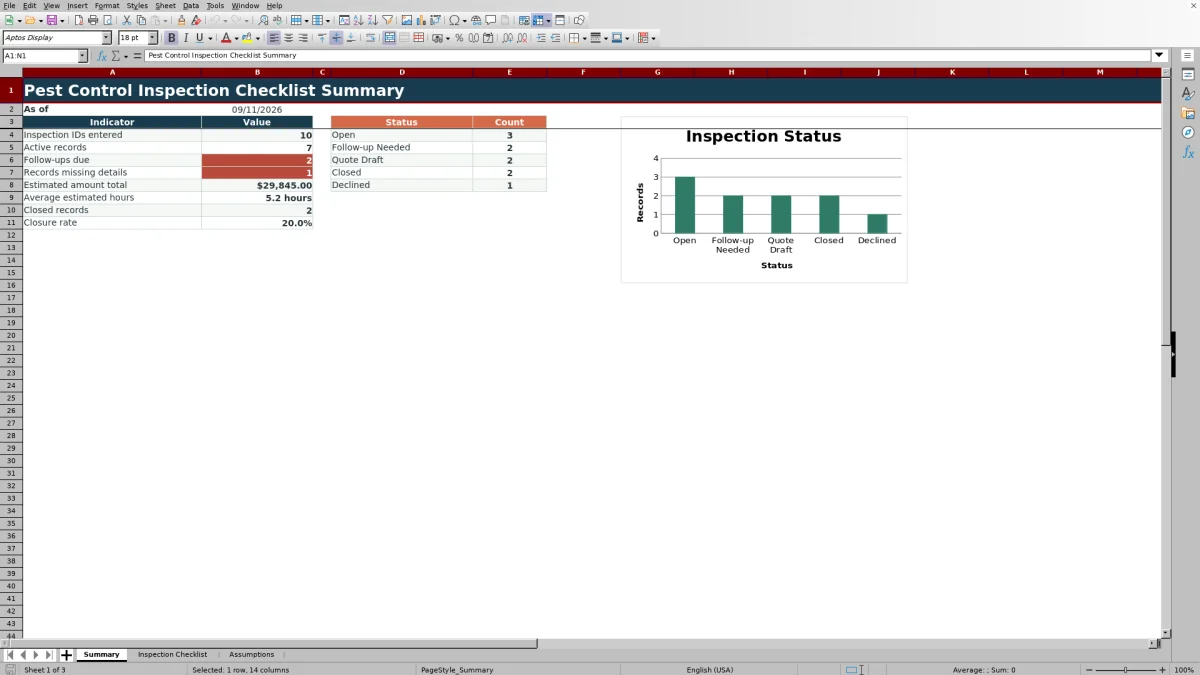
The Summary sheet reports inspection IDs entered, active records, follow-ups due, records missing details, estimated amount total, average estimated hours, closed records, and closure rate. Status counts cover the choices listed on the Assumptions sheet.
These indicators help organize which records need completion, which follow-ups have reached their configured date, and how much estimated work is represented in the checklist.
Frequently asked questions
How many inspection records does the Excel checklist hold?
The configured checklist provides 100 record rows, from row 6 through row 105. Its formulas, validations, formatting, and summary references cover that range.
Can the dropdown choices be changed?
Yes. The Assumptions sheet contains editable choices for status, responsibility, pest concern, recommended service scope, route, and technician. The checklist dropdowns reference those lists.
What causes the Check missing details alert?
The alert appears when a populated row lacks an inspection ID, any field from Customer through Recommended Service Scope, or the Responsibility or Status entry.
How does the workbook identify a follow-up that is due?
For a complete record with an active status, the formula compares the follow-up date with TODAY() and the follow-up timing value from the Assumptions sheet. It displays Follow-up due when the configured threshold is reached.
What information appears on the Summary sheet?
The Summary sheet shows record totals, active records, follow-ups due, missing-detail counts, estimated amount total, average estimated hours, closed records, closure rate, status counts, and a status chart.
Editorial responsibility

Maya EllisService workflow editor

Noah BennettWorkbook structure and operations