The Termite Treatment Estimate Spreadsheet for Excel is an XLSX workbook for pricing termite work from structure dimensions, service methods, labor hours, product quantities, and travel miles.
Editable assumption tables supply service rates, labor rates, product costs, mileage costs, and entry limits. Calculated totals, input alerts, estimate statuses, and summary indicators support a consistent sales estimating process.
How this workbook can help
- Build consistent termite estimates from entered dimensions and operating costs.
- Separate service, labor, product, and travel amounts before calculating the estimate total.
- Catch missing details, invalid dimensions, and entries above configured limits.
- Track estimate counts, total value, accepted value, and sales status from one summary.
What is in the file
How to get started
1. Set the estimating assumptions
Open the Assumptions sheet and replace the fictional service methods, product names, rates, unit costs, mileage rate, and entry limits with the values used by the business.
2. Enter the estimate details
On the Estimates sheet, complete the yellow cells for the date, customer, service site, pest concern, service method, technician, product, route, responsibility, status, dimensions, labor hours, product quantity, and travel miles.
3. Check the calculated price
Confirm the calculated perimeter, area, service amount, labor amount, product amount, travel amount, and estimate total. Use the Input Review message to find missing or out-of-range entries.
4. Monitor the estimate pipeline
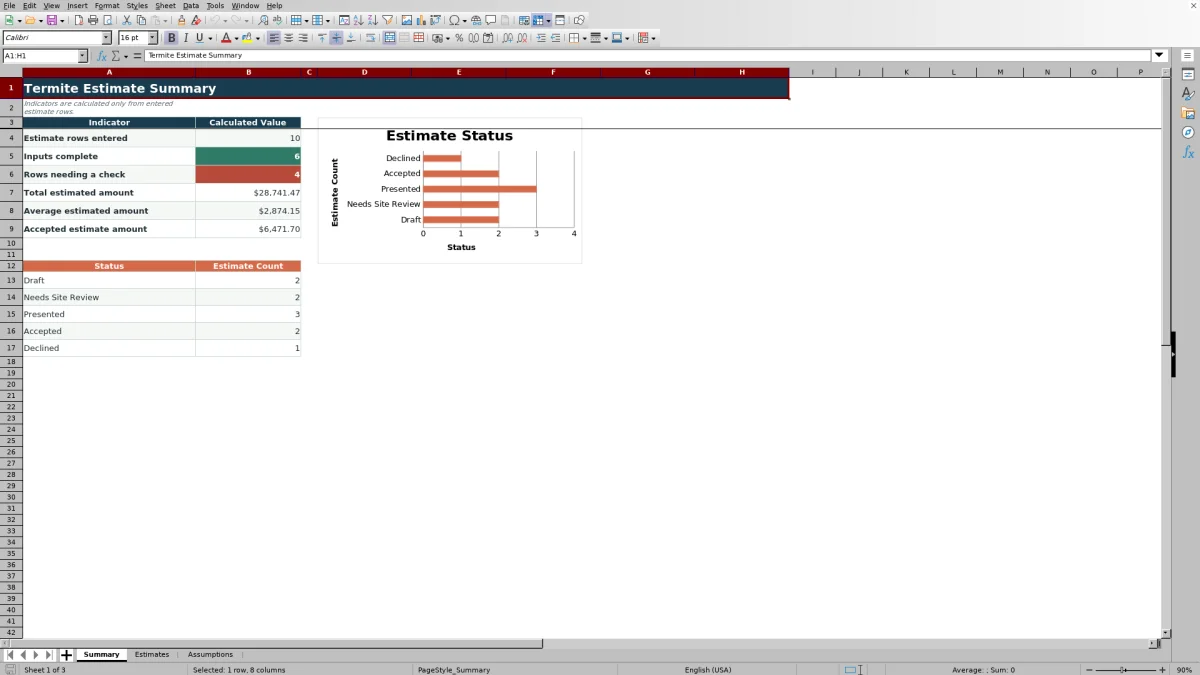
Use the Summary sheet to see entered estimates, completed inputs, rows needing attention, total and average estimated amounts, accepted value, and counts by status.
What the Excel estimator calculates
Perimeter and area are calculated from the entered length and width. The service amount combines the selected method's base price, perimeter rate, and area rate.
Labor hours are multiplied by the labor rate associated with the service method. Product quantity is multiplied by the selected product's unit cost, while travel miles are multiplied by the editable mileage rate. Those four amounts are added to produce the estimate total.
Worked termite estimate scenario
Input
A fictional 45-by-30-foot site uses Perimeter-Based Estimate, 12 labor hours, 5 gallons of Fictional Liquid A, and 24 travel miles. The applicable assumptions are a $250 base amount, $5.75 per perimeter foot, $68 per labor hour, $48 per gallon, and $0.72 per mile.
Result
The workbook calculates a 150-foot perimeter and 1,350-square-foot area. The service amount is $1,112.50, labor is $816.00, product is $240.00, and travel is $17.28, producing an estimate total of $2,185.78.
Interpretation
When the required customer, site, concern, method, status, and dimension fields are also present, the Input Review result can display Inputs complete. That message indicates that the workbook's entry checks passed; it does not indicate that the estimate was accepted.
Next decision
If the entered scope and assumptions represent the intended quote, change the status from Draft to Presented. Otherwise, correct the inputs or update the assumptions before using the calculated amount.
Using editable pricing assumptions
Editable assumptions keep the pricing logic separate from individual estimate rows. The service table holds a base amount, perimeter rate, area rate, and labor rate for each listed method. The product table holds each product's quantity unit, unit cost, and quantity review level.
Additional settings control mileage cost, labor-hour review levels, accepted date boundaries, maximum dimensions, maximum product quantity, and maximum travel miles. Changes to these values flow into applicable estimate calculations and entry checks.
Estimate errors and solutions
- Check required details: Complete the estimate date, customer, service site, pest concern, service method, and status.
- Check dimensions: Enter positive length and width values within the configured dimension limit.
- Blank service amount: Select a service method listed in the assumptions and confirm that its pricing row contains the necessary values.
- Blank product unit or amount: Select a listed product and enter its quantity when product pricing applies.
- Labor or product alert: Confirm the entry or adjust the applicable review level in Assumptions if the operating limit has changed.
- Blank estimate total: Complete the customer, site, method, dimensions, and other inputs needed for the service calculation.
Workbook and blank spreadsheet comparison
Use the prepared workbook when its verified fields and calculations fit the pest-control task. Start with a blank spreadsheet when you need a different model and can build and test every field and formula yourself.
| Method | Setup | Calculations and review | Practical fit |
|---|---|---|---|
| This Excel workbook | Use the prepared structure in the validated file | Review the documented calculations and results | Local editable pest-control workflow supported by the workbook |
| Blank spreadsheet | Create the structure yourself | Build and test every formula and check | A custom model built from scratch |
Workbook limits
The workbook supports 100 estimate rows, covering rows 4 through 103. Its geometry formulas use one length and one width to represent a rectangular footprint, so they do not model multiple building sections or irregular shapes.
Calculated amounts depend entirely on the entered data and editable assumptions. The workbook does not verify site conditions, confirm termite activity, or create a property-specific work scope. Blank or mismatched assumptions can also leave calculated fields empty.
Tracking sales status and estimate value
The Summary sheet counts entered rows, completed inputs, and rows with check or review messages. It also calculates total estimated amount, average estimated amount, and the value of estimates marked Accepted.
Status counts cover Draft, Needs Site Review, Presented, Accepted, and Declined. A chart uses those counts to show the current distribution of estimate records.
Frequently asked questions
How many termite estimates can the workbook hold?
The Estimates sheet provides 100 rows, from row 4 through row 103.
How is the estimate total calculated?
The estimate total is the sum of the service amount, labor amount, product amount, and travel amount. Each component uses the entered job data and the applicable values from the Assumptions sheet.
Can the service and product pricing be changed?
Yes. The Assumptions sheet contains editable tables for service methods, base amounts, perimeter and area rates, labor rates, products, quantity units, unit costs, and quantity review levels.
What causes an Input Review message?
Messages can appear when required details are missing, dimensions are blank or invalid, a selected method or product lacks a matching assumption, or labor and product entries exceed configured review levels.
What information appears on the Summary sheet?
The Summary sheet shows estimate counts, input completion, rows needing attention, total and average estimated amounts, accepted estimate value, status counts, and a status chart.
Editorial responsibility

Maya EllisService workflow editor

Noah BennettWorkbook structure and operations