This rodent exclusion estimate spreadsheet is an Excel workbook for pricing entry-point closure, materials, access effort, devices, and follow-up visits for one estimate.
It combines estimate details, up to 100 scope lines, a 100-record price list, line alerts, category subtotals, mobilization, a pricing buffer, a discount, and a decision summary in one XLSX file.
How this workbook can help
- Keeps estimate details, scope inputs, standard rates, price adjustments, and calculated totals in one workbook.
- Flags incomplete or invalid included lines before displaying an estimated price.
- Separates scope costs into entry point, material, access effort, device, and follow-up categories.
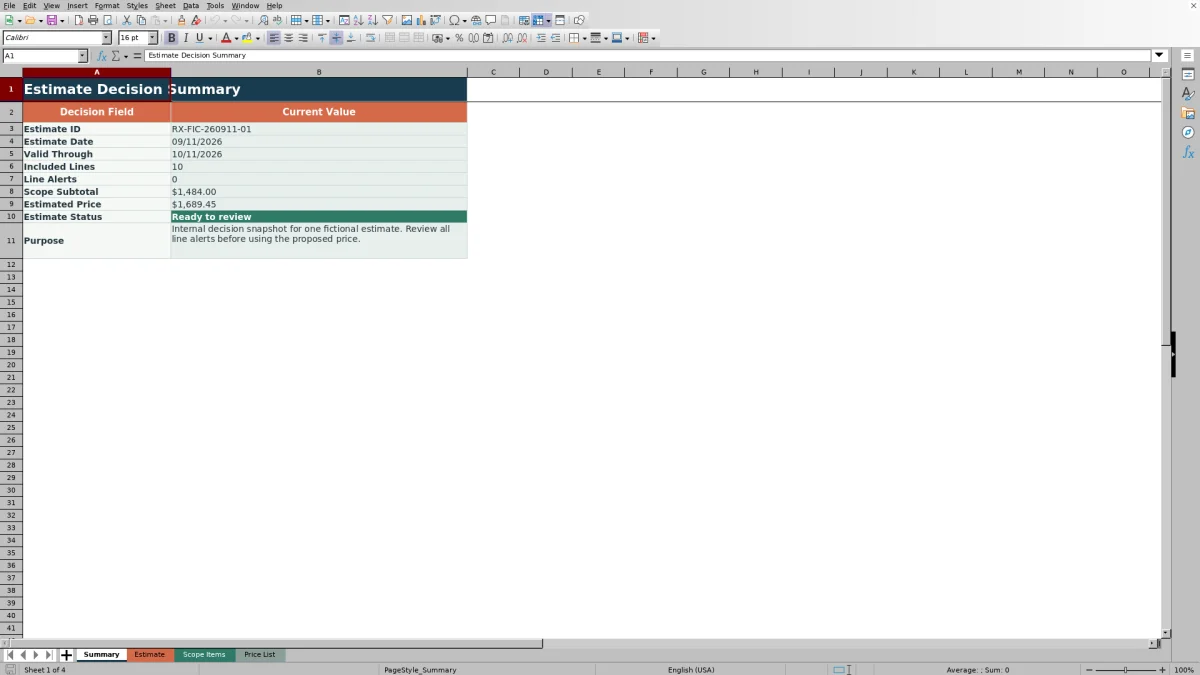
- Provides a compact summary of dates, included lines, alerts, subtotal, estimated price, and estimate status.
What is in the file
How to get started
Set up the price list
Enter a unique item code, active status, category, description, unit, standard unit price, and pricing note for each service or material. Use the Price List Alert column to identify incomplete, inactive, or duplicate records.
Enter the estimate details
Complete the estimate ID, estimate date, validity period, preparer, prospect, service site, mobilization fee, pricing buffer, discount, and internal note. The valid-through date calculates from the estimate date and valid-for-days entry.
Build the scope
On Scope Items, select Yes or No, enter the area or location, choose an item code, add a positive quantity, and record line notes. Enter an override unit price only when the standard price should not apply.
Resolve alerts and use the totals
Correct included lines until their Line Alert cells show Ready. Then use the Estimate and Summary sheets to read category amounts, the scope subtotal, pricing adjustments, estimated price, and current estimate status.
Code-Based Rodent Exclusion Pricing
Each included scope line connects an area or location with an item code and quantity. The workbook retrieves the category, description, unit, and standard unit price from the Price List sheet. If an override is entered, that value becomes the applied unit price; otherwise, the standard rate remains in use.
The line total equals quantity multiplied by the applied unit price. Excluded lines do not contribute a line total, allowing optional work to remain documented without entering the estimate subtotal.
Scope Categories and Estimate Adjustments
The workbook groups calculated scope amounts into Entry Point, Material, Access Effort, Device, and Follow-Up categories. These category amounts make it possible to see which kinds of work account for the scope subtotal without changing the underlying line calculations.
The Estimate sheet adds the base mobilization fee to the scope subtotal, applies the pricing buffer to that combined amount, and then calculates the discount. The final estimate equals the scope subtotal plus mobilization and buffer, minus the discount.
Worked Fictional Estimate Scenario
Consider a fictional five-line scope with no price overrides: three EP-SM openings at $42 each, one EP-LG opening at $95, 24 linear feet of MAT-MESH at $8.50, 12 linear feet of MAT-FLASH at $12.75, and four tubes of MAT-SEAL at $11.50.
- Input: The entry-point lines total $126 and $95, while the material lines total $204, $153, and $46.
- Result: The workbook produces a $624.00 scope subtotal.
- Adjustment: A $125 mobilization fee brings the pricing base to $749. A 5% buffer adds $37.45, and a 0% discount removes nothing.
- Interpretation: The resulting $786.45 estimated price covers only those five included entry-point and material lines.
- Next decision: If no access effort, device, or follow-up line belongs in the scope and every included line is Ready, the estimate can proceed using the displayed status and total.
Errors and Solutions
The Line Alert and Price List Alert columns identify specific setup problems instead of allowing incomplete included lines to pass into the estimated price.
- Missing item code: Select a code from the item-code list on the scope line.
- Inactive code: Choose an active record or change the Price List active status when that record is intended for use.
- Check Price List: Complete the selected record's category, description, unit, and positive standard unit price.
- Duplicate code: Assign a unique item code in the Price List sheet.
- Check quantity: Enter a numeric quantity greater than zero and no more than 10,000.
- Check unit price: Enter a positive standard or override price within the validated limit.
When the inputs satisfy the workbook checks, the applicable alert changes to Ready.
Status and Decision Summary
The Estimate sheet counts included scope lines and included lines whose alerts are not Ready. It leaves the estimated price blank when there are no included lines or when unresolved line alerts remain.
The status formula distinguishes an incomplete estimate header, missing scope, line alerts, an expired validity date, and Ready to review. The Summary sheet repeats the key dates, counts, subtotal, estimated price, and status in a two-column decision snapshot.
Workbook and blank spreadsheet comparison
Use the prepared workbook when its verified fields and calculations fit the pest-control task. Start with a blank spreadsheet when you need a different model and can build and test every field and formula yourself.
| Method | Setup | Calculations and review | Practical fit |
|---|---|---|---|
| This Excel workbook | Use the prepared structure in the validated file | Review the documented calculations and results | Local editable pest-control workflow supported by the workbook |
| Blank spreadsheet | Create the structure yourself | Build and test every formula and check | A custom model built from scratch |
Workbook Limits
The formula and validation ranges support 100 scope lines and 100 price-list rows. Available categories are limited to Entry Point, Material, Access Effort, Device, and Follow-Up, while available units are each, linear foot, tube, hour, and visit.
The workbook holds one estimate header at a time and provides no charts. It uses fixed worksheet ranges rather than Excel tables or defined names. An estimated price is not displayed until at least one line is included and every included line has a Ready alert.
Frequently asked questions
Can I override a standard unit price on a scope line?
Yes. Enter the alternate amount in the Override Unit Price column. The Applied Unit Price formula uses the override when present and otherwise uses the standard unit price from the Price List sheet.
Why is the estimated price blank?
The estimated price remains blank when no scope lines are included or when one or more included lines have an alert other than Ready. Correct the affected inputs so the included-line alert count returns to zero.
Which cost categories does the workbook support?
The supported categories are Entry Point, Material, Access Effort, Device, and Follow-Up. The Estimate sheet calculates a separate amount for each category from the scope-line totals.
How many scope items and price-list records can the workbook hold?
The Scope Items sheet provides rows 2 through 101 for 100 scope lines. The Price List sheet also provides rows 2 through 101 for 100 item-code records.
How does the workbook calculate the valid-through date?
The Valid Through formula adds the entered Valid for Days value to the Estimate Date. The status changes to Estimate expired when that calculated date is earlier than the current date.
Editorial responsibility

Maya EllisService workflow editor

Noah BennettWorkbook structure and operations