This commercial pest control proposal template is an Excel workbook for presenting a multi-area service scope with pest concerns, services, service levels, visit frequency, reporting, responsibilities, and pricing.
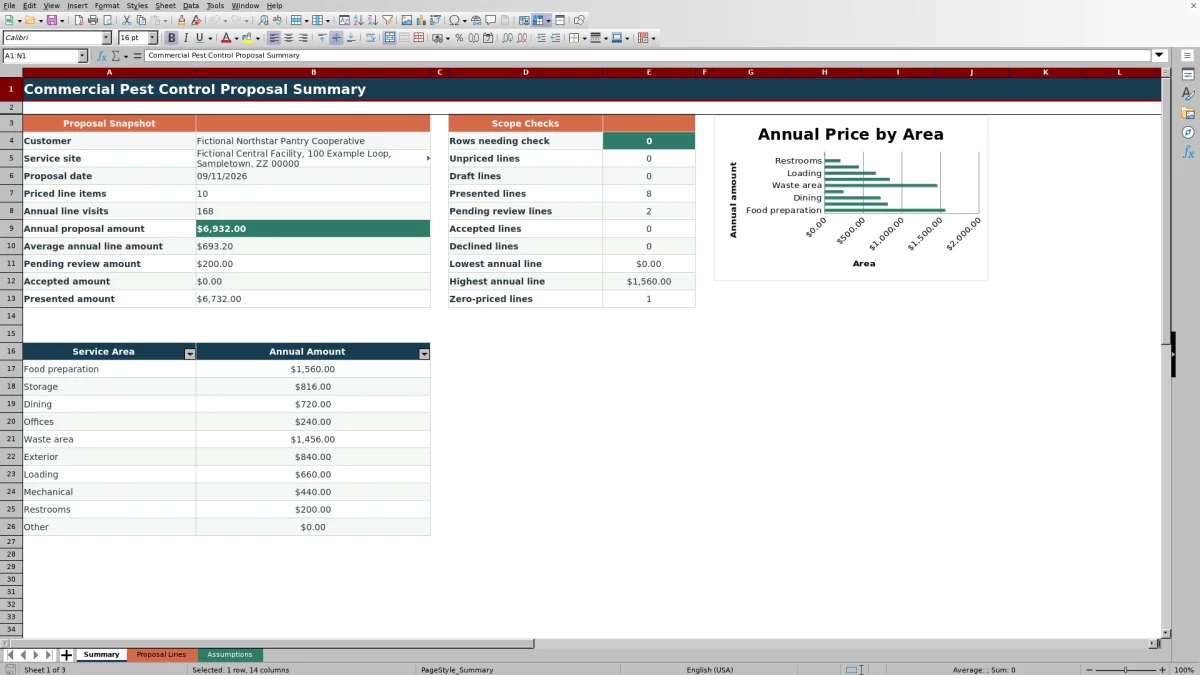
The XLSX includes detailed proposal lines, editable assumptions, calculated annual visits and amounts, proposal status tracking, scope checks, and a summary chart of annual amounts by service area.
How this workbook can help
- Keep services, pest concerns, frequencies, reporting, responsibilities, and prices together for each facility area.
- Convert recurring service frequencies into consistent annual visit counts through editable assumptions.
- Calculate annual line amounts from visit frequency, quantity, and unit price per visit.
- Use summary totals and scope checks to identify incomplete, unpriced, or zero-priced proposal lines.
What is in the file
How to get started
1. Configure the assumptions
Set the frequency-to-annual-visits mappings, units, service levels, reporting options, responsibilities, statuses, service areas, entry limits, and proposal date range on the Assumptions sheet.
2. Enter the commercial scope
Use Proposal Lines to enter the proposal date, customer, service site, service area, pest concern, service, service level, frequency, quantity, unit price, reporting requirement, responsibility, and status.
3. Check the calculated pricing
Confirm that each selected frequency returns the expected visits per year and that each completed service line produces an annual amount.
4. Use the summary to prepare the proposal
Check the annual proposal amount, status totals, service-area amounts, unpriced lines, zero-priced lines, and rows needing attention before using the figures in a customer presentation.
Organize a Multi-Area Commercial Scope
The Proposal Lines sheet accommodates 100 line items. Each row can describe a distinct service component for food preparation, storage, dining, offices, waste areas, or another service area added to the editable assumptions.
Separate columns capture the pest concern, service, service level, reporting requirement, and assigned responsibility. This structure allows different areas at one commercial site to carry different frequencies, quantities, prices, and statuses.
Calculate Recurring Service Pricing
Selecting a frequency returns Visits / Year from the mapping on the Assumptions sheet. The supplied choices include one time, weekly, every two weeks, monthly, every other month, and quarterly, with room for additional entries in the available assumption range.
The Annual Amount formula multiplies visits per year by quantity and unit price per visit. It remains blank when the service, visit count, quantity, or unit price needed by the formula is missing.
Worked Commercial Proposal Scenario
Worked scenario: A fictional distribution facility enters a monthly storage device-inspection line with 8 devices at $8.50 per device per visit. Monthly maps to 12 annual visits, producing an annual amount of $816.
The same proposal includes a weekly food-preparation inspection line for 1 location at $30 per visit. Weekly maps to 52 visits, producing $1,560. The resulting proposal amount for the two lines is $2,376, with $816 assigned to storage and $1,560 assigned to food preparation.
Interpretation: The weekly line represents the larger annual amount because its visit count is higher. Next decision: The proposal owner can confirm whether both lines should remain Presented or move each line to Pending review, Accepted, or Declined after the customer responds.
Common Errors and Solutions
Common input errors generally appear as blank calculations or summary scope checks.
- If Visits / Year is blank, select a frequency included in the Assumptions mapping or add the intended frequency and annual visit count there.
- If Annual Amount is blank, complete the service, frequency, quantity, and unit price fields required by the formula.
- If the Summary reports rows needing attention, inspect populated service rows for missing proposal fields.
- If a zero-priced line appears, confirm whether zero is the intended unit price or replace it with the proposed price.
- If customer or site information on the Summary is unexpected, keep the proposal lines for one customer and service site together because the snapshot returns the last nonblank customer and site values.
Workbook Limits and Scope
Workbook limits include 100 proposal rows, 16 available rows in the frequency and list ranges, and 10 service-area positions in the Summary rollup and chart. Service areas entered below the first 10 positions remain available to the Proposal Lines dropdown but are not included in that displayed area summary.
The proposal snapshot returns the earliest entered proposal date and the last nonblank customer and service-site entries. The pricing formula is limited to annual visits multiplied by quantity and unit price per visit, so the entered line structure must match the pricing basis being presented.
Workbook and blank spreadsheet comparison
Use the prepared workbook when its verified fields and calculations fit the pest-control task. Start with a blank spreadsheet when you need a different model and can build and test every field and formula yourself.
| Method | Setup | Calculations and review | Practical fit |
|---|---|---|---|
| This Excel workbook | Use the prepared structure in the validated file | Review the documented calculations and results | Local editable pest-control workflow supported by the workbook |
| Blank spreadsheet | Create the structure yourself | Build and test every formula and check | A custom model built from scratch |
Track Proposal Status and Service-Area Value
Each line can be marked Draft, Presented, Pending review, Accepted, or Declined. The Summary counts lines in each status and displays annual amounts for Presented, Pending review, and Accepted entries.
The service-area section sums annual amounts for the first 10 configured areas and supplies the data for the included chart. These outputs help identify where proposal value is concentrated and which priced lines are still awaiting a status decision.
Frequently asked questions
What does the commercial pest control proposal workbook calculate?
It looks up annual visits from the selected frequency and calculates each annual line amount as visits per year multiplied by quantity and unit price per visit. The Summary then aggregates proposal totals, status amounts, and service-area amounts.
Can I change the service frequencies and annual visit counts?
Yes. The Assumptions sheet contains the editable frequency and annual-visits mapping used by the Visits / Year formulas on Proposal Lines.
Why is an annual amount blank?
The Annual Amount formula remains blank when the service, visits per year, quantity, or unit price is missing. Select a mapped frequency and complete the required line inputs.
Can the template track different proposal statuses?
Yes. Each line can use Draft, Presented, Pending review, Accepted, or Declined. The Summary counts every status and totals amounts for Presented, Pending review, and Accepted lines.
How many proposal lines and summarized service areas are supported?
The Proposal Lines sheet supports 100 line items. The service-area dropdown references up to 16 assumption entries, while the Summary rollup and chart display the first 10 configured service areas.
Editorial responsibility

Maya EllisService workflow editor

Noah BennettWorkbook structure and operations