The Pest Control Quote Follow-Up Tracker is an Excel workbook for scheduling and recording contact on open estimates until each quote is won, lost, or expired. It keeps customer, service site, quote value, status, responsibility, and follow-up dates in one spreadsheet.
The XLSX includes a 100-row tracker, calculated expiration dates and days open, follow-up alerts, a summary dashboard, and editable assumptions. Fictional sample records show the format and can be replaced with business data.
How this workbook can help
- Keeps open and pending pest control estimates in one organized register.
- Surfaces overdue, upcoming, unscheduled, incomplete, and expiration-related follow-up items.
- Calculates estimated expiration dates and days open from recorded quote information.
- Summarizes active pipeline value, quote outcomes, follow-up workload, and win rate.
What is in the file
How to get started
1. Configure the assumptions
Set the quote expiration interval, due-soon window, entry limits, and dropdown choices on the Assumptions sheet.
2. Add each estimate
Enter a unique Quote ID, customer, service site, quote date, amount, status, service details, route, and follow-up responsibility on the Quote Tracker sheet.
3. Schedule and record follow-up
Enter the last follow-up date, next follow-up date, and follow-up count. Use the Follow-Up Alert column to identify the next record that needs attention.
4. Record the outcome
Change the status to Won, Lost, or Expired when the estimate closes, enter the decision date, and use the Summary sheet to monitor results.
Organize pest control estimates in one register
Use one quote per row to connect the customer and service site with the pest concern, proposed service, route, responsible person, quote date, amount, and status. Follow-up dates and counts remain attached to the same estimate.
The available statuses are Open, Pending Customer, Won, Lost, and Expired. This structure separates active opportunities from completed outcomes while retaining the dates needed for reporting.
Prioritize follow-up work
The Follow-Up Alert column turns entered quote details into an operational prompt. Its outputs can identify records that are due today, past due, due soon, missing a scheduled follow-up, or approaching an expiration check.
The alert also identifies missing customer, service site, quote date, quote amount, or status information. Filter the tracker by alert, responsibility, route, or status to focus on a specific group of estimates.
Worked scenario for an open estimate
Input: A fictional quote dated January 5, 2026 has a value of $650, an Open status, and a next follow-up date of January 12. The expiration interval is set to 30 days, and the workbook recalculates on January 13.
Result: The estimated expiration date is February 4, the quote has been open for eight days, and the follow-up alert shows Past due.
Interpretation: The estimate remains active, but its scheduled follow-up date has passed and its calculated expiration date is still ahead.
Next decision: Record the completed follow-up and set another date, or update the quote to Won, Lost, or Expired with a decision date if its outcome is known.
Common errors and solutions
- A blank customer, service site, quote date, amount, or status produces a corrective alert. Enter the missing value in the identified field.
- An active quote without a next follow-up date can show Schedule follow-up. Add the planned date in the Next Follow-Up Date column.
- An entry outside a configured date, amount, or count limit can be rejected by validation. Use a permitted value or adjust the corresponding limit on the Assumptions sheet.
- A value that does not match a dropdown choice can create inconsistent reporting. Select an available choice or replace an example entry in the relevant Assumptions list.
- A completed quote without a valid decision date cannot use the closing date for its final days-open interval. Enter the decision date when setting the status to Won, Lost, or Expired.
Workbook and blank spreadsheet comparison
Use the prepared workbook when its verified fields and calculations fit the pest-control task. Start with a blank spreadsheet when you need a different model and can build and test every field and formula yourself.
| Method | Setup | Calculations and review | Practical fit |
|---|---|---|---|
| This Excel workbook | Use the prepared structure in the validated file | Review the documented calculations and results | Local editable pest-control workflow supported by the workbook |
| Blank spreadsheet | Create the structure yourself | Build and test every formula and check | A custom model built from scratch |
Workbook limits
- The prepared tracker covers rows 2 through 101. Formulas, validation, alerts, and summary ranges do not automatically include entries placed beyond row 101.
- Estimated expiration dates use one workbook-wide interval from the Assumptions sheet.
- Days Open and date-sensitive alerts use TODAY(), so results can change when the workbook recalculates on a later date.
- The workbook records follow-up plans and outcomes but does not include automatic email sending or CRM synchronization.
- The included dropdown entries are examples and must be replaced or adjusted to match the business's actual categories.
Interpret the sales summary
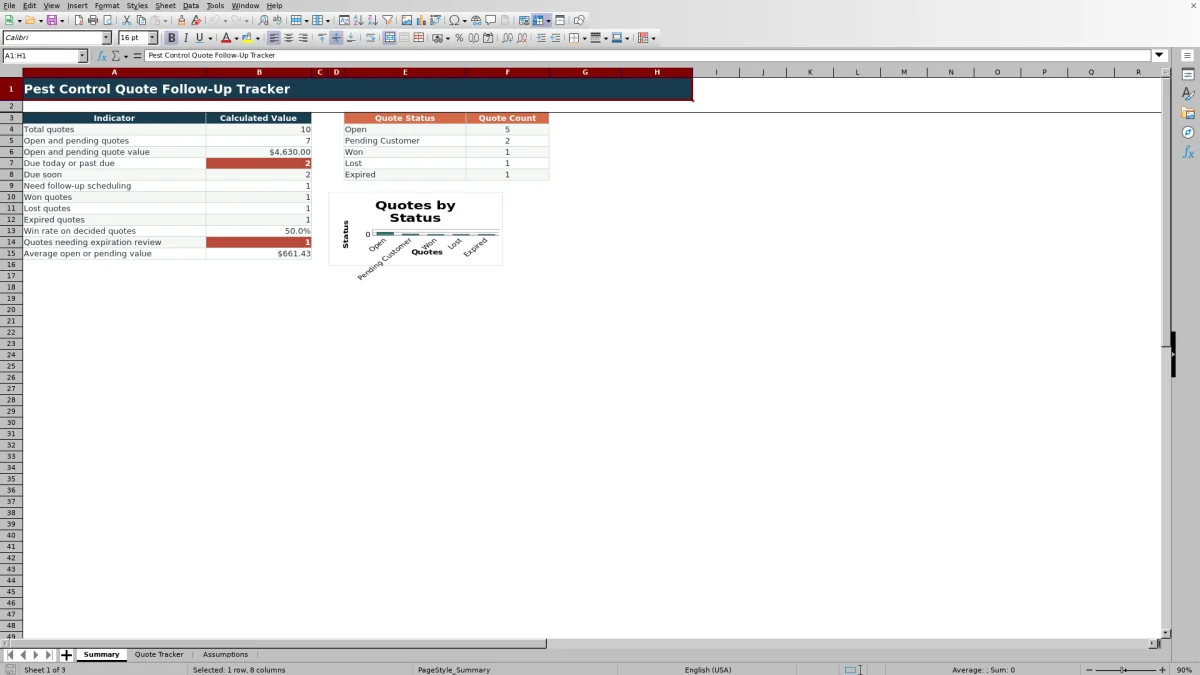
The Summary sheet counts total quotes, active Open and Pending Customer quotes, follow-up timing categories, and Won, Lost, and Expired outcomes. It also calculates active pipeline value and average active quote value.
The win rate divides Won quotes by the combined number of Won and Lost quotes, so Expired quotes are excluded. Use the status counts and follow-up indicators together to decide whether the next task is scheduling contact, updating an outcome, or correcting an incomplete record.
Frequently asked questions
Which quote statuses are included?
The status list includes Open, Pending Customer, Won, Lost, and Expired. Open and Pending Customer are treated as active statuses in the summary pipeline calculations.
How is the estimated expiration date calculated?
The workbook adds the editable quote expiration interval on the Assumptions sheet to the recorded quote date. The included interval is 30 days.
What does the Follow-Up Alert column show?
It can flag missing quote details and identify follow-up conditions such as Due today, Past due, Due soon, Schedule follow-up, and Check expiration.
How many estimates can the prepared tracker hold?
The Quote Tracker includes 100 prepared data rows, from row 2 through row 101, with formulas in the three calculated columns.
How is the win rate calculated?
Win rate is calculated as Won quotes divided by the total of Won and Lost quotes. Expired, Open, and Pending Customer quotes are not included in that rate.
Editorial responsibility

Maya EllisService workflow editor

Noah BennettWorkbook structure and operations