This pest control marketing campaign tracker is an Excel workbook for recording campaign dates, channels, owners, status, budget, spend, leads, booked inspections, sales, and revenue.
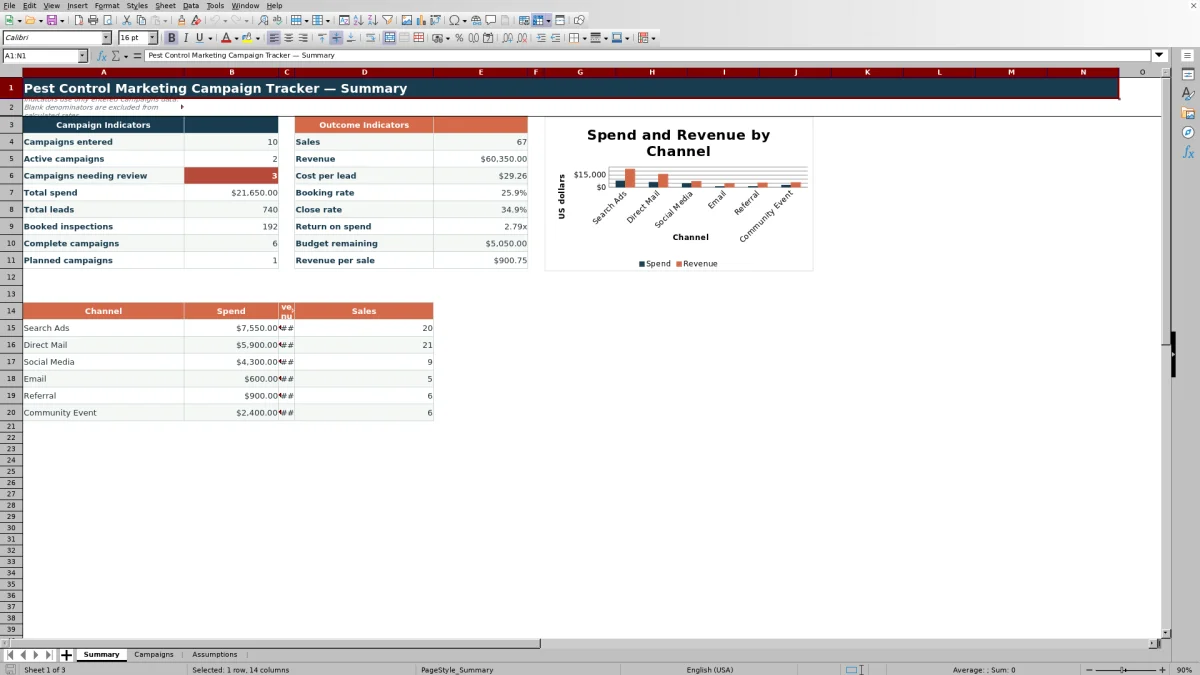
The spreadsheet calculates campaign-level performance, displays overall and channel results on a Summary sheet, and uses editable Assumptions for dropdown choices, date limits, and performance thresholds.
How this workbook can help
- Keep campaign plans and results together in one structured record.
- Monitor the path from leads to booked inspections and completed sales.
- Compare spend, revenue, and sales across configured marketing channels.
- Identify incomplete, inconsistent, or threshold-related campaign records.
What is in the file
How to get started
Configure the assumptions
Review the available channels, fictional campaign owners, statuses, performance thresholds, and accepted date range on the Assumptions sheet. Edit the yellow cells when your operating choices change.
Enter each campaign
Use one row on the Campaigns sheet for each campaign. Add its ID, name, start and end dates, channel, owner, status, budget, and spend.
Record campaign outcomes
Enter leads, booked inspections, sales, and revenue as results become available. The workbook calculates cost per lead, booking rate, close rate, return on spend, and budget remaining.
Read the summary
Use the Summary sheet to check campaign counts, total results, calculated rates, remaining budget, and the channel breakdown. Investigate records carrying a Campaign Review message before relying on their results.
A Structured Campaign Record
The Campaigns sheet provides 100 campaign rows with dedicated columns for planning information and measured outcomes. Each record can include a campaign ID, campaign name, dates, channel, owner, status, budget, spend, leads, booked inspections, sales, and revenue.
Dropdowns draw channel, owner, and status choices from the Assumptions sheet. Date and number validation helps keep common entries within the configured ranges, while filters make it easier to isolate campaigns by field.
Campaign Metrics and Summary Indicators
The Summary sheet uses entered campaign records to calculate campaign counts, total spend, leads, booked inspections, sales, revenue, cost per lead, booking rate, close rate, budget remaining, and revenue per sale.
At the campaign level, Return on Spend divides revenue by spend and displays the result as a multiple. Calculated rates remain blank when a required value or usable denominator is missing, reducing misleading zero-value results.
Worked Scenario for a Fictional Direct Mail Campaign
Input: A fictional completed Direct Mail campaign has a $4,500 budget, $4,200 in spend, 140 leads, 42 booked inspections, 18 sales, and $12,600 in revenue.
Result: The row calculates a $30.00 cost per lead, a 30.0% booking rate, a 42.9% close rate, a 3.00x return on spend, and $300.00 in remaining budget.
Interpretation: The campaign stayed within its recorded budget, converted three out of every ten leads into booked inspections, and recorded three dollars of revenue for each dollar of campaign spend.
Next decision: The operator can compare this Direct Mail result with other channel totals on the Summary sheet before planning future campaign allocations.
Common Errors and Solutions
The Campaign Review column provides messages tied to common record problems.
- If it shows “Review setup,” complete the required campaign ID, dates, channel, owner, status, and budget fields.
- If it shows “Review duplicate ID,” assign a unique campaign ID to each affected row.
- If it shows “Review dates,” correct an end date that occurs before the start date.
- If a completed campaign is missing outcomes, enter the available spend, leads, booked inspections, sales, and revenue values.
- If entries are negative or performance falls outside configured thresholds, verify the source values and correct the campaign record when needed.
Workbook and blank spreadsheet comparison
Use the prepared workbook when its verified fields and calculations fit the pest-control task. Start with a blank spreadsheet when you need a different model and can build and test every field and formula yourself.
| Method | Setup | Calculations and review | Practical fit |
|---|---|---|---|
| This Excel workbook | Use the prepared structure in the validated file | Review the documented calculations and results | Local editable pest-control workflow supported by the workbook |
| Blank spreadsheet | Create the structure yourself | Build and test every formula and check | A custom model built from scratch |
Workbook Limits
The tracker supports 100 campaign records, and its channel summary reads six channel entries from the Assumptions sheet. Campaign dates are initially validated from January 1, 2025, through December 31, 2029, with those limits stored as editable assumptions.
Return on spend is not profit or net ROI; it is revenue divided by campaign spend. The workbook does not include other operating costs, so users should interpret the multiple only as a comparison between recorded revenue and recorded campaign spend.
Editable Lists and Thresholds
The Assumptions sheet contains six channels, five fictional campaign owners, five statuses, and three performance thresholds. The supplied thresholds are a 100% budget-use limit, a 20% minimum booking rate, and a 30% minimum close rate.
Updating these yellow assumption cells changes the available entry choices or the values used for campaign checks. Channel entries also feed the six-row channel summary on the Summary sheet.
Frequently asked questions
What does the pest control marketing campaign tracker record?
It records campaign IDs, names, dates, channels, owners, statuses, budgets, spend, leads, booked inspections, sales, and revenue. It also calculates campaign-level performance fields.
How is return on spend calculated?
Return on spend equals recorded revenue divided by recorded campaign spend. For example, $12,000 in revenue divided by $4,000 in spend produces a 3.00x result.
Can the channel, owner, and status lists be changed?
Yes. These lists are maintained in yellow cells on the Assumptions sheet and supply the dropdown choices used on the Campaigns sheet.
What can cause a Campaign Review message?
Messages can appear for incomplete setup, duplicate campaign IDs, reversed dates, missing results for a completed campaign, negative entries, or performance that falls outside configured thresholds.
How many campaigns can the Excel workbook hold?
The Campaigns sheet provides 100 entry rows, covering rows 4 through 103. Formulas, validation, conditional formatting, and filters support that campaign range.
Editorial responsibility

Maya EllisService workflow editor

Noah BennettWorkbook structure and operations