The Bed Bug Treatment Estimate Spreadsheet for Excel is an XLSX sales workbook for pricing service estimates from room quantity, infestation extent, treatment method, preparation responsibility, repeat visits, travel miles, and discount.
It combines an Estimates entry sheet, editable Assumptions, and a Summary of amounts and statuses. Formula fields calculate itemized charges and the final estimate, while validation lists and review flags help keep entries aligned with the workbook’s configured choices and limits.
How this workbook can help
- Build consistent estimates from room count and selected pricing factors.
- Keep core prices, multipliers, allowances, minimums, and entry limits visible in one workbook.
- Spot missing inputs, unmatched pricing choices, excessive discounts, and minimum-price conditions through review flags.
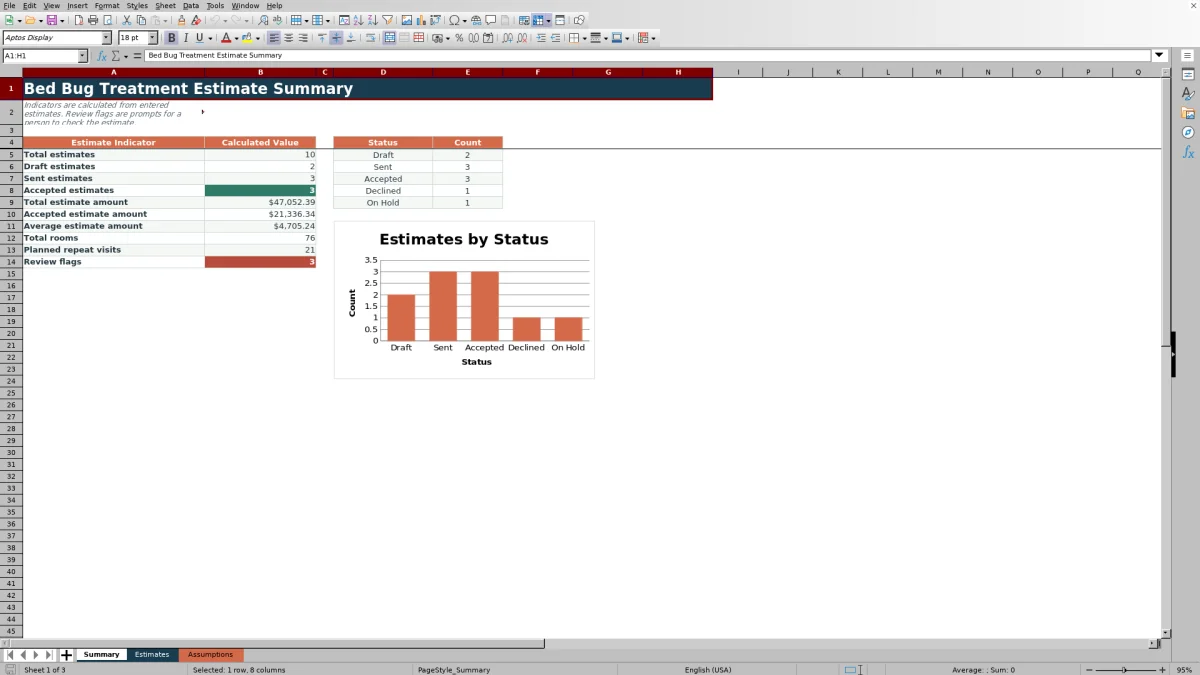
- Track estimate value, accepted value, room totals, repeat visits, and status counts from the Summary sheet.
What is in the file
How to get started
1. Configure the assumptions
Open the Assumptions sheet and enter the base room amount, repeat-visit rate, travel allowance, excess-mile rate, minimum estimate, maximum discount, pricing factors, and preparation amounts used by the formulas.
2. Enter the estimate details
On the Estimates sheet, add the date, estimate ID, customer, service site, room quantity, infestation extent, treatment method, preparation responsibility, repeat visits, status, travel miles, and discount. Use the configured lists where available.
3. Read the calculated pricing
Review the calculated treatment, preparation, repeat-visit, travel, pre-discount, and final estimate amounts in columns O through W.
4. Resolve flags and update the status
Use the Review Flag column to identify missing inputs, pricing-choice issues, discounts above the configured limit, preparation awaiting confirmation, or a minimum-price condition. Then select Draft, Sent, Accepted, Declined, or On Hold as the estimate progresses.
How the pricing calculation works
The workbook uses formula-driven pricing rather than a single flat charge. Treatment Amount equals Room Quantity multiplied by Base Room Amount, Extent Multiplier, and Method Multiplier. Preparation Amount comes from the selected preparation-responsibility lookup.
Repeat Visit Amount multiplies planned repeat visits by room quantity, the repeat-visit amount per room, and the same extent and method factors. Travel Amount applies only to miles above the included allowance. The workbook adds these amounts, applies a discount no higher than the configured formula cap, and compares the result with the minimum estimate.
Controlled estimate inputs
The Estimates sheet provides validated entry choices for pest concern, service, infestation extent, treatment method, preparation responsibility, and status. Date, room, repeat-visit, travel, and discount fields also have validation limits.
The available statuses are Draft, Sent, Accepted, Declined, and On Hold. The worksheet accepts estimate records in rows 5 through 104 and filters the full range from columns A through X.
Worked estimate scenario
Consider Fictional Cedar Stay. For a transparent example, set the Low extent factor and Conventional multi-step method factor to 1.00, and set the Customer completed preparation amount to $0. Enter two rooms, zero repeat visits, 10 travel miles, and no discount. Keep the base room amount at $175, included travel at 20 miles, and minimum estimate at $450.
The treatment result is 2 × $175 × 1.00 × 1.00, or $350. Preparation, repeat-visit, and travel amounts are $0, so the pre-discount amount is $350. The workbook returns a $450 estimate because the minimum-price floor exceeds the calculated subtotal.
This result means the minimum, not travel or repeat visits, controls the final amount. The next decision is whether to use the $450 floor for the fictional quote; if the required fields are complete, the estimate can move from Draft to Sent.
Common errors and solutions
The review flags identify several operational issues without changing the entered details.
- If required inputs are missing, complete the customer and the required date, ID, site, concern, service, room, extent, method, preparation, and status fields.
- If the row reports a pricing-choice issue, select a configured extent, method, and preparation option that has a matching assumption value.
- If the discount exceeds the editable limit, reduce the entered discount or revise the maximum-discount assumption before using the result.
- If preparation is set to To be confirmed, replace it with the applicable configured responsibility after that choice is established.
- If a minimum-related flag appears, compare the calculated subtotal with the configured minimum estimate to understand why the final amount is higher.
Workbook and blank spreadsheet comparison
Use the prepared workbook when its verified fields and calculations fit the pest-control task. Start with a blank spreadsheet when you need a different model and can build and test every field and formula yourself.
| Method | Setup | Calculations and review | Practical fit |
|---|---|---|---|
| This Excel workbook | Use the prepared structure in the validated file | Review the documented calculations and results | Local editable pest-control workflow supported by the workbook |
| Blank spreadsheet | Create the structure yourself | Build and test every formula and check | A custom model built from scratch |
Workbook limits
The Estimates sheet is configured for 100 records. Its default validation limits allow 1 to 25 rooms, 0 to 5 repeat visits, 0 to 300 travel miles, and dates from September 11, 2025, through September 10, 2028.
The discount entry accepts values from 0% through 100%, but the formula uses the lower of the entered discount or the configured maximum, which defaults to 15%. An entry above that configured maximum also produces a discount flag. Several numeric and date limits link to editable assumption cells, while category choices remain defined by the workbook’s validation lists.
Summary and sales-status reporting
The Summary sheet counts total, Draft, Sent, and Accepted estimates and reports total estimate value, accepted value, average positive estimate value, total rooms, planned repeat visits, and review flags. A separate status area counts Draft, Sent, Accepted, Declined, and On Hold records and supplies the workbook’s status chart.
Because the summary formulas reference rows 5 through 104, status and amount changes within that estimate range flow into the corresponding indicators.
Frequently asked questions
How many estimates can the Excel workbook hold?
The Estimates sheet contains 100 working rows, covering rows 5 through 104.
What determines the final bed bug treatment estimate?
The final amount uses room quantity, the base room amount, infestation-extent and treatment-method multipliers, preparation charges, planned repeat visits, excess travel, and discount. It cannot fall below the configured minimum estimate.
Can the pricing assumptions be changed?
Yes. The Assumptions sheet contains editable values for base and repeat-visit pricing, travel allowances and rates, the minimum estimate, the maximum discount, entry limits, multipliers, and preparation amounts used by the formulas.
What happens when a discount is above the configured maximum?
The estimate formula limits the applied discount to the maximum-discount assumption. The Review Flag column also identifies a discount entered above that editable limit.
How do estimate statuses affect the Summary sheet?
The Summary sheet counts records by Draft, Sent, Accepted, Declined, and On Hold status. It also totals the estimate amount for records marked Accepted.
Editorial responsibility

Maya EllisService workflow editor

Noah BennettWorkbook structure and operations