This pest control profit and loss spreadsheet is an Excel workbook for recording service revenue, cost of service, overhead, and net profit for a selected reporting period.
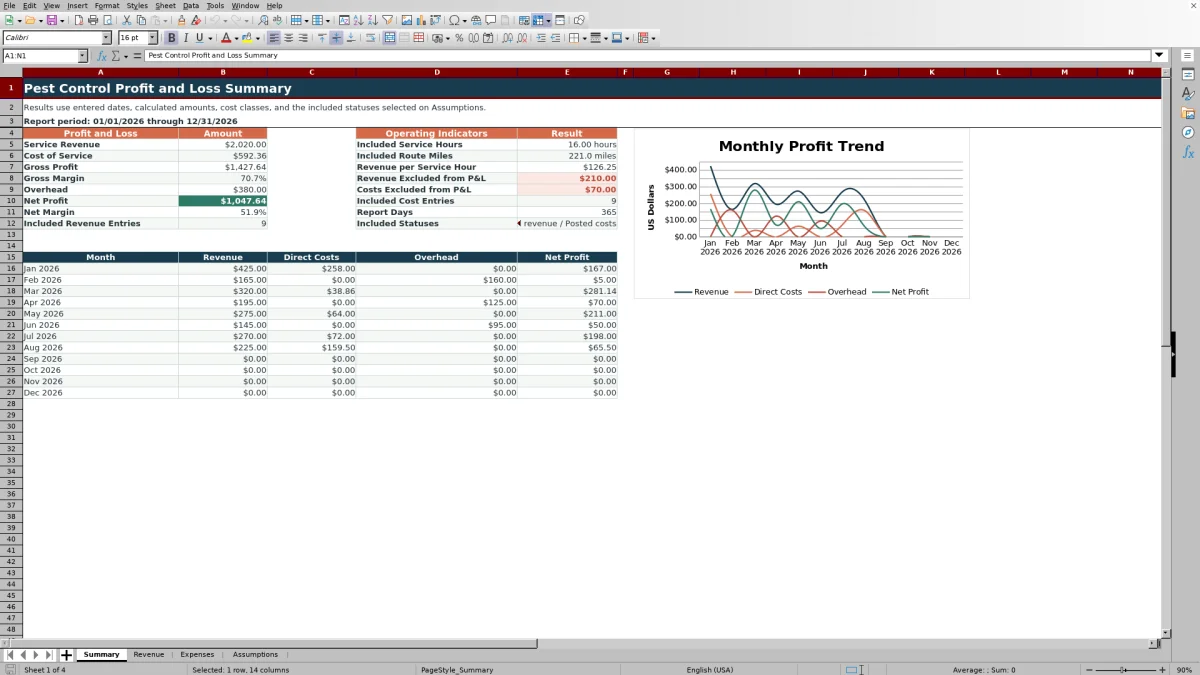
The XLSX includes separate revenue and expense entry sheets, editable assumptions, automatic amount calculations, profit margins, operating indicators, monthly results, and a summary chart.
How this workbook can help
- Separates direct service costs from overhead so gross profit and net profit remain distinct.
- Filters financial results by the selected reporting dates and included revenue and expense statuses.
- Calculates gross margin and net margin without requiring manual summary formulas.
- Connects financial results with service hours, route miles, entry counts, and revenue per service hour.
What is in the file
How to get started
1. Set the reporting controls
Open the Assumptions sheet, enter the report start and end dates, and select the revenue and expense statuses to include. Review the editable lists and numeric entry limits before adding transactions.
2. Record service revenue
Enter each service on the Revenue sheet with its date, customer and operating details, quantity, unit price, hours, miles, and status. The Amount column calculates quantity multiplied by unit price.
3. Record direct costs and overhead
Enter each cost on the Expenses sheet, choose Direct Cost or Overhead, and supply the quantity, unit cost, responsibility, and status. The Amount column calculates quantity multiplied by unit cost.
4. Review the financial results
Use the Summary sheet to review service revenue, cost of service, gross profit, overhead, net profit, margins, operating indicators, monthly results, excluded amounts, and the monthly chart.
How the profit and loss calculation works
Service revenue is calculated on each Revenue row by multiplying quantity by unit price. Expense amounts are calculated by multiplying quantity by unit cost.
The Summary sheet treats expenses classified as Direct Cost as cost of service. It subtracts those costs from revenue to calculate gross profit, then subtracts Overhead to calculate net profit. Gross margin and net margin are calculated from the corresponding profit totals and service revenue.
Reporting period and status controls
The Assumptions sheet controls the report start date, report end date, revenue included status, and expense included status. Included statuses determine which dated entries contribute to the profit and loss totals.
The Summary also reports revenue and costs excluded because they use another non-Voided status within the selected period. Separate counts show the included revenue and cost entries.
Worked pest control service scenario
Input: In a test copy, use a reporting period containing only three Posted entries. Enter one fictional service with a quantity of 1, a $300 unit price, 2 service hours, and 20 route miles. Enter a Direct Cost with a quantity of 2 and a $25 unit cost, followed by Overhead with a quantity of 1 and a $100 unit cost.
Result: The workbook calculates $300 of service revenue, $50 of cost of service, $250 of gross profit, $100 of overhead, and $150 of net profit. Gross margin is 83.3%, net margin is 50.0%, and revenue per service hour is $150.
Interpretation: In this isolated fictional scenario, half of each service revenue dollar remains after the entered direct cost and overhead, while the service produces $150 of revenue for each included hour.
Next decision: Compare the calculated revenue per service hour and net profit with the operator's pricing and cost targets before recording the next similar service.
Common errors and solutions
- If an Amount cell remains blank, confirm that the row contains a date, quantity, and unit price or unit cost.
- If a valid transaction does not appear on the Summary, verify that its date is within the reporting period and its status matches the corresponding included status.
- If a date is rejected, check the editable date limits and confirm that the report end date is not earlier than the start date.
- If a dropdown rejects an operating choice, select an existing option or update the corresponding editable list on the Assumptions sheet.
- If an entry is classified incorrectly, change its Cost Class to Direct Cost or Overhead so it appears in the intended profit calculation.
Operating indicators alongside financial results
The Summary combines the profit and loss totals with included service hours, route miles, revenue per service hour, report days, and transaction counts. These indicators provide operating context for the financial totals without changing the underlying revenue or expense calculations.
The monthly area provides up to 12 rows for revenue, direct costs, overhead, and net profit. The workbook's chart uses those monthly series to display changes across the selected period.
Workbook and blank spreadsheet comparison
Use the prepared workbook when its verified fields and calculations fit the pest-control task. Start with a blank spreadsheet when you need a different model and can build and test every field and formula yourself.
| Method | Setup | Calculations and review | Practical fit |
|---|---|---|---|
| This Excel workbook | Use the prepared structure in the validated file | Review the documented calculations and results | Local editable pest-control workflow supported by the workbook |
| Blank spreadsheet | Create the structure yourself | Build and test every formula and check | A custom model built from scratch |
Workbook limits and scope
The prepared transaction ranges contain 100 revenue rows and 100 expense rows, running from row 5 through row 104. The current summary formulas and filters use those ranges, so entries below row 104 are outside the validated calculations unless the workbook ranges are deliberately extended.
The monthly section contains 12 rows. Summary totals use one selected revenue status and one selected expense status at a time, while Voided entries are omitted from the excluded-amount indicators. The workbook does not use Excel tables or defined names.
Frequently asked questions
Does the spreadsheet separate direct costs from overhead?
Yes. Each expense row has a Cost Class field for Direct Cost or Overhead. Direct costs reduce service revenue to produce gross profit, while overhead is then subtracted to calculate net profit.
How are revenue and expense amounts calculated?
Revenue Amount equals quantity multiplied by unit price. Expense Amount equals quantity multiplied by unit cost. The formulas are prepared in rows 5 through 104 of the corresponding entry sheets.
Which entries appear in the profit and loss summary?
The Summary includes entries dated within the selected reporting period whose statuses match the included revenue and expense statuses selected on the Assumptions sheet.
How many transactions can the workbook hold in its prepared ranges?
The Revenue sheet has 100 prepared entry rows, and the Expenses sheet has 100 prepared entry rows. The validated summary formulas reference those rows.
Which operating indicators are included?
The Summary shows included service hours, included route miles, revenue per service hour, report days, included revenue and cost entry counts, and non-Voided amounts excluded by status.
Editorial responsibility

Maya EllisService workflow editor

Noah BennettWorkbook structure and operations