This pest control estimate template is an Excel workbook for recording a standard service scope, quantities, rates, options, discounts, and a quoted total. It includes 100 prepared estimate rows for customer, site, service, product, labor, mileage, responsibility, and status details.
The XLSX uses editable assumptions for service rates, product rates, technician rates, mileage, quote validity, and entry limits. Formulas retrieve applicable values, calculate the subtotal and final amount, and feed estimate counts and quoted amounts to a summary sheet.
How this workbook can help
- Keeps customer, site, scope, pricing, and status information in one estimate row.
- Reduces repeated entry by retrieving units and rates from editable catalogs.
- Calculates service, product, labor, mileage, option, discount, and quoted amounts consistently.
- Summarizes estimate volume, status counts, quoted value, accepted value, and average value.
What is in the file
How to get started
1. Configure the assumptions
Replace the fictional service, product, technician, pest concern, route, responsibility, and status entries with the values used by your business. Set the quote validity period, default percentage, mileage rate, and entry limits.
2. Enter the estimate details
On the Estimates sheet, add a unique estimate ID, estimate date, customer, service site, pest concern, service, technician, route, responsibility, and status.
3. Add quantities and adjustments
Enter the applicable service quantity, product quantity, hours, miles, option amount, and discount amount. Confirm that the retrieved units and rates match the intended estimate.
4. Check the calculated quote
Read the subtotal, calculated percentage amount, and quoted total. Correct any issue shown in the Review Alert column, then use the Summary sheet to track the estimate by status.
Build a Standard Pest Control Estimate
Each estimate row combines the customer and service-site record with the proposed scope and price. The service, product, technician, route, responsibility, and status fields draw from lists maintained on the Assumptions sheet.
Owner-controlled rates flow into the estimate through exact-match lookups. The workbook then multiplies service quantity by service rate, product quantity by product rate, hours by hourly rate, and miles by mileage rate before applying an option amount or discount.
Worked Estimate Scenario
Consider a fictional estimate using one Fictional Inspection at $95, eight units of Fictional Product Alpha at $4.25 each, two hours for Fictional Technician Amber at $45 per hour, and 12 miles at $0.70 per mile. Add a $25 option, subtract a $10 discount, and use the workbook's fictional default percentage of 0%.
The calculation is $95 + $34 + $90 + $8.40 + $25 - $10, producing a $242.40 subtotal. With no additional percentage amount, the result is a $242.40 quoted total.
The result shows how each entered quantity and assumption contributes to the price. If the fictional customer agrees to that scope and amount, the next decision is to change the status to Accepted; if the scope changes, update the editable quantity or adjustment and read the recalculated total.
Common Errors and Solutions
The Review Alert column helps identify estimate rows that need correction.
- If a service is selected without a valid service quantity, enter a positive quantity within the maximum stored on the Assumptions sheet.
- If a product is selected without its quantity, enter the product quantity or clear the product selection.
- If an estimate ID appears more than once, assign a unique ID to each estimate row.
- If a unit or rate remains blank, select an item from the corresponding list or complete that catalog entry on the Assumptions sheet.
- If an entered amount exceeds its configured limit, correct the entry or revise the applicable assumption.
Workbook and blank spreadsheet comparison
Use the prepared workbook when its verified fields and calculations fit the pest-control task. Start with a blank spreadsheet when you need a different model and can build and test every field and formula yourself.
| Method | Setup | Calculations and review | Practical fit |
|---|---|---|---|
| This Excel workbook | Use the prepared structure in the validated file | Review the documented calculations and results | Local editable pest-control workflow supported by the workbook |
| Blank spreadsheet | Create the structure yourself | Build and test every formula and check | A custom model built from scratch |
Workbook Limits
The Estimates sheet is prepared for 100 entries, covering rows 5 through 104. Its design treats one estimate per row, with one service selection, one optional product selection, one technician, one option amount, and one discount amount.
- Complex scopes with several services or products may need separate supporting detail.
- Lookups depend on exact entries in the editable Assumptions catalogs.
- Validity days, mileage rate, percentage rate, and entry limits apply from shared assumption cells.
- Summary formulas use the prepared 100-row estimate range.
Interpret the Summary
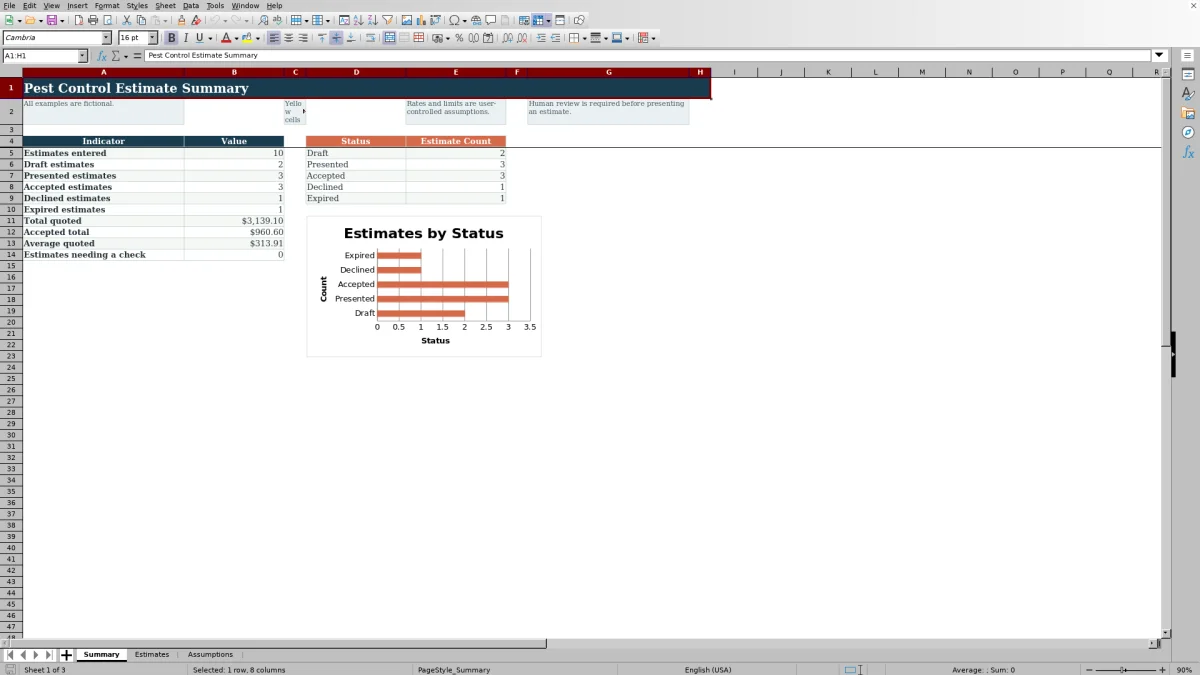
The Summary sheet reports the number of entered estimates and separate counts for Draft, Presented, Accepted, Declined, and Expired records. Its status counts also feed the included chart.
Total quoted value reflects calculated totals across entered rows, while accepted total includes rows marked Accepted. Average quoted value provides another view of the recorded estimate amounts, and the alert count identifies how many rows currently begin with a check message.
Frequently asked questions
Can I replace the fictional rates and list entries?
Yes. The Assumptions sheet contains editable service, product, technician, pest concern, route, responsibility, and status lists. Replace the fictional entries and default rates with the values used by your business.
How does the Excel template calculate a quoted total?
The subtotal combines service quantity times service rate, product quantity times product rate, hours times hourly rate, miles times mileage rate, and the option amount, then subtracts the discount amount. The workbook calculates the percentage amount on the nonnegative subtotal and adds it to produce the quoted total.
How many pest control estimates can the workbook hold?
The Estimates sheet contains 100 prepared rows, from row 5 through row 104. Summary formulas and status counts use that same range.
What does the Review Alert column do?
It displays a check message when an estimate has issues such as a duplicate ID, missing required details, an incomplete service or product setup, or a quantity outside a configured limit. A completed row without a detected issue displays its normal completion result.
Can the template track estimate status?
Yes. Estimate rows can use Draft, Presented, Accepted, Declined, or Expired status values from the editable list. The Summary sheet counts each status and charts the distribution.
Editorial responsibility

Maya EllisService workflow editor

Noah BennettWorkbook structure and operations