This pest control route profitability spreadsheet is an Excel workbook for comparing completed route revenue with labor, mileage, and product costs.
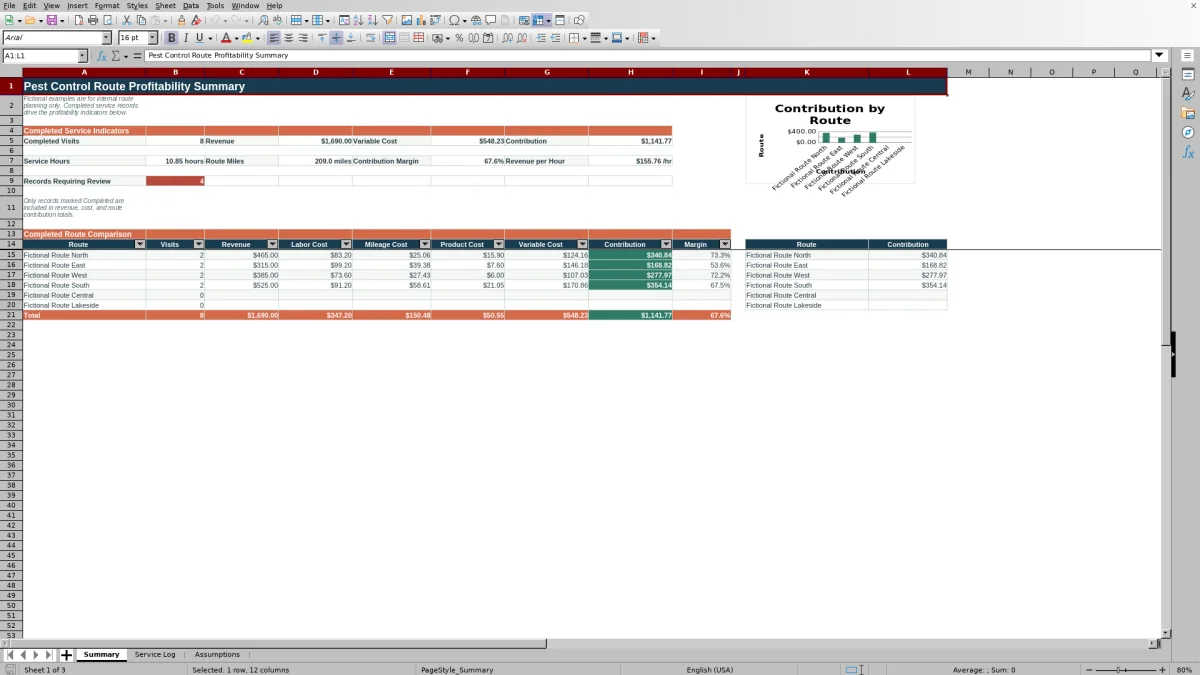
Enter service activity in the Service Log, adjust planning rates and lists on the Assumptions sheet, and use the Summary sheet to read contribution, margin, revenue per hour, route totals, review alerts, and the contribution chart.
How this workbook can help
- Compare completed route revenue with the variable costs associated with each service visit.
- See labor, mileage, and product costs separately before reviewing total contribution and margin.
- Use consistent route, service, technician, product, and status values across service records.
- Identify incomplete or excluded records before using them in route profitability decisions.
What is in the file
How to get started
1. Set the planning assumptions
Open the Assumptions sheet and update the hourly labor cost, mileage cost rate, target contribution margin, high-mile visit check, product costs, and operational lists as needed.
2. Enter service records
Use the yellow input cells in the Service Log to record the service date, route, customer, site, pest concern, service, technician, product usage, hours, miles, revenue, and status.
3. Resolve record alerts
Read the Check Alert column and correct missing details, noncompleted statuses, or other flagged inputs before relying on a record for profitability analysis.
4. Compare completed routes
Open the Summary sheet to review completed visits, revenue, variable cost, contribution, margin, revenue per hour, route totals, and the route contribution chart.
How the Excel workbook calculates route profitability
The summary uses completed records from the Service Log. Scheduled and canceled records do not contribute to its revenue, cost, or route totals.
For each populated service record, the workbook calculates labor cost from service hours and the hourly rate, mileage cost from miles and the mileage rate, and product cost from ounces used and the selected product's cost per ounce. These three variable-cost components are added together and subtracted from revenue to calculate contribution. Contribution divided by revenue produces the margin percentage.
Worked scenario for a fictional service visit
Input: A fictional completed North route visit has $190.00 in revenue, 1.20 service hours, 15.5 miles, and 4.00 ounces of Fictional Product Aster. The example assumptions are $32.00 per labor hour, $0.72 per mile, and $1.85 per ounce.
Result: Labor cost is $38.40, mileage cost is $11.16, and product cost is $7.40. Total variable cost is $56.96, contribution is $133.04, and the contribution margin is approximately 70.0%.
Interpretation: The visit generated $133.04 after the labor, mileage, and product costs represented in this workbook. That amount is contribution, not full net profit.
Next decision: Compare this visit with additional completed visits in the North route summary before deciding whether its revenue and variable-cost pattern supports a planning change.
Reading the completed route summary
The Summary sheet compares the six route positions configured on the Assumptions sheet. For each route, it reports completed visits, revenue, labor cost, mileage cost, product cost, total variable cost, contribution, and margin.
A totals row combines the displayed route results, while the chart compares route contribution. The top indicators also show completed service hours, route miles, revenue per hour, and the number of records with nonblank review alerts.
Common errors and solutions
Use the Check Alert column before interpreting route results. The Summary sheet counts populated alerts so unresolved records remain visible.
- If a service is missing from profitability totals, verify that its status is Completed rather than Scheduled or Canceled.
- If a product rate does not appear, select a product listed on the Assumptions sheet or use the listed No Product Used option when applicable.
- If labor, mileage, or product cost is blank, confirm that the corresponding hours, miles, product, and quantity inputs are present.
- If a route row on the Summary sheet has no result, confirm that the route is configured in the Assumptions list and has at least one completed record.
- If a record is rejected during entry, check the applicable date, list, or numeric validation range.
Operational Workbook Comparison
This Excel workbook is more suitable when route planning requires service-level hours, miles, product usage, status, and contribution in one operational file. A basic accounting revenue-and-expense export can be more suitable when analysis needs to begin with recorded financial transactions and the required route fields are already available or can be added separately.
| Consideration | Route profitability Excel workbook | Basic accounting revenue-and-expense export |
|---|---|---|
| Primary inputs | Service date, route, customer, site, pest concern, service, technician, product quantity, hours, miles, revenue, and status. | Recorded revenue and expense transactions; service-level operational fields depend on the exported source data. |
| Cost calculation | Calculates labor, mileage, and product costs from editable rates and service inputs. | Uses exported transaction amounts unless separate calculations and operational inputs are added. |
| Route analysis | Includes a completed-only summary for six configured routes, totals, key indicators, and a contribution chart. | Requires route and status fields plus a separate summary or reporting process to reproduce the same view. |
| Record checks | Provides input validation and a formula-driven Check Alert column across 100 prepared service rows. | Checks depend on the accounting system, export contents, and any rules added after export. |
| Practical use | Supports internal route planning based on service activity and variable-cost assumptions. | Supports analysis based on recorded financial data when sufficient operational detail is available. |
Workbook limits to consider
The workbook measures contribution after labor, mileage, and product costs. It does not represent fixed overhead, taxes, financing costs, or complete net profit.
The prepared Service Log range contains 100 rows, and the route summary uses six route positions from the Assumptions sheet. Entries added beyond those prepared ranges require corresponding formula, validation, and summary updates.
Summary formulas filter records by Completed status but do not apply a reporting-period criterion. The included records, names, addresses, products, technicians, and routes are fictional examples for internal planning.
Data-entry controls and workbook layout
The Service Log accepts dates from January 1, 2024, through December 31, 2028. List validation covers routes, pest concerns, services, technicians, products, and statuses, while numeric validation applies to product quantity, service hours, miles, and revenue.
All three sheets include frozen panes and filters in their working areas. Conditional formatting appears on the Summary and Service Log sheets, and formulas are prepared through row 104 of the Service Log.
Frequently asked questions
Which service records are included in the profitability summary?
Only records marked Completed are included in the Summary sheet's revenue, cost, contribution, hours, miles, and route totals. Scheduled and canceled records are excluded.
What costs are included in variable cost?
Variable cost is the sum of calculated labor cost, mileage cost, and product cost. Labor uses service hours and the hourly rate, mileage uses miles and the mileage rate, and product cost uses quantity and cost per ounce.
Does contribution margin represent net profit?
No. The workbook calculates contribution after the labor, mileage, and product costs it tracks. It does not include fixed overhead or other costs outside those three components.
How many service records are prepared in the Excel workbook?
The Service Log has 100 prepared rows, from row 5 through row 104. Calculated formulas and applicable validation rules extend across that range.
Can the route and product lists be changed?
Yes. The Assumptions sheet contains editable route and product lists. Product entries also have editable cost-per-ounce values used by the Service Log lookup formulas.
Editorial responsibility

Maya EllisService workflow editor

Noah BennettWorkbook structure and operations