This pest control customer profitability dashboard is an Excel workbook for organizing customer and service data, calculating service costs, and ranking customers by contribution margin.
The XLSX spreadsheet summarizes completed-service revenue, labor cost, product cost, mileage cost, callback direct cost, callbacks, contribution margin, and margin percentage. Editable assumptions and review flags help users interpret results within the workbook's defined scope.
How this workbook can help
- Ranks customers by calculated contribution margin so financially significant accounts are easier to identify.
- Consolidates completed-service revenue, service cost, callbacks, and margin measures in one workbook.
- Flags customers with no completed services, unavailable margins, or margins below the editable threshold.
- Keeps mileage, labor, product, entry-limit, and margin-review assumptions editable.
What is in the file
How to get started
Review assumptions and lists
Open the Assumptions sheet and confirm the mileage rate, allowed dates, entry limits, margin threshold, product costs, technician labor rates, and editable lists.
Enter each customer once
Add customer names to the yellow Customer column on the Customers sheet. The formulas calculate each customer's service count, revenue, costs, callbacks, margins, rank, and review flag.
Record service activity
Complete the editable fields on the Service Records sheet and select values from the available lists. For an applicable completed-service quantity or cost with no amount, enter zero rather than leaving the cell blank.
Review profitability results
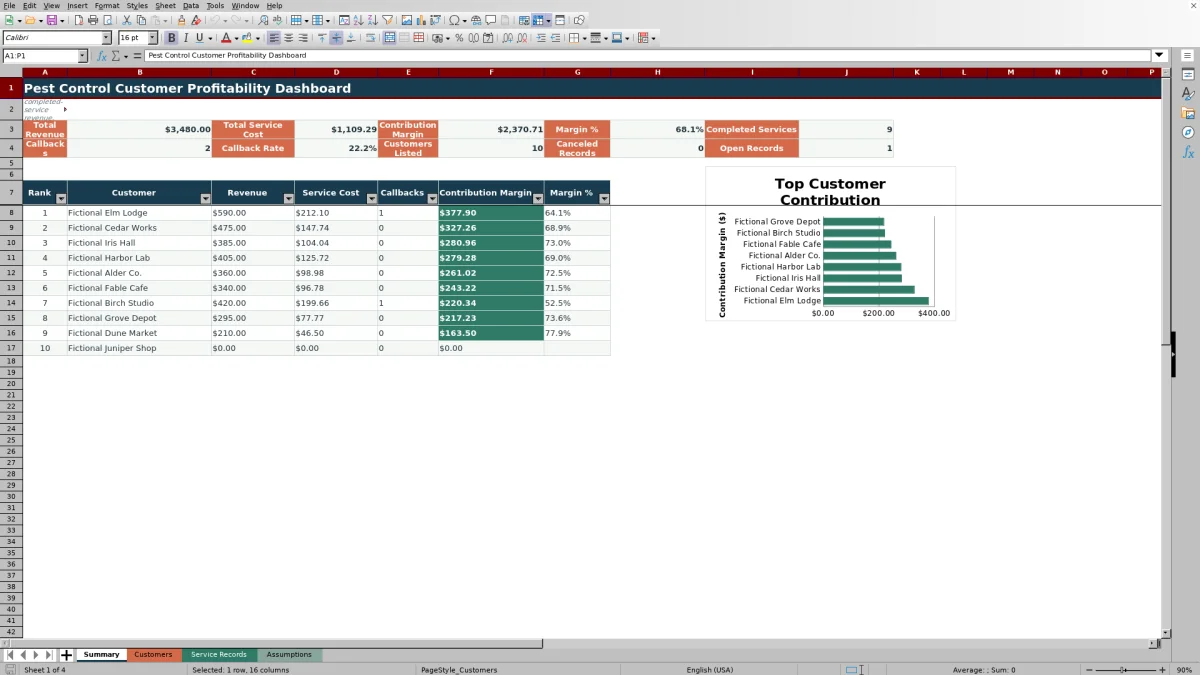
Use the Customers sheet to inspect detailed results and flags. Use the Summary sheet to review totals, callback measures, ranked customers, and the contribution-margin chart.
What the profitability dashboard measures
The workbook uses a completed-service basis for recognized revenue and calculated service costs. Summary metrics cover total revenue, total service cost, contribution margin, margin percentage, completed services, callbacks, callback rate, listed customers, canceled records, and open records.
The Customers sheet aggregates these results by customer and ranks accounts by contribution margin. Its detail columns also show completed services, callbacks, callback rate, margin percentage, and any applicable review flag.
Worked scenario for a fictional customer
Consider the included fictional service for Fictional Alder Co. The inputs are $360 of revenue, 2.5 labor hours for Fictional Technician Rowan at $32 per hour, 8 ounces of Fictional Product Alpha at $1.20 per ounce, 14 miles at $0.67 per mile, no callback, and $0 of callback direct cost. The record is marked Completed.
The workbook calculates $80.00 of labor cost, $9.60 of product cost, and $9.38 of mileage cost. Those inputs produce a $98.98 service cost and a $261.02 contribution margin. The resulting 72.5% margin is above the initial 20% review threshold, so this record alone would not cause a below-threshold flag. The next decision is to inspect lower-ranked or flagged customers and determine whether their service inputs or cost assumptions need review.
Callbacks and customer review flags
A callback counts toward the dashboard when Callback is Yes and Status is Completed. At the customer level, callback rate divides completed callbacks by completed services.
The initial 20% review threshold is stored on the Assumptions sheet and can be edited. A customer may also receive a review message when there is no completed service or when a margin cannot be calculated.
Common errors and solutions
- If a customer is not recognized, enter that customer once on the Customers sheet and use the same name in Service Records.
- If a completed record produces a blank calculated cost, check that revenue, callback direct cost, labor hours, miles, product quantity, technician, and product inputs are present. Enter zero for an applicable quantity or cost that has no amount.
- If a customer entry is rejected, check for a duplicate name because the customer column is validated for unique nonblank entries.
- If a service date is rejected, confirm that it falls between the editable earliest and latest dates on the Assumptions sheet.
- If an open or canceled record has blank calculated costs, no correction is needed; the formulas intentionally calculate those costs only for completed records.
Editable assumptions and controlled entries
The editable assumptions include mileage cost per mile, earliest and latest service dates, maximum labor hours, maximum miles, maximum product quantity, maximum entered amount, and the margin review threshold. Product costs per ounce and technician labor costs per hour are also editable.
Service Records uses validated lists for pest concern, service, technician, product, route, callback, responsibility, and status. Numeric validation applies to product quantity, labor hours, miles, revenue, and callback direct cost.
Workbook and blank spreadsheet comparison
Use the prepared workbook when its verified fields and calculations fit the pest-control task. Start with a blank spreadsheet when you need a different model and can build and test every field and formula yourself.
| Method | Setup | Calculations and review | Practical fit |
|---|---|---|---|
| This Excel workbook | Use the prepared structure in the validated file | Review the documented calculations and results | Local editable pest-control workflow supported by the workbook |
| Blank spreadsheet | Create the structure yourself | Build and test every formula and check | A custom model built from scratch |
Workbook limits and interpretation
The workbook provides 100 customer rows and 100 service rows. Its formulas, validations, filters, and rankings use fixed ranges through row 104 and do not expand as Excel tables.
The Summary sheet displays up to 10 ranked customers, while its chart references up to eight. The date assumptions validate service-entry dates but do not create a dashboard date filter, so summary calculations use all entered records that meet each formula's status conditions.
Results depend on complete entries and appropriate internal cost assumptions. The fictional examples demonstrate workbook behavior and should be replaced or supplemented with the user's own business data.
Frequently asked questions
How are customers ranked in the Excel workbook?
Customers are ranked by calculated contribution margin. When contribution margins are equal, worksheet order is used to resolve the ranking.
Which service records count toward revenue?
Revenue totals and customer revenue calculations include service records marked Completed. Open and canceled records are counted separately on the Summary sheet.
What costs are included in service cost?
For completed records, service cost includes entered callback direct cost plus calculated labor, product, and mileage costs. Labor uses technician hourly cost, product cost uses cost per ounce, and mileage uses the editable cost per mile.
Why is a service cost or margin blank?
Calculated costs remain blank for open or canceled records. A completed record can also remain blank when a required input or matching assumption is missing. Margin percentage remains blank when revenue or calculated margin inputs do not support the division.
How many customers and service records can the template hold?
The validated workbook layout provides 100 customer-entry rows and 100 service-record rows. The formulas and validation rules use fixed ranges ending at row 104.
Editorial responsibility

Maya EllisService workflow editor

Noah BennettWorkbook structure and operations