This pest control accounts receivable aging Excel workbook organizes unpaid invoice balances by due date, age, status, and follow-up timing. The XLSX spreadsheet includes Summary, AR Aging, and Assumptions sheets.
Enter up to 100 invoice records, including customer and service details, original amounts, payments or credits, assigned responsibility, and contact dates. Formulas calculate open balances, days past due, aging buckets, and follow-up alerts, while fictional sample records demonstrate the workflow.
How this workbook can help
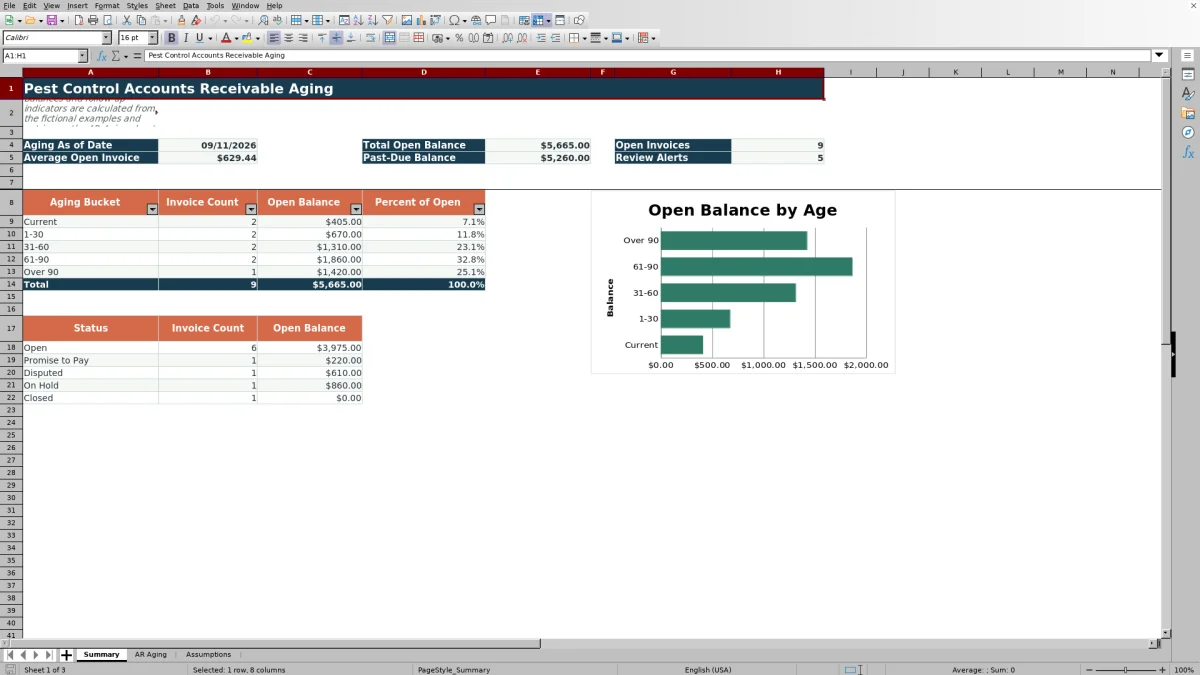
- See total open balance, past-due balance, open invoice count, average open invoice, and review-alert count in one summary.
- Group unpaid balances into Current, 1-30, 31-60, 61-90, and Over 90 aging buckets under the default settings.
- Prioritize collection follow-up using calculated alerts, balance thresholds, age thresholds, and scheduled follow-up dates.
- Track invoice status, assigned responsibility, last contact, and next follow-up alongside each customer balance.
What is in the file
How to get started
1. Set the aging date and thresholds
Open the Assumptions sheet and enter the aging as-of date. Review the bucket limits, priority balance, and priority days past due before working with invoice records.
2. Update the available list choices
Edit the status, responsibility, route, and service choices on the Assumptions sheet if the listed options do not match the business.
3. Enter accounts receivable details
On the AR Aging sheet, replace the fictional examples with invoice IDs, customers, service sites, routes, services, invoice and due dates, original amounts, payments or credits, statuses, assignments, and contact dates.
4. Review balances and plan follow-up
Use the calculated Open Balance, Days Past Due, Aging Bucket, and Follow-Up Alert columns to organize collection work. Check the Summary sheet for aging totals, status totals, and the open-balance chart.
What the accounts receivable aging workbook calculates
The AR Aging sheet subtracts Payments / Credits from Original Amount to calculate Open Balance, with the result limited to zero or more. It then compares each due date with the editable aging as-of date to calculate Days Past Due.
Under the default assumptions, unpaid invoices are classified as Current, 1-30, 31-60, 61-90, or Over 90. A zero open balance is classified as Paid. These calculated fields feed the totals on the Summary sheet.
Worked pest control receivables scenario
Input: The fictional Cedar Kite Bakery invoice has an original amount of $320, payments or credits of $100, a due date of August 27, 2026, and an aging as-of date of September 11, 2026.
Result: The workbook calculates a $220 open balance and 15 days past due, placing the invoice in the 1-30 bucket. Its status is Promise to Pay, and its next follow-up date is September 11, 2026.
Interpretation: The customer still owes part of the invoice, and the balance is in the first overdue range rather than the Current bucket.
Next decision: Use the due follow-up date and assigned responsibility to place the invoice in the appropriate collection queue, then update the contact fields after the next action is recorded.
Using summary totals to organize collection work
The Summary sheet displays the aging as-of date, total open balance, open invoice count, average open invoice, past-due balance, and review-alert count. Its bucket section reports invoice count, open balance, and percentage of total open receivables for each aging range.
The Aging mix helps identify whether unpaid balances are concentrated in newer or older ranges. Status totals provide another view of balances marked Open, Promise to Pay, Disputed, On Hold, or Closed, while the chart shows open balance by aging bucket.
Common errors and solutions
Resolve source data first when a calculated field is blank or an alert requests a correction.
- If the alert says Check as-of date, enter a valid date in Assumptions cell B4.
- If it says Enter amount, add a numeric original amount and confirm that payments or credits are numeric when entered.
- If it says Check applied amount, verify a payment or credit that exceeds the original amount.
- If it says Enter invoice date or Enter due date, complete the missing date field.
- If it says Check dates, confirm that both entries are valid dates and that the due date is not before the invoice date.
- If the aging bucket shows Limit check, restore four numeric bucket limits in increasing order.
- If responsibility is missing, choose an available assignment from the list.
Workbook limits
The AR Aging sheet provides 100 invoice rows, from row 5 through row 104. Formulas, validation ranges, filters, and Summary references are configured for those rows; using additional rows requires corresponding workbook changes.
The workbook ages invoice-level entries supplied in the spreadsheet. Follow-Up Alert is a worksheet indicator and does not perform collection activity. Changes to assumption lists affect available choices and calculations but do not rewrite existing entries. All included sample customers, sites, routes, invoices, and transactions are fictional.
Workbook and blank spreadsheet comparison
Use the prepared workbook when its verified fields and calculations fit the pest-control task. Start with a blank spreadsheet when you need a different model and can build and test every field and formula yourself.
| Method | Setup | Calculations and review | Practical fit |
|---|---|---|---|
| This Excel workbook | Use the prepared structure in the validated file | Review the documented calculations and results | Local editable pest-control workflow supported by the workbook |
| Blank spreadsheet | Create the structure yourself | Build and test every formula and check | A custom model built from scratch |
Editable assumptions and list controls
The Assumptions sheet stores the aging as-of date, four bucket limits, priority balance, and priority days past due. Its default limits produce Current, 1-30, 31-60, 61-90, and Over 90 classifications.
The same sheet supplies list choices for Status, Responsibility, Route, and Service. Date validation covers invoice, due, last-contact, and next-follow-up dates, while numeric validation covers invoice amounts, payments or credits, bucket limits, and priority settings.
Frequently asked questions
What information should I enter for each pest control invoice?
Enter the invoice ID, customer, service site, route, service, invoice date, due date, original amount, and any payments or credits. You can also record status, responsibility, last contact, and next follow-up.
Can I change the accounts receivable aging buckets?
Yes. The Assumptions sheet contains four editable maximum-day limits. Keep them numeric and in increasing order so the aging formulas can build the bucket labels correctly.
How does the workbook handle partial payments?
Enter the partial payment or credit in the Payments / Credits column. The Open Balance formula subtracts that amount from the original invoice amount and does not return a balance below zero.
What can trigger a follow-up alert?
The alert formula can identify missing or inconsistent dates and amounts, missing responsibility, due follow-up activity, and invoices meeting the configured priority balance or days-past-due thresholds.
How many invoices can the Excel workbook hold?
The supplied workbook has 100 configured invoice-entry rows, covering rows 5 through 104 on the AR Aging sheet.
What does the Summary sheet report?
It reports the aging date, total open balance, open invoice count, average open invoice, past-due balance, review-alert count, aging-bucket totals, percentages of open receivables, status totals, and an aging-balance chart.
Editorial responsibility

Maya EllisService workflow editor

Noah BennettWorkbook structure and operations