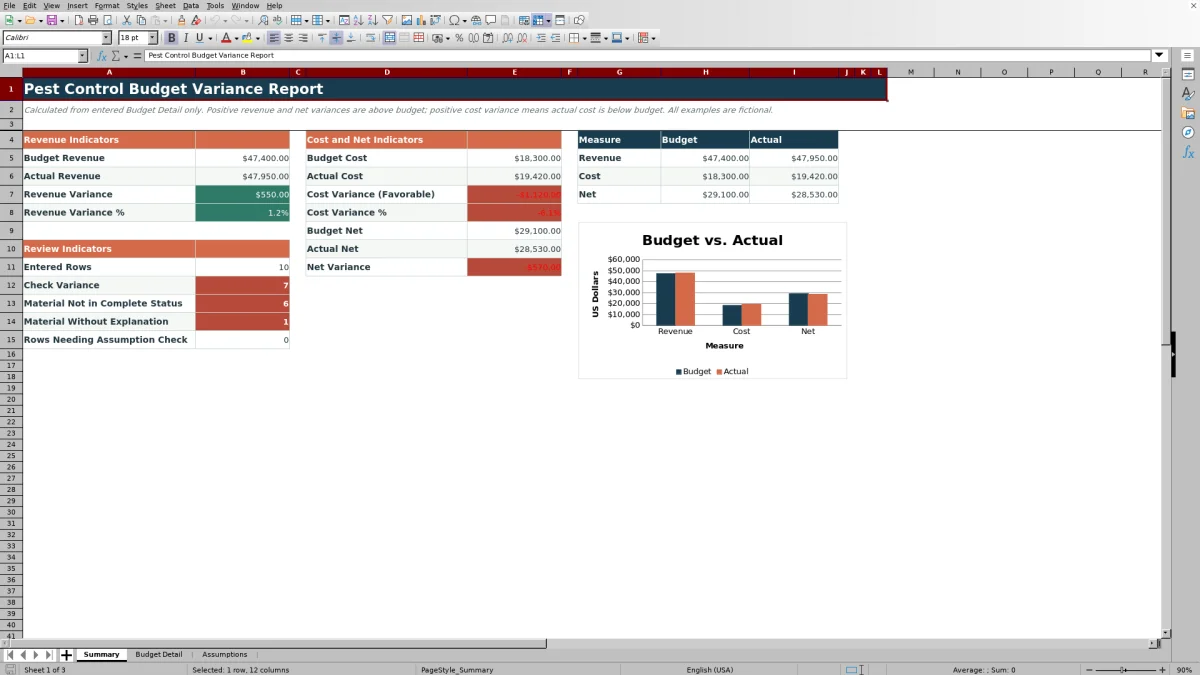
The Pest Control Budget Variance Report is an Excel workbook for comparing budgeted and actual revenue and costs across pest control routes, services, and responsible teams. The XLSX calculates revenue, cost, and net variances from the financial amounts entered in Budget Detail.
Configurable materiality thresholds identify variances that require attention, while explanation and review-status fields support follow-up. A Summary sheet consolidates the entered records into performance indicators, exception counts, and a budget-versus-actual chart.
How this workbook can help
- Compare budgeted and actual revenue, costs, and net results in one consistent format.
- Identify material revenue or cost variances using editable dollar and percentage thresholds.
- Document variance explanations and track each item's status.
- See consolidated financial results and exception counts without manually totaling detail rows.
What is in the file
How to get started
1. Configure the assumptions
Open Assumptions and confirm the material variance amount, material variance rate, completed status, accepted date range, and controlled choices for routes, services, responsibilities, and statuses.
2. Enter budget and actual amounts
In Budget Detail, replace the fictional sample entries and complete the yellow input cells. Enter a date, route, service, responsibility, budget revenue, actual revenue, budget cost, and actual cost for each record.
3. Check the calculated variances
Read the revenue, favorable cost, and net variance columns. Use the Variance Alert column to find incomplete records, assumption issues, or completed records that meet a materiality threshold.
4. Document and track material items
Add an explanation when a variance needs attention, select the appropriate status, and use Summary to monitor totals, material items outside the configured completed status, and material items without explanations.
Budget and actual measures
The workbook calculates revenue variance as actual revenue minus budget revenue. A positive result indicates revenue above budget, while a negative result indicates a shortfall.
Favorable cost variance is budget cost minus actual cost, so a positive result means actual cost is below budget. Net variance compares actual net with budget net after revenue and cost are combined.
Material variance and status workflow
The materiality settings on Assumptions default to $500 and 10%. A completed detail record displays Check variance when the absolute revenue or cost variance reaches either configured threshold.
Each detail record also provides a variance explanation field and a review status field. Summary counts material records that do not use the configured completed status and material records that have no explanation.
Worked scenario: fictional route shortfall
Input: A fictional route has budget revenue of $6,800, actual revenue of $5,900, budget cost of $2,800, and actual cost of $3,000.
Result: The workbook calculates a revenue variance of -$900, or approximately -13.2%. Its favorable cost variance is -$200, or approximately -7.1%. Budget net is $4,000, actual net is $2,900, and net variance is -$1,100.
Interpretation: The revenue shortfall exceeds both default materiality thresholds, so the record displays Check variance. The negative cost variance also indicates that actual cost exceeded budget, although it does not independently reach either default threshold.
Next decision: Record the operational reason in Variance Explanation and assign the appropriate status. Keep the status open while follow-up remains outstanding, or apply the configured completed status after the organization's process is complete.
Errors and solutions
- An Incomplete alert means a dated record does not contain all four required financial amounts. Enter budget and actual revenue and budget and actual cost.
- A Check assumptions alert means one or both materiality thresholds are not numeric. Restore valid nonnegative numbers in the assumption cells.
- A date rejected by validation falls outside the earliest and latest dates configured on Assumptions. Correct the entry or adjust the accepted date range.
- A route, service, responsibility, or status rejected by validation is not in its controlled list. Select an existing choice or revise the corresponding list on Assumptions.
- A material item counted as missing an explanation has Check variance in the alert column and a blank Variance Explanation cell. Add a record-specific explanation.
Workbook and blank spreadsheet comparison
Use the prepared workbook when its verified fields and calculations fit the pest-control task. Start with a blank spreadsheet when you need a different model and can build and test every field and formula yourself.
| Method | Setup | Calculations and review | Practical fit |
|---|---|---|---|
| This Excel workbook | Use the prepared structure in the validated file | Review the documented calculations and results | Local editable pest-control workflow supported by the workbook |
| Blank spreadsheet | Create the structure yourself | Build and test every formula and check | A custom model built from scratch |
Workbook limits
Budget Detail is prepared for 100 records in rows 4 through 103. Adding more operational rows requires extending the workbook structure, formulas, validation, formatting, filter range, and Summary references.
Summary totals all entered detail records rather than producing separate monthly, branch, technician, or service-category subtotals. Material alerts test revenue and cost variances, not net variance by itself, and the workbook depends on manually entered budget and actual amounts.
Reading the summary for the next reporting decision
Read revenue variance, favorable cost variance, and net variance together. For example, revenue can fall below budget while costs also fall below budget; net variance shows the combined financial effect.
Use the exception counts to select the next data task. A nonzero Material Without Explanation count points to missing narratives, while Material Not in Complete Status identifies flagged records whose status differs from the completed status configured on Assumptions.
Frequently asked questions
What does a positive cost variance mean in this Excel report?
A positive cost variance is favorable because the workbook calculates budget cost minus actual cost. It means actual cost was below budget.
What causes the workbook to display Check variance?
A complete detail record displays Check variance when the absolute revenue or cost variance reaches the configured dollar threshold or when the absolute revenue or cost variance percentage reaches the configured rate threshold.
Can the route, service, responsibility, and status choices be changed?
Yes. The controlled choices are stored on Assumptions in four-cell lists. Edit those listed values to match the categories used for the report while keeping the validation ranges intact.
How many detail records does the workbook support?
Budget Detail includes 100 prepared records from row 4 through row 103. Those rows contain the formulas, validation, formatting, filter range, and Summary references used by the workbook.
Are the included pest control entries actual business data?
No. The included routes, services, teams, amounts, explanations, and dates are identified as fictional sample entries. Replace them with the information intended for the report.
Editorial responsibility

Maya EllisService workflow editor

Noah BennettWorkbook structure and operations