The Pest Control Vehicle Cost per Mile Calculator is an Excel workbook for recording vehicle-specific ownership, fuel, maintenance and repair, insurance, other vehicle costs, and odometer readings for a defined analysis period.
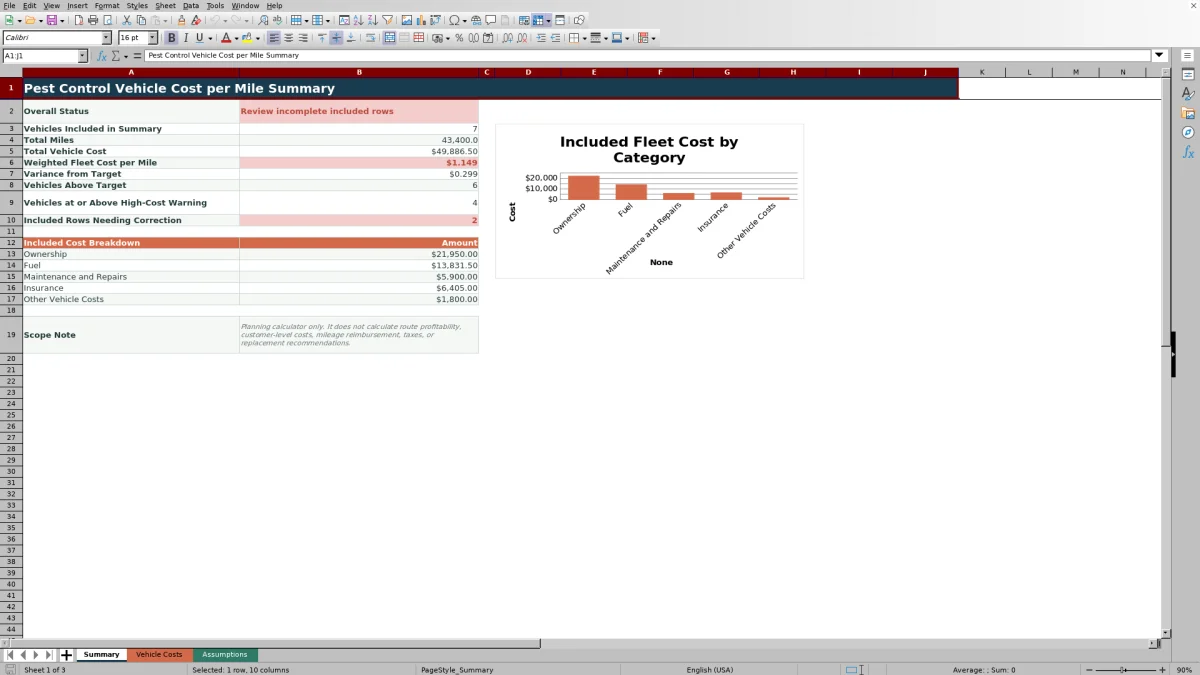
It calculates miles driven, fuel cost, total vehicle cost, and cost per mile, then summarizes valid included vehicles with a mileage-weighted fleet rate, target variance, warning counts, and a cost breakdown.
How this workbook can help
- See how ownership, fuel, maintenance and repairs, insurance, and other costs contribute to vehicle spending.
- Compare individual vehicle and weighted fleet costs per mile with editable planning targets.
- Keep incomplete, inconsistent, or duplicate vehicle records out of summary calculations.
- Review included mileage, total cost, warning counts, and cost categories in one summary.
What is in the file
How to get started
1. Set the planning thresholds
Open the Assumptions sheet and enter the target fleet cost per mile and high-cost warning. Keep the warning value at or above the target.
2. Enter vehicle records
Replace the fictional examples on Vehicle Costs. Use one unique internal vehicle ID per row, choose the vehicle type, and enter dates, odometers, and costs covering the same vehicle-specific period.
3. Resolve row checks
Select Yes or No in the Include column. Review Data Check and correct missing fields, duplicate IDs, invalid dates, or odometer issues until an intended row shows Yes under Use in Summary.
4. Review fleet results
Open Summary to see included vehicles, total miles, total vehicle cost, weighted fleet cost per mile, variance from target, warning counts, and the included cost breakdown.
What the vehicle cost calculator measures
The workbook calculates vehicle cost per mile by dividing each complete vehicle record's total cost by miles driven. Miles driven equals the ending odometer reading minus the beginning reading.
Fuel cost equals fuel gallons multiplied by average fuel price. Total vehicle cost combines the entered ownership cost, calculated fuel cost, maintenance and repairs, insurance, and other vehicle costs.
Worked scenario for a pest control vehicle
Fictional example: A cargo van begins at 42,100 miles and ends at 51,100 miles, producing 9,000 miles driven. Its inputs are $3,600 of ownership cost, 720 gallons at $3.40 per gallon, $950 of maintenance and repairs, $1,050 of insurance, and $300 of other vehicle costs.
The formulas calculate $2,448 of fuel cost and $8,348 of total vehicle cost. Dividing $8,348 by 9,000 produces $0.928 per mile when displayed to three decimal places. That result is above the $0.850 target but below the $1.100 high-cost warning. The next decision is to review the van's ownership and fuel amounts alongside its usage before setting the next planning target.
How records enter the fleet summary
A row receives Use in Summary status only when Include is Yes, the vehicle ID is unique, a vehicle type is present, dates and odometers are valid, the ending odometer exceeds the beginning odometer, and all required cost inputs are numeric.
The Summary sheet separately counts rows selected for inclusion that still need correction. This prevents incomplete included records from silently affecting fleet mileage or total cost.
Why the fleet rate is mileage-weighted
The fleet result is mileage-weighted: the workbook divides total cost for valid included vehicles by their total miles. It does not take a simple average of the individual per-mile rates.
The same included records supply the ownership, fuel, maintenance and repairs, insurance, and other-cost totals shown in the cost breakdown and chart.
Workbook and blank spreadsheet comparison
Use the prepared workbook when its verified fields and calculations fit the pest-control task. Start with a blank spreadsheet when you need a different model and can build and test every field and formula yourself.
| Method | Setup | Calculations and review | Practical fit |
|---|---|---|---|
| This Excel workbook | Use the prepared structure in the validated file | Review the documented calculations and results | Local editable pest-control workflow supported by the workbook |
| Blank spreadsheet | Create the structure yourself | Build and test every formula and check | A custom model built from scratch |
Common errors and solutions
Use the Data Check result beside each row to identify why a record is not entering the summary.
- If the row says Select Include, choose Yes or No in the Include column.
- If the vehicle ID is missing or duplicated, enter a unique internal ID containing 1 to 30 characters.
- If dates are invalid, enter both dates and confirm that the period end is not before the period start.
- If the odometer check fails, enter both readings and make the ending odometer greater than the beginning odometer.
- If costs are incomplete, enter numeric values for ownership, fuel gallons, average fuel price, maintenance and repairs, insurance, and other vehicle costs. Use zero when a valid category had no cost.
Workbook limits and planning boundaries
This is a planning calculator only. It does not calculate route profitability, customer-level costs, mileage reimbursement, taxes, or vehicle replacement recommendations.
Ownership cost is entered as one amount; the workbook does not build depreciation, financing, or lease schedules. The Assumptions sheet also contains a Minimum comparison miles entry, but the current calculations do not reference it, so changing that value alone does not change the results.
Frequently asked questions
How does the Excel workbook calculate vehicle cost per mile?
It subtracts the beginning odometer from the ending odometer to calculate miles driven, adds ownership, fuel, maintenance and repairs, insurance, and other vehicle costs, and divides total vehicle cost by miles driven.
Which vehicle rows are included in the fleet summary?
A row must be marked Yes for inclusion and contain a unique vehicle ID, a vehicle type, valid dates, increasing odometer readings, and all required numeric cost inputs. The Use in Summary column confirms whether the row qualifies.
Is weighted fleet cost per mile an average of the vehicle rates?
No. The workbook adds the costs of valid included vehicles and divides that total by their combined mileage. Vehicles with more miles therefore contribute proportionally more to the fleet rate.
Does Minimum comparison miles filter low-mileage vehicles?
No. The value appears on the Assumptions sheet, but the workbook's current formulas do not reference it. It does not filter rows or change the summary calculations.
Can this calculator measure pest control route profitability?
No. The workbook measures vehicle and fleet cost per mile. It does not include route revenue, customer-level costs, labor, or other inputs needed to calculate route profitability.
Editorial responsibility

Maya EllisService workflow editor

Noah BennettWorkbook structure and operations