This pest control fuel budget spreadsheet is an Excel workbook for planning route fuel consumption and spending by vehicle. It organizes planned and actual mileage, MPG, gallons, fuel prices, trip status, and route details in one XLSX file.
Use the editable assumptions to set the budget period, fuel budget, review thresholds, vehicles, routes, technicians, and estimated fuel performance. The workbook then calculates trip-level costs and MPG, flags selected issues, and summarizes period and vehicle results.
How this workbook can help
- Plan fuel spending from route mileage, vehicle MPG, and budget fuel price assumptions.
- Compare completed-trip actual fuel cost and MPG with calculated budget values.
- Track period totals, remaining budget, budget use, and vehicle-level costs in one workbook.
- Identify missing actuals, threshold-level cost variances, and low MPG through formula-based review flags.
What is in the file
How to get started
1. Set the budget period and thresholds
Open the Assumptions sheet and enter the budget start date, budget end date, period fuel budget, cost variance review threshold, and MPG deviation review threshold.
2. Configure vehicles and entry choices
Replace the fictional vehicle, fuel type, budget MPG, budget price, route, and technician values with the choices used by the business. The vehicle planning area supports eight vehicle rows.
3. Enter route fuel records
Use the Fuel Log to record each date, route, technician, vehicle, status, planned miles, actual miles, actual gallons, and actual price per gallon. Select values from the available lists where provided.
4. Check calculations and summary results
Read the calculated budget gallons, costs, variance, actual MPG, and review flag for each trip. Then use the Summary sheet to check period totals, remaining budget, budget use, and vehicle cost results.
How the Pest Control Fuel Budget Workbook Is Organized
Three-sheet workflow separates configuration, route records, and reporting. The Assumptions sheet stores the budget period, total fuel budget, review thresholds, vehicle estimates, and selectable route and technician values.
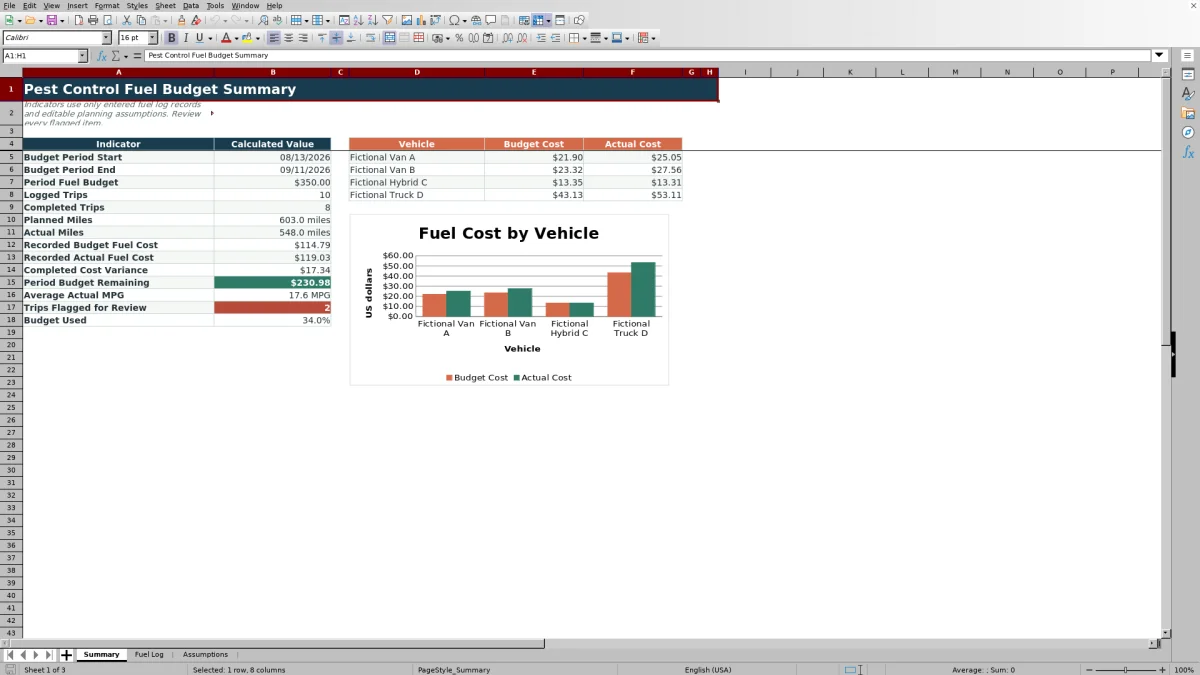
The Fuel Log provides 100 rows for trip-level entries. The Summary sheet consolidates results for the selected period and presents budget and actual fuel costs by vehicle.
Fuel Cost and Efficiency Calculations
Route-level calculations begin with planned miles and the selected vehicle's budget MPG. The workbook divides planned miles by budget MPG to calculate budget gallons, then multiplies budget gallons by the vehicle's budget price per gallon.
- Actual fuel cost equals actual gallons multiplied by actual price per gallon.
- Cost variance equals actual fuel cost minus budget fuel cost.
- Actual MPG equals actual miles divided by actual gallons.
- Canceled trips do not receive budget gallons or a review flag.
Worked Pest Control Route Scenario
Worked scenario: a fictional completed North Loop entry uses Fictional Van A, 62 planned miles, 19.5 budget MPG, and a $3.65 budget price per gallon. The completed record contains 64 actual miles, 3.4 actual gallons, and a $3.59 actual price per gallon.
- Input: 62 planned miles divided by 19.5 MPG produces about 3.18 budget gallons.
- Result: budget fuel cost is about $11.61, actual fuel cost is about $12.21, cost variance is about $0.60, and actual fuel economy is about 18.8 MPG.
- Interpretation: with the sample $5 cost threshold and 15% MPG threshold, neither result triggers a review flag.
- Next decision: leave the assumptions unchanged for this entry and continue comparing later Van A trips with the same planning values.
Common Entry Errors and Solutions
Resolve flags at the source by checking the fields used in each calculation.
- If a completed row says Check missing actuals, enter actual miles, actual gallons, and actual price per gallon, or correct the status if the trip is not completed.
- If a row says Check cost variance, verify planned miles, actual gallons, actual price, and the selected vehicle's budget price and MPG assumptions.
- If a row says Check MPG, verify actual miles and gallons, then confirm that the selected vehicle has the intended budget MPG.
- If vehicle-based calculated cells are blank, select a vehicle configured in Assumptions rows 13 through 20.
- If a date is rejected, confirm that it falls between the budget start and end dates entered on the Assumptions sheet.
Workbook and blank spreadsheet comparison
Use the prepared workbook when its verified fields and calculations fit the pest-control task. Start with a blank spreadsheet when you need a different model and can build and test every field and formula yourself.
| Method | Setup | Calculations and review | Practical fit |
|---|---|---|---|
| This Excel workbook | Use the prepared structure in the validated file | Review the documented calculations and results | Local editable pest-control workflow supported by the workbook |
| Blank spreadsheet | Create the structure yourself | Build and test every formula and check | A custom model built from scratch |
Workbook Limits and Capacity
Known capacity limits should be considered before entering records. The Fuel Log contains 100 entry rows, from row 5 through row 104. The Assumptions sheet provides eight vehicle planning slots, while the Summary vehicle comparison and chart use the first four vehicle slots.
Calculations depend on entered dates, statuses, mileage, gallons, prices, and matching vehicle assumptions. Blank or inconsistent inputs can leave results blank or produce a review flag. The workbook uses editable internal estimates and does not guarantee future fuel consumption or prices.
Using Summary Results for Budget Decisions
Period-level decisions can be based on the Summary indicators for logged trips, completed trips, planned miles, actual miles, recorded budget fuel cost, recorded actual fuel cost, completed cost variance, budget remaining, average actual MPG, flagged trips, and budget used.
Use the vehicle comparison to locate differences between calculated budget cost and actual cost for completed records with actual fuel cost. If one vehicle repeatedly produces cost or MPG flags, the next decision is to verify its route entries and update its editable planning assumptions when the internal estimates have changed.
Frequently asked questions
What information do I enter in the Fuel Log?
Enter the date, route, technician, vehicle, status, planned miles, actual miles, actual gallons, and actual price per gallon. The remaining trip-level fields are calculated by formulas.
How does the spreadsheet calculate budget fuel cost?
It divides planned miles by the selected vehicle's budget MPG to calculate budget gallons. It then multiplies budget gallons by that vehicle's budget price per gallon.
Which records are included in the Summary sheet?
The indicators use records dated within the budget period. Logged Trips counts dated records, Completed Trips counts completed records, planned miles excludes canceled records, and completed actual values are used for actual mileage, actual fuel cost, and average MPG calculations under the workbook's formula conditions.
What causes a review flag?
A completed trip is flagged when required actual values are missing. A row can also be flagged when absolute cost variance meets or exceeds the editable cost threshold or when actual MPG falls below the permitted deviation from budget MPG. Canceled trips do not receive a review flag.
How many trips and vehicles does the workbook support?
The Fuel Log provides 100 trip-entry rows. The Assumptions sheet provides eight vehicle planning rows, and the Summary vehicle comparison uses the first four vehicle rows.
Editorial responsibility

Maya EllisService workflow editor

Noah BennettWorkbook structure and operations