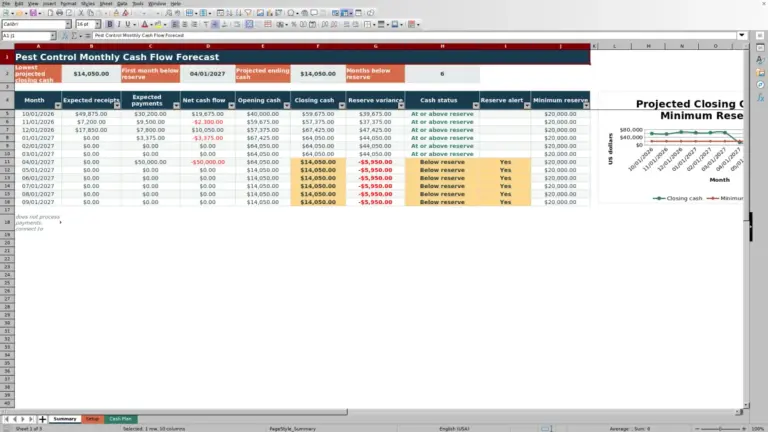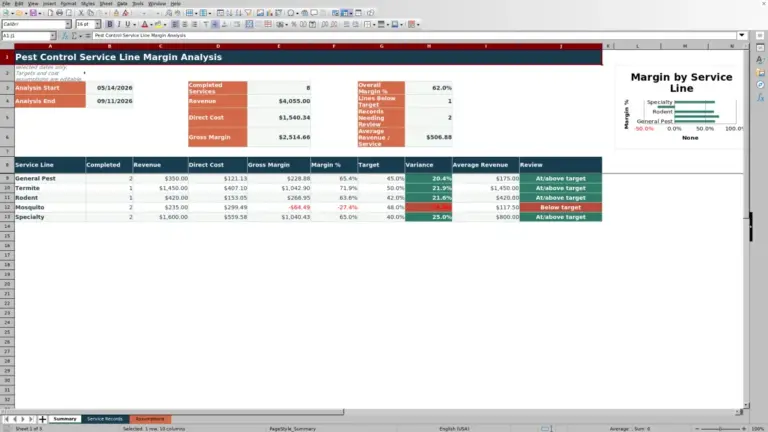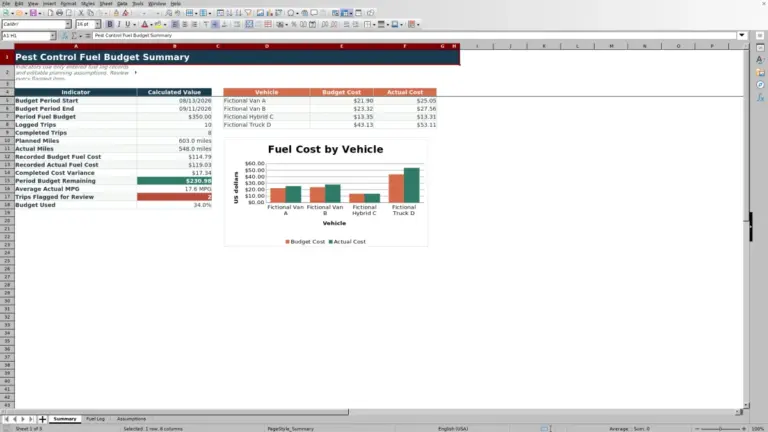
This pest control invoice template is an Excel workbook for organizing completed service charges, credits, payments, and customer balances.
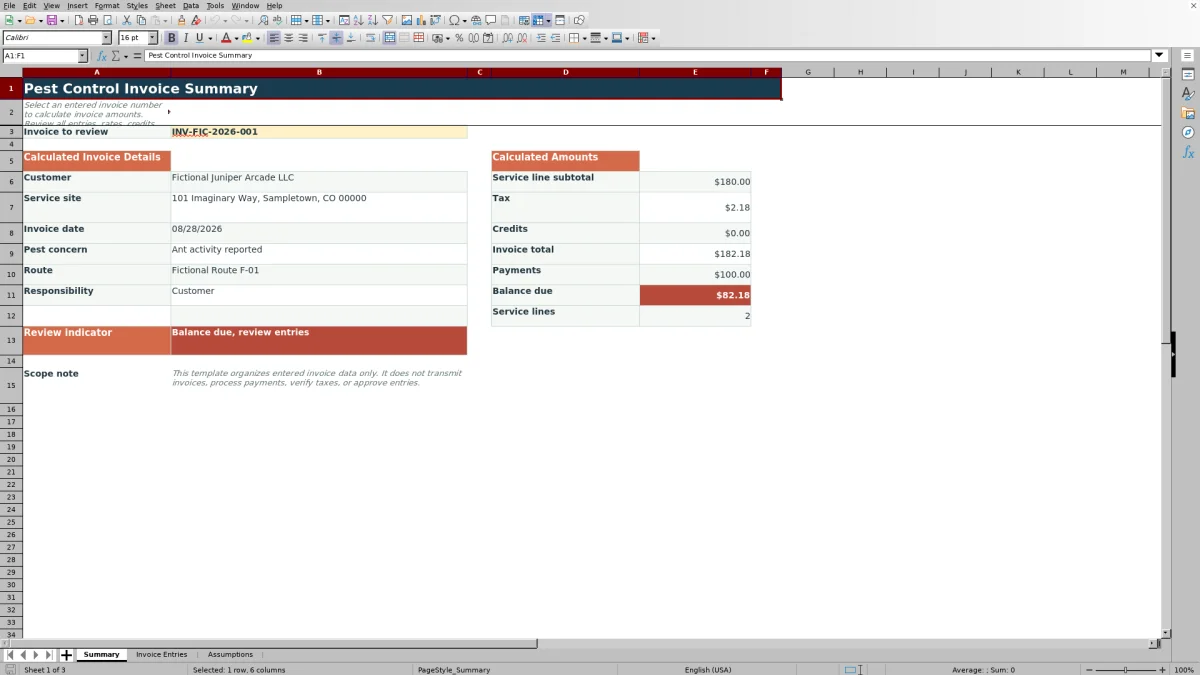
Enter transaction rows on the Invoice Entries sheet, then use the Summary sheet to view calculated invoice details for a selected invoice number.
How this workbook can help
- Keep service charges, credits, payments, and customer details in one structured file.
- View the service subtotal, tax, credits, invoice total, payments, and balance due for a selected invoice.
- Reduce repeated arithmetic with formulas for line subtotals, tax amounts, applied amounts, and balance effects.
- Adjust workflow lists and entry limits from a separate assumptions sheet.
What is in the file
How to get started
1. Set the workbook choices
Open the Assumptions sheet to update the available entry types, statuses, units, responsibility choices, date boundaries, and entry limits.
2. Enter completed service activity
Use the yellow cells on Invoice Entries to add each service row. Assign the same invoice number to all rows belonging to one customer invoice and complete the applicable service, customer, date, quantity, price, and status fields.
3. Record credits and payments
Add a separate Credit or Payment row and place its value in Entered Amount. Mark a canceled or invalid row Void so it does not affect the calculated amounts.
4. Check the invoice summary
Enter the invoice number on the Summary sheet to display its customer details, service subtotal, tax, credits, invoice total, payments, balance due, and service-line count.
How the Pest Control Invoice Workbook Is Organized
One invoice number connects multiple service, credit, and payment rows. Each entry can include invoice and transaction dates, customer and service-site details, pest concern, service description, technician, product, route, quantity, unit, price, responsibility, and status.
The Summary sheet retrieves descriptive details from the matching invoice entries and aggregates the non-void amounts. The Assumptions sheet supplies editable lists and validation boundaries used by the entry area.
Worked Scenario for a Completed Service Invoice
Input: Fictional Maple Court Apartments has two Posted service rows under one invoice number: two units at $75 and one unit at $40. The same invoice also has a $20 Credit row and a $100 Payment row, with zero tax calculated from the entered fields.
Result: The workbook calculates a $190 service subtotal, subtracts the $20 credit for a $170 invoice total, and subtracts the $100 payment for a $70 balance due.
Interpretation: The customer invoice contains two active service lines, and $70 remains after the recorded credit and payment.
Next decision: Use the summarized service details and $70 balance when preparing the customer invoice.
Common Entry Errors and Solutions
Blank line subtotal: Confirm that the row is classified as Service and contains both a quantity and unit price.
Credit or payment missing from the balance: Confirm that the row uses the corresponding entry type, contains an Entered Amount, and is not marked Void.
If the Summary displays no matching details, use the exact invoice number entered in column A. If descriptive information looks inconsistent, check repeated rows because the Summary retrieves those details from the first matching invoice entry.
Workbook Limits and Scope
100 transaction rows: The provided entry area runs from row 4 through row 103. Additional capacity would require extending the formulas, validations, formatting, filter range, and Summary references.
The Summary processes one selected invoice number at a time. The workbook organizes and calculates entered data, but it does not send invoices or process payments.
Workbook and blank spreadsheet comparison
Use the prepared workbook when its verified fields and calculations fit the pest-control task. Start with a blank spreadsheet when you need a different model and can build and test every field and formula yourself.
| Method | Setup | Calculations and review | Practical fit |
|---|---|---|---|
| This Excel workbook | Use the prepared structure in the validated file | Review the documented calculations and results | Local editable pest-control workflow supported by the workbook |
| Blank spreadsheet | Create the structure yourself | Build and test every formula and check | A custom model built from scratch |
Keeping Repeated Invoice Rows Consistent
Use the same invoice number and matching customer details on every row belonging to one invoice. This allows the Summary formulas to combine service amounts, credits, and payments while presenting a consistent customer, service site, invoice date, pest concern, route, and responsibility.
Draft and Posted rows remain part of the Summary calculations. Rows marked Void are excluded from calculated invoice amounts and service-line counts.
Frequently asked questions
How many transaction rows does the Excel template include?
The Invoice Entries sheet provides 100 transaction rows, covering rows 4 through 103.
Can one invoice contain multiple pest control services?
Yes. Enter each completed service on a separate Service row and use the same invoice number for every row that belongs to the invoice.
How do I enter a credit or customer payment?
Select Credit or Payment as the Entry Type and enter the value in the Entered Amount column. The workbook applies the amount to the corresponding invoice summary.
What happens when an entry is marked Void?
A Void entry has no balance effect and is excluded from the Summary calculations, including the service-line count.
Does the workbook send invoices or process payments?
No. It organizes entered invoice data and calculates amounts, but it does not transmit invoices or process payments.
Editorial responsibility

Maya EllisService workflow editor

Noah BennettWorkbook structure and operations