This Excel workbook is a pest control sales tax tracker for recording service transactions, taxable amounts, tax collected, jurisdictions, filing periods, filing statuses, and payment dates.
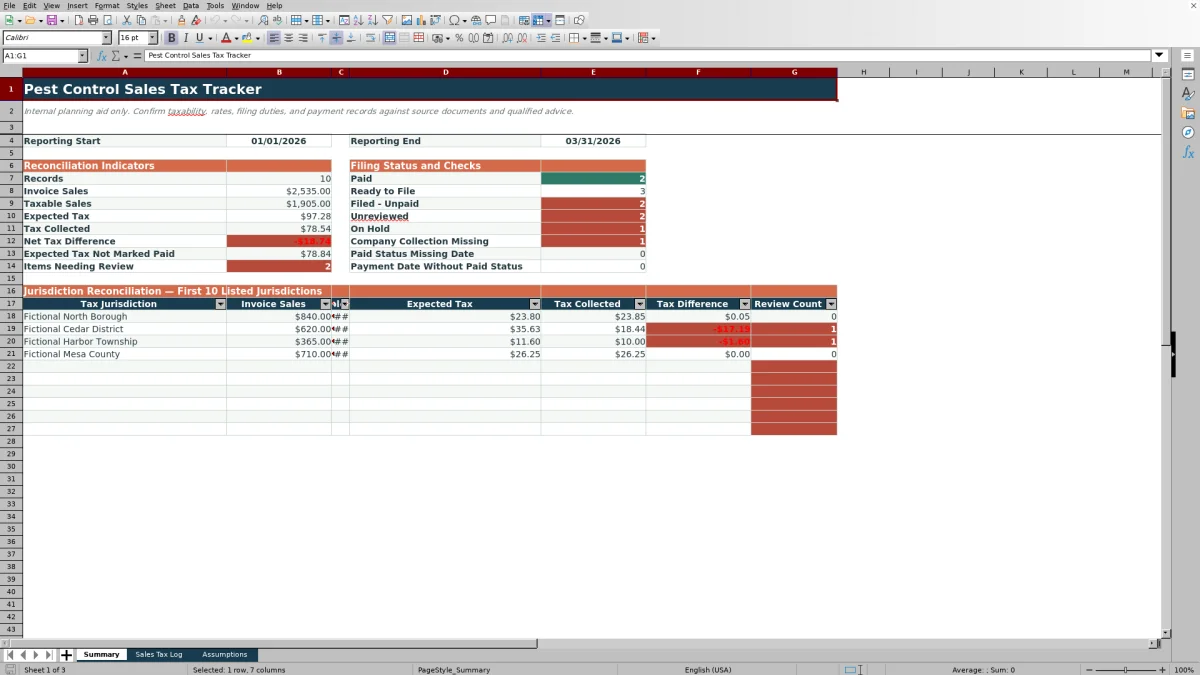
The XLSX spreadsheet includes a 100-row Sales Tax Log, editable reporting and jurisdiction assumptions, and a Summary that reconciles activity within the selected date range.
How this workbook can help
- Keeps sales, jurisdiction, filing, and payment details together for each recorded service transaction.
- Reconciles taxable sales, expected tax, tax collected, and resulting tax differences for the selected reporting period.
- Surfaces incomplete or inconsistent entries through row-level alerts and summary checks.
- Groups totals by the first 10 listed jurisdictions to support period-end reconciliation.
What is in the file
How to get started
Set the reporting period
Open Assumptions and enter the reporting start and end dates used by the Summary.
Prepare the jurisdiction list
Replace the fictional jurisdiction names and placeholder rates with the values maintained for your workbook, then adjust the tax-difference threshold if needed.
Enter service sales
In Sales Tax Log, record each service date, customer, service site, service, jurisdiction, responsibility, invoice amount, taxable amount, tax collected, filing status, and payment date when applicable.
Reconcile the period
Use the calculated filing period, expected tax, tax difference, and Review Alert on each row. Then check Summary totals, status counts, payment checks, and jurisdiction results for the selected dates.
Transaction-Level Sales Tax Records
Transaction detail begins with the service date and continues through the payment date. Each row can hold the customer, service site, service description, jurisdiction, tax responsibility, invoice amount, taxable amount, tax collected, filing status, and related calculated values.
The filing period is derived from the service date. The tax rate is looked up from the jurisdiction list in Assumptions, and expected tax is calculated from the taxable amount when the responsibility is Company Collects.
Reporting-Period Reconciliation
Reporting window controls are stored in Assumptions. Summary counts and totals include Sales Tax Log records whose service dates fall between the selected start and end dates.
- Invoice sales and taxable sales are totaled separately.
- Expected tax and tax collected are compared to produce a net tax difference.
- Expected tax associated with records not marked Paid is totaled.
- Rows with non-OK Review Alerts are counted as items needing review.
Worked Pest Control Sales Scenario
Worked result can be illustrated with a fictional service sale. Input: a January 22, 2026 service in Fictional Cedar District has a $250 invoice amount, a $200 taxable amount, Company Collects responsibility, a 6.25% assumption rate, and $12.50 collected.
Result: the workbook assigns filing period 01/2026, calculates $12.50 of expected tax, and returns a $0.00 tax difference. Interpretation: the recorded collection equals the amount calculated from the workbook assumption. Next decision: if the payment record supports a Paid status and January 31 payment date, keep those fields together so the Summary counts the transaction as Paid when the reporting window includes the service date.
Common Errors and Solutions
Common fixes follow the workbook fields and checks rather than changing calculated cells.
- If a jurisdiction is blank or does not match the Assumptions list, the tax rate and expected tax can remain blank. Add or select the matching jurisdiction entry.
- If the taxable amount exceeds the invoice amount, the row flags Check taxable amount. Correct the applicable input to match the source transaction.
- If Company Collects has expected tax above zero but Tax Collected is blank, Summary counts a Company Collection Missing item. Complete the collection field or correct the responsibility field to match the recorded transaction.
- If a Paid row lacks a payment date, or a payment date appears without Paid status, align the two fields with the payment record.
Filing Status and Payment Checks
Status checks separate records into Unreviewed, Ready to File, Filed - Unpaid, Paid, and On Hold counts. This makes the selected period easier to reconcile without changing the underlying transaction entries.
Summary also identifies Paid records missing a payment date and records that contain a payment date without Paid status. The expected-tax-not-marked-paid total provides a separate amount-based indicator for open records.
Workbook and blank spreadsheet comparison
Use the prepared workbook when its verified fields and calculations fit the pest-control task. Start with a blank spreadsheet when you need a different model and can build and test every field and formula yourself.
| Method | Setup | Calculations and review | Practical fit |
|---|---|---|---|
| This Excel workbook | Use the prepared structure in the validated file | Review the documented calculations and results | Local editable pest-control workflow supported by the workbook |
| Blank spreadsheet | Create the structure yourself | Build and test every formula and check | A custom model built from scratch |
Workbook Limits
Workbook limits include 100 transaction rows, jurisdiction formulas that reference the 100 assumption rows, and jurisdiction reconciliation for only the first 10 listed jurisdictions. Expanding those ranges requires corresponding formula and validation updates.
The workbook does not determine service taxability, independently validate jurisdiction rates, file returns, or process payments. Its sample customers, sites, jurisdictions, and rates are fictional, and calculated results depend on the entered data and editable assumptions.
Frequently asked questions
How does the Excel tracker determine the filing period?
The Filing Period column converts each entered service date into an mm/yyyy value. Summary filtering still uses the full service date against the reporting start and end dates.
How is expected tax calculated?
The workbook looks up the selected jurisdiction's rate in Assumptions. For a row marked Company Collects, it multiplies the taxable amount by that rate and rounds the result to two decimal places; the other listed responsibility selections return zero.
Which filing statuses are available?
The Sales Tax Log provides Unreviewed, Ready to File, Filed - Unpaid, Paid, and On Hold. Summary counts each status within the selected reporting period.
How many transactions and jurisdictions does the workbook support?
The prepared Sales Tax Log contains 100 transaction rows, and Assumptions contains 100 jurisdiction-rate rows. Summary displays reconciliation totals for the first 10 listed jurisdictions.
Does the workbook file returns or process tax payments?
No. It records and reconciles the entered sales, filing-status, and payment-date information, but it does not submit returns or process payments.
Editorial responsibility

Maya EllisService workflow editor

Noah BennettWorkbook structure and operations