This residential pest control proposal template organizes customer information, service locations, pest concerns, proposed scope, visit frequency, included pests, optional services, responsibilities, and pricing.
The Excel workbook provides 100 prepared proposal rows, editable assumptions, calculated first-year values and validity dates, issue alerts, status tracking, summary metrics, and a status chart in one XLSX file.
How this workbook can help
- Keeps residential proposal scope, frequency, included pests, responsibilities, options, and pricing in a consistent format.
- Uses editable lists and data validation to standardize common proposal selections and input limits.
- Calculates planned recurring visits, estimated first-year value, and proposal validity dates from entered details and assumptions.
- Summarizes proposal counts, status distribution, proposed value, accepted value, acceptance rate, and issue alerts.
What is in the file
How to get started
1. Configure the assumptions
Review the editable statuses, frequencies, planned visit counts, service scopes, optional services, technicians, routes, validity period, date range, and price limits on the Assumptions sheet.
2. Enter the proposal details
On the Proposals sheet, add a unique proposal number, proposal date, customer, service site, pest concern, scope, frequency, included pests, technician, route, and responsibilities.
3. Add pricing and options
Enter the initial amount and recurring amount per visit. Select an optional service, indicate whether it is included, and enter its amount when applicable.
4. Check the calculated results
Confirm the planned recurring visits, proposed first-year amount, valid-through date, issue alert, and proposal status. Use the Summary sheet to monitor the proposal pipeline and values.
Proposal Information Captured
Each row records a proposal number and date, customer, service site, pest concern, service scope, frequency, included pests, optional service, assigned technician, route, responsibilities, pricing, and status.
The prepared fields keep operational and sales details together while filters make it possible to narrow the register by any recorded column.
Automatic Pricing and Validity Calculations
The selected frequency returns its planned recurring visit count from the Assumptions sheet. The year-one amount combines the initial amount, the recurring amount multiplied by planned visits, and the option amount when the option is included.
The valid-through date adds the configured proposal-validity period to the proposal date. Because these results depend on editable assumptions, changes to visit counts or validity days affect the related calculations.
Worked Scenario for a Fictional Monthly Proposal
Input: A fictional draft proposal dated September 6, 2026 uses monthly exterior perimeter service, an initial amount of $149, a recurring amount of $69, and no optional service.
Result: The monthly assumption returns 11 planned recurring visits. The calculated first-year amount is $149 plus 11 visits at $69, or $908. With the 30-day validity assumption, the valid-through date is October 6, 2026.
Interpretation: The $908 value represents the workbook's estimated first-year proposal value under the current frequency and pricing inputs.
Next decision: If the scope, included pests, responsibilities, and price are complete, change the status from Draft to Sent; otherwise, update the proposal inputs first.
Common Errors and Solutions
Missing required details can produce an issue alert. Complete the proposal date, customer, service site, pest concern, scope, frequency, included pests, option selection, pricing, responsibilities, and status fields that apply to the row.
- If an option is marked Yes, select an option other than None and enter a numeric option amount.
- For a frequency other than One-time, enter a recurring amount per visit.
- If a price alert appears, confirm that the calculated first-year amount is numeric and greater than zero.
- If entry validation rejects a proposal number or date, check for a duplicate number or a date outside the limits on the Assumptions sheet.
Workbook and blank spreadsheet comparison
Use the prepared workbook when its verified fields and calculations fit the pest-control task. Start with a blank spreadsheet when you need a different model and can build and test every field and formula yourself.
| Method | Setup | Calculations and review | Practical fit |
|---|---|---|---|
| This Excel workbook | Use the prepared structure in the validated file | Review the documented calculations and results | Local editable pest-control workflow supported by the workbook |
| Blank spreadsheet | Create the structure yourself | Build and test every formula and check | A custom model built from scratch |
Workbook Limits
This workbook is a row-based proposal register and value estimator rather than a separately formatted customer contract. It contains 100 prepared proposal rows, and its calculated values depend on the configured frequency, validity, date, and price assumptions.
The issue alerts evaluate entered fields and calculation conditions, but they do not independently confirm the accuracy of customer details, scope descriptions, responsibilities, or prices.
Proposal Pipeline Summary
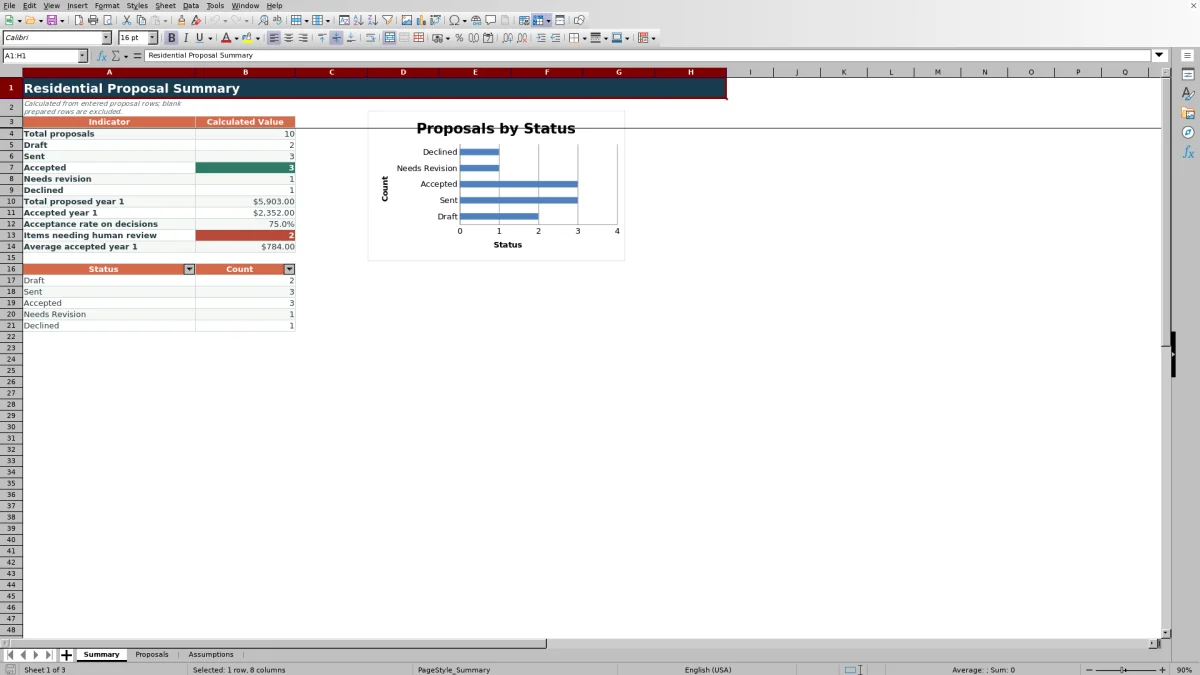
The Summary sheet counts total proposals and records in Draft, Sent, Accepted, Needs Revision, and Declined status. It also calculates total proposed first-year value, accepted first-year value, acceptance rate for accepted and declined decisions, average accepted first-year value, and the number of issue alerts.
A status chart provides a visual breakdown of the five proposal statuses. Blank prepared rows are excluded from the proposal count.
Frequently asked questions
How does the template calculate the proposed first-year amount?
It adds the initial amount to the recurring amount multiplied by the planned recurring visits. When Include Option is set to Yes and an option amount is entered, that amount is also included.
Which residential service frequencies are included?
The editable assumptions include One-time, Monthly, Every other month, and Quarterly, along with a fifth prepared frequency row. Each frequency is paired with a planned recurring visit count.
Can the proposal choices and limits be changed?
Yes. The yellow cells on the Assumptions sheet contain editable lists and controls for statuses, frequencies, visit counts, scopes, options, technicians, routes, validity days, allowed proposal dates, and price limits.
How is the proposal valid-through date determined?
The workbook adds the proposal-validity days configured on the Assumptions sheet to the entered proposal date. The included fictional setup uses 30 days.
What proposal statuses can be tracked?
The status list includes Draft, Sent, Accepted, Needs Revision, and Declined. The Summary sheet counts each status and uses those counts in its status chart.
How many proposal records does the workbook support?
The Proposals sheet contains 100 prepared rows, from row 5 through row 104, with formulas and applicable validation already present.
Editorial responsibility

Maya EllisService workflow editor

Noah BennettWorkbook structure and operations