This Excel workbook tracks the financial and capacity effects of canceled pest control service visits. Enter canceled amounts, credits, recovered revenue, scheduled hours, and recovered hours to calculate the remaining impact for each record.
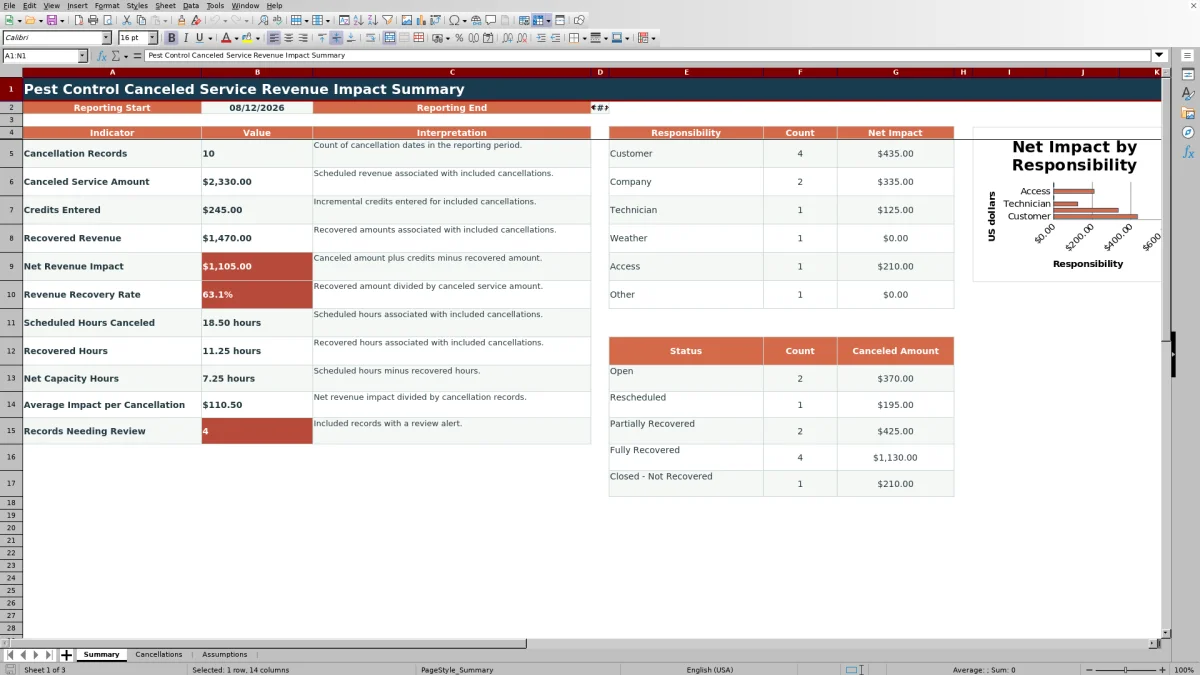
The XLSX spreadsheet summarizes records within a selected cancellation-date range. It reports key indicators, groups results by responsibility and status, identifies records needing review, and charts net impact by responsibility.
How this workbook can help
- Measures gross canceled service value, incremental credits, recovered revenue, and remaining net impact.
- Shows scheduled, recovered, and net capacity hours for the selected reporting period.
- Separates impact by responsibility and recovery status to support focused follow-up.
- Uses review alerts and a configurable open-age threshold to surface unresolved records.
What is in the file
How to get started
Set the reporting assumptions
Open the Assumptions sheet and enter the reporting start and end dates. Confirm the open-age review threshold, revenue recovery goal, amount and hour limits, permitted dates, and dropdown choices.
Enter canceled service records
On the Cancellations sheet, complete each applicable row with the cancellation date, customer, service details, scheduled hours, canceled amount, responsibility, and status.
Record credits and recovered visits
Add any incremental credit, recovered visit date, recovered amount, and recovered hours. The formula columns calculate net revenue impact, net capacity hours, recovery rate, and the review alert.
Interpret the period summary
Use the Summary sheet to examine totals, the recovery rate, average impact, records needing review, responsibility results, status results, and the net-impact chart.
What the workbook measures
The workbook connects canceled pest control visits with revenue and capacity outcomes. Net revenue impact equals the canceled service amount plus any incremental credit minus recovered revenue. Net capacity hours equals scheduled hours minus recovered hours.
The Summary sheet also reports cancellation count, canceled service amount, credits, recovered revenue, recovery rate, average impact per cancellation, and records needing review for the selected period.
Worked scenario for a partially recovered visit
Input: A fictional customer has a cancellation dated August 20, 2026, within the sample reporting period. The canceled service amount is $240, scheduled time is 2.00 hours, an incremental credit is $20, recovered revenue is $180, and recovered time is 1.50 hours.
Result: The net revenue impact is $80 because $240 plus $20 minus $180 equals $80. Net capacity is 0.50 hours, and the recovery rate is 75%.
Interpretation: With the sample 80% recovery goal on the Assumptions sheet, the 75% result is below the comparison point, and the visit remains partially recovered.
Next decision: Set the status to Partially Recovered and use the remaining $80 impact and 0.50 capacity hours to prioritize appropriate follow-up.
Responsibility and status analysis
The responsibility section counts records and totals net impact for Customer, Company, Technician, Weather, Access, and Other. Its chart uses those responsibility categories to display net impact.
The status section counts Open, Rescheduled, Partially Recovered, Fully Recovered, and Closed - Not Recovered records. It also totals canceled amounts for each status, helping distinguish completed recovery from unresolved value.
Common errors and solutions
If the Summary is blank, enter valid reporting start and end dates on the Assumptions sheet.
If a record is missing from the Summary, confirm that its cancellation date falls within the selected reporting period.
If row calculations remain blank, complete the required cancellation date and the applicable amount or hour fields.
If an entry is rejected, use the configured dropdown choice or keep the date, amount, and hour value within its validated limit.
If a review alert appears, check the record status and compare its age with the open-age review threshold.
Workbook and blank spreadsheet comparison
Use the prepared workbook when its verified fields and calculations fit the pest-control task. Start with a blank spreadsheet when you need a different model and can build and test every field and formula yourself.
| Method | Setup | Calculations and review | Practical fit |
|---|---|---|---|
| This Excel workbook | Use the prepared structure in the validated file | Review the documented calculations and results | Local editable pest-control workflow supported by the workbook |
| Blank spreadsheet | Create the structure yourself | Build and test every formula and check | A custom model built from scratch |
Workbook limits and interpretation boundaries
The Cancellations sheet supports 100 entry rows, from row 5 through row 104. Summary calculations are controlled by the cancellation date, so a record outside the reporting range is excluded even when it contains recovery information.
Formula results depend on complete and accurate entries. The workbook estimates operational revenue and capacity impact; it does not change source transactions or act as a scheduling platform. Blank required fields can leave calculated cells blank, and a zero or missing canceled amount prevents a meaningful recovery-rate result.
Using the results for period follow-up
Begin with net revenue impact and recovery rate to understand the remaining financial effect. Then compare scheduled hours with recovered hours to identify capacity that has not been restored through a recovered visit.
Use responsibility totals to locate the largest sources of impact and status totals to separate open or partial records from completed outcomes. Records needing review can then be checked against the configured open-age threshold and their documented status.
Frequently asked questions
How is net revenue impact calculated?
Net revenue impact equals the canceled service amount plus the credit amount minus the recovered amount. A larger recovered amount reduces the remaining impact, while an incremental credit increases it.
Which date determines whether a record appears on the Summary sheet?
The cancellation date controls inclusion. It must fall between the reporting start and end dates entered on the Assumptions sheet.
How is the revenue recovery rate calculated?
The recovery rate is the recovered amount divided by the canceled service amount. The formula remains blank when the cancellation date or canceled amount is missing, or when the canceled amount is zero.
Can the workbook track partially recovered cancellations?
Yes. Enter the recovered amount and recovered hours, then select Partially Recovered as the status when that description matches the recorded outcome. The remaining revenue and capacity impact will be calculated from the entered values.
How many cancellation records can the workbook hold?
The prepared entry area contains 100 rows, covering rows 5 through 104 on the Cancellations sheet.
Editorial responsibility

Maya EllisService workflow editor

Noah BennettWorkbook structure and operations