This Excel workbook gives pest control sales teams a structured way to record inbound calls and follow each opportunity through qualification, inspection booking, and sale.
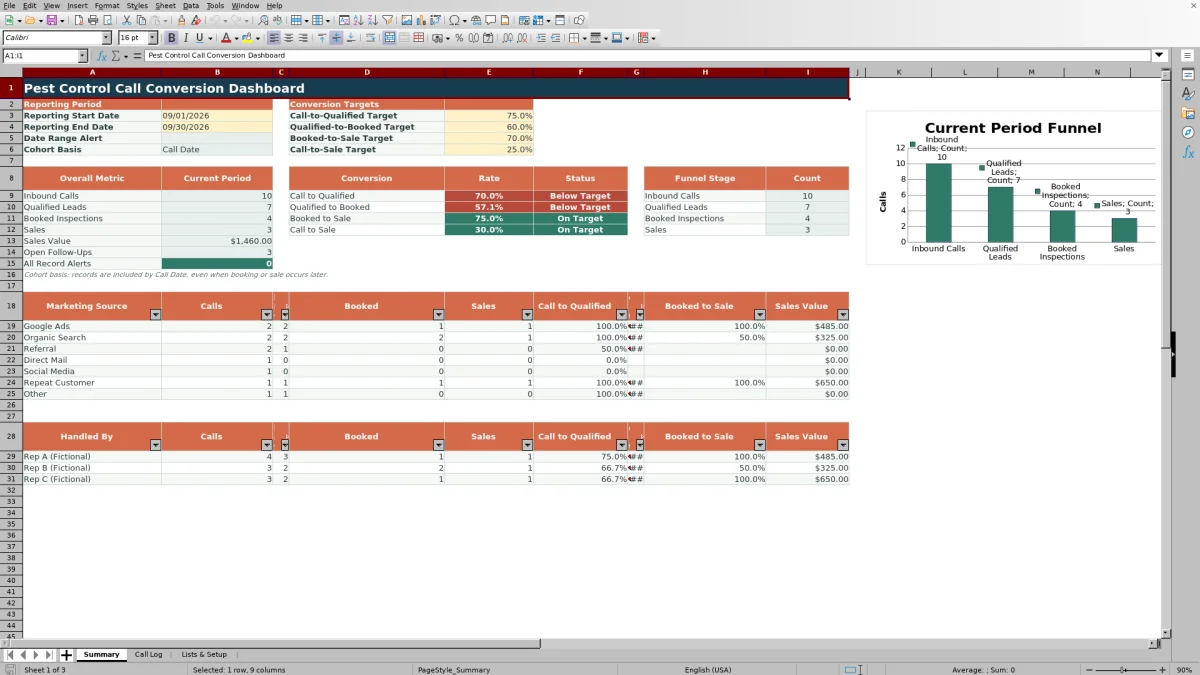
The XLSX dashboard summarizes conversion rates, sales value, open follow-ups, marketing-source results, and handler performance for a selected call-date reporting period.
How this workbook can help
- See inbound call volume and each subsequent funnel stage in one dashboard.
- Identify where qualified leads stop progressing toward booked inspections or sales.
- Compare conversion performance with editable targets for four key rates.
- Find open follow-ups and data-quality issues that may require attention.
What is in the file
How to get started
1. Update the setup lists
Review the marketing sources, fictional handler aliases, call dispositions, follow-up statuses, and non-conversion reasons on Lists & Setup. Replace the existing choices when different categories are needed.
2. Enter each inbound call
Add one record per call in Call Log. Enter a unique Call ID, call date and time, source, handler, disposition, funnel outcomes, follow-up status, and any applicable sale or non-conversion details.
3. Resolve record alerts
Check the Record Alert column for missing required fields, duplicate Call IDs, inconsistent funnel stages, or incomplete sale details. Correct flagged records before relying on the dashboard totals.
4. Set the period and review results
Choose the reporting start and end dates on Summary, adjust the conversion targets if needed, and evaluate overall, marketing-source, and handler results.
Measure the Pest Control Call Funnel
The dashboard counts inbound calls, qualified leads, booked inspections, and sales within the selected reporting period. It also calculates call-to-qualified, qualified-to-booked, booked-to-sale, and call-to-sale rates.
The Call Date cohort determines which records belong to the period. A booking or sale completed later remains associated with the reporting period of its original call.
Review Sources, Handlers, and Targets
Marketing-source results help show how calls from Google Ads, organic search, referrals, direct mail, social media, repeat customers, and other sources move through the funnel. A separate table provides the same operational view for the three handler aliases configured in the workbook.
Editable targets are set to 75% for call to qualified, 60% for qualified to booked, 70% for booked to sale, and 25% for call to sale. Each calculated rate is labeled On Target, Below Target, or No Data.
Worked Pest Control Call Scenario
Input: In a fictional September reporting period, a team records 20 inbound calls, 15 qualified leads, 9 booked inspections, and 6 sales worth a combined $3,000. Result: The dashboard calculates rates of 75%, 60%, 66.7%, and 30% for the four funnel conversions.
Interpretation: Call to qualified, qualified to booked, and call to sale meet the default targets, while booked to sale falls below its 70% target. Next decision: Review the three booked inspections that did not become sales, then check their follow-up statuses and non-conversion reasons before planning the next contact.
Common Errors and Solutions
The Record Alert column identifies issues that can distort dashboard results.
- If the alert says Complete required fields, fill in the missing required call, source, handler, funnel, or follow-up information.
- If it says Duplicate Call ID, assign a unique identifier to one of the repeated records.
- If it says Inconsistent funnel stages, make sure a booked inspection is also qualified and a sale is also booked.
- If a sale is marked Yes, enter its sale date and a sale value greater than zero.
Comparison With a Dedicated Call-Tracking CRM
The complete Excel workbook is more suitable when a team wants a self-contained, manually maintained call log with fixed dashboard calculations. A dedicated call-tracking CRM may be more suitable when connected systems, broader workflow configuration, or larger shared datasets are required; available capabilities depend on the selected platform.
| Factor | Excel workbook | Dedicated call-tracking CRM |
|---|---|---|
| Data capture | Supports 500 manually maintained call records with validated fields. | May collect or synchronize call records through configured platform connections. |
| Reporting | Provides fixed funnel, source, handler, target, sales value, and follow-up reporting. | Reporting options vary by product, configuration, and available data. |
| Setup | Uses editable lists and four conversion targets within the XLSX file. | Typically requires platform fields, permissions, and workflow configuration. |
| Scale | Designed for rows 2 through 501 in the supplied Call Log. | Record capacity and multiuser support depend on the chosen service. |
| Best-fit condition | More suitable when a team needs a portable Excel dashboard and controlled manual entry. | More suitable when a team needs connected, configurable operations beyond the workbook. |
Workbook Limits and Reporting Boundaries
The Call Log provides 500 data rows, and the supplied formulas and validations cover those rows. Reporting dates must fall from January 1, 2020 through December 31, 2035, while conversion targets must be between 0% and 100%.
Summary results use Call Date rather than Sale Date. The All Record Alerts total scans the full Call Log, so it can include flagged records outside the selected period. The workbook should not be interpreted as a sale-date revenue report or an unlimited call database.
Use Follow-Up and Non-Conversion Details
Open Follow-Ups counts records marked Open that have not been marked as sales. This provides a focused workload figure for unresolved opportunities in the selected call-date cohort.
The Call Log also records non-conversion reasons such as pending decision, price concern, timing, service fit, no contact, or another provider. Use the sheet filter to review these entries alongside source, handler, qualification, booking, and follow-up status before choosing the next sales action.
Frequently asked questions
What counts as an inbound call on the dashboard?
An inbound call is counted when a record has a Call ID and its Call Date falls within the selected reporting period.
How are sales handled when they occur after the original call?
The workbook uses a Call Date cohort. A later sale can be included with the period of its originating call when the record is marked Sale = Yes.
Can I change the conversion targets?
Yes. The four target cells on Summary accept decimal values from 0 through 1, corresponding to percentages from 0% through 100%.
How many call records does the Excel workbook support?
The supplied Call Log supports 500 records in rows 2 through 501, with formulas and validation applied across that range.
Why can the record-alert total include calls outside my reporting dates?
The All Record Alerts metric counts every nonblank alert in the full 500-row Call Log. Unlike the funnel metrics, it is not restricted to the selected reporting period.
Editorial responsibility

Maya EllisService workflow editor

Noah BennettWorkbook structure and operations